
1. Entwodiksyon
This manual provides essential information for the safe and efficient operation of your Digi International WR21-L52A-DE1-TB Cellular Wireless Router. Please read this manual thoroughly before installation and use, and retain it for future reference. This device is designed to provide reliable cellular connectivity for various applications.
2. Enfòmasyon sou Sekirite
- Pwovizyon pou pouvwa: Use only the power adapter supplied with the device. Using an incorrect adapter may damage the device and void the warranty.
- Vantilasyon: Asire w ke gen ase vantilasyon toutotou routeur la. Pa bloke ouvèti vantilasyon yo.
- Anviwònman: Avoid exposing the device to extreme temperatures, humidity, direct sunlight, or corrosive environments.
- Sèvis: Pa eseye ouvri oswa repare aparèy la tèt ou. Konfye tout antretyen bay pèsonèl kalifye.
- Antèn: Ensure antennas are securely connected before powering on the device.
3. Pake kontni
Verifye ke tout atik yo prezan nan pakè a:
- Digi International WR21-L52A-DE1-TB Cellular Wireless Router
- Adaptè pouvwa
- Antennas (quantity may vary)
- Ethernet kab
- Gid pou kòmanse rapidman (si li enkli)
Si gen nenpòt atik ki manke oswa ki domaje, kontakte vandè ou imedyatman.
4. Pwodwi souview
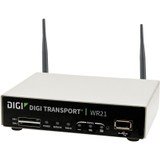
Imaj: Devan view of the Digi International WR21-L52A-DE1-TB Cellular Wireless Router. This image displays the compact form factor of the device, likely showing ports for antennas, power, and network connections.
The Digi International WR21-L52A-DE1-TB is a robust cellular wireless router designed for reliable and secure connectivity. It features multiple connectivity options and is suitable for various industrial and enterprise applications requiring remote access and data transfer over cellular networks.
5. Enstalasyon
5.1. Enstalasyon Kat SIM
- Asire w ke routeur la etenn epi dekonekte nan sous pouvwa a.
- Locate the SIM card slot(s) on the device. Refer to the device's physical markings for exact location.
- Insert the activated cellular SIM card into the slot with the gold contacts facing down and the notched corner oriented correctly. Push until it clicks into place.
- If applicable, secure the SIM card tray or cover.
5.2. Koneksyon antèn
- Identify the cellular antenna ports (typically labeled 'MAIN' and 'DIV' or similar).
- Screw the provided cellular antennas onto the corresponding ports until finger-tight. Do not overtighten.
- Pozisyon antèn yo pou resepsyon siyal optimal.
5.3. Koneksyon pouvwa
- Connect the power adapter to the router's power input port.
- Ploge adaptè pouvwa a nan yon priz elektrik apwopriye.
- The router will power on automatically or may require pressing a power button. Observe the LED indicators for power status.
5.4. Koneksyon Rezo (Si ou vle)
- To connect a device via Ethernet, plug one end of an Ethernet cable into an available LAN port on the router.
- Plug the other end of the Ethernet cable into the network port of your computer or other network device.
6. Operasyon Enstriksyon
6.1. Powering On / Off
- Pouvwa sou: Connect the power adapter. The device will typically power on automatically. Observe the power LED.
- Pouvwa Off: Disconnect the power adapter from the electrical outlet. For controlled shutdown, refer to the device's web interface or specific documentation for a software shutdown procedure if available.
6.2. Aksè a Web Entèfas
- Ensure your computer is connected to the router via Ethernet or Wi-Fi (if enabled).
- Louvri a web navigatè (pa egzanp, Chrome, Firefox, Edge).
- Enter the router's default IP address (e.g., 192.168.1.1 or 192.168.0.1) into the address bar and press Enter. Refer to the Quick Start Guide or device label for the exact default IP address.
- Enter the default username and password when prompted. These are typically found on a label on the device or in the Quick Start Guide.
- Upon successful login, you will access the router's configuration interface.
6.3. Konfigirasyon debaz
Nan la web Nan koòdone nan, ou ka konfigire plizyè paramèt:
- Cellular Settings: Verify APN settings, signal strength, and connection status.
- Anviwònman rezo: Configure LAN IP address, DHCP server, and port forwarding.
- Sekirite: Change default login credentials, configure firewall rules, and VPN settings.
- Mizajou mikrolojisyèl: Check for and apply firmware updates to ensure optimal performance and security.
7. Antretyen
- Netwayaj: Sèvi ak yon twal mou epi sèk pou netwaye deyò routeur la. Pa sèvi ak pwodui netwayaj likid oswa ayewosòl.
- Mizajou mikrolojisyèl: Tcheke regilyèman manifakti a website for firmware updates. Keeping the firmware updated ensures the latest features, security patches, and performance improvements.
- Kondisyon anviwònman: Ensure the router is operating within its specified temperature and humidity ranges to prevent overheating or damage.
NAN. Depanaj
8.1. No Cellular Connection
- Verify the SIM card is correctly inserted and activated with your cellular provider.
- Check antenna connections and ensure they are positioned for optimal signal.
- Antre nan web interface to check cellular signal strength and connection status.
- Rekòmanse routeur la.
8.2. Pa ka jwenn aksè Web Entèfas
- Ensure your computer is directly connected to the router via Ethernet.
- Verify your computer's IP address is in the same subnet as the router (e.g., if router is 192.168.1.1, computer should be 192.168.1.x).
- Eseye efase kach navigatè w la oubyen itilize yon lòt navigatè.
- If you forgot the password, a factory reset might be necessary (refer to specific device documentation for this procedure, as it will erase all configurations).
8.3. Vitès koneksyon ki ba
- Check cellular signal strength in the web interface. Weak signal can lead to slow speeds.
- Ensure antennas are properly positioned and unobstructed.
- Verify your cellular data plan has not reached its data cap or is being throttled.
- Restart the router and connected devices.
9. Espesifikasyon
| Karakteristik | Deskripsyon |
|---|---|
| Modèl | WR21-L52A-DE1-TB |
| Mak | Digi Entènasyonal |
| Pwotokòl Koneksyon | Selilè |
| Koneksyon Teknoloji | USB |
| Metòd kontwòl | Remote |
| Karakteristik espesyal | WPS |
| Aparèy konpatib | Odinatè pèsonèl |
| Itilizasyon Rekòmande | Lakay |
| UPC | 747356312219 |
10. Garanti ak sipò
For detailed warranty information, please refer to the warranty card included with your product or visit the official Digi International website. Technical support is available through the manufacturer's support channels. Please have your product model number (WR21-L52A-DE1-TB) and serial number ready when contacting support.