
Entwodiksyon
Thank you for choosing the MeeTion K9310 Gaming Keyboard. This manual provides detailed instructions for setting up, operating, and maintaining your new keyboard. The K9310 is designed for an enhanced gaming experience with features such as multicolor backlighting, anti-ghosting, and dedicated shortcut keys.
Kontni pake
- MeeTion K9310 Gaming Keyboard
- Manyèl Itilizatè (dokiman sa a)
Enstalasyon
Follow these steps to connect your MeeTion K9310 Gaming Keyboard to your computer:
- Depake klavye a nan anbalaj li.
- Jwenn yon pò USB ki disponib sou òdinatè w lan.
- Branche konektè USB klavye a nan pò USB a.
- Your operating system (Windows XP/Vista/7/8/10) will automatically detect and install the necessary drivers. No additional software installation is typically required.
- The keyboard is ready for use once the drivers are installed.

Imaj: Anlè view of the MeeTion K9310 Gaming Keyboard with its USB cable, ready for connection.
Enstriksyon Operasyon
Karakteristik kle
- Multicolor Key Backlit: The keyboard features vibrant multicolor backlighting for enhanced visibility and aesthetic appeal, especially in low-light conditions.
- Comfortable and Soft Keys: Designed with membrane keys offering tactile feedback, providing a comfortable typing and gaming experience.
- 19 Keys Anti-Ghosting: This feature ensures that up to 19 keys can be pressed simultaneously without any input loss, crucial for complex gaming commands.
- Win Lock Function with LED Indication: Prevents accidental presses of the Windows key during gameplay, which can interrupt your game. An LED indicator shows when this function is active.
- 12 FN Shortcut Buttons: Access various multimedia and system functions quickly using the Function (FN) key in combination with the F1-F12 keys.
Kontwòl ekleraj
The K9310 keyboard features a multicolor backlight. Specific key combinations may be used to adjust brightness or switch lighting modes. Refer to the keyboard's markings for dedicated backlight control keys, often indicated by a sun or light bulb icon, or through FN key combinations.
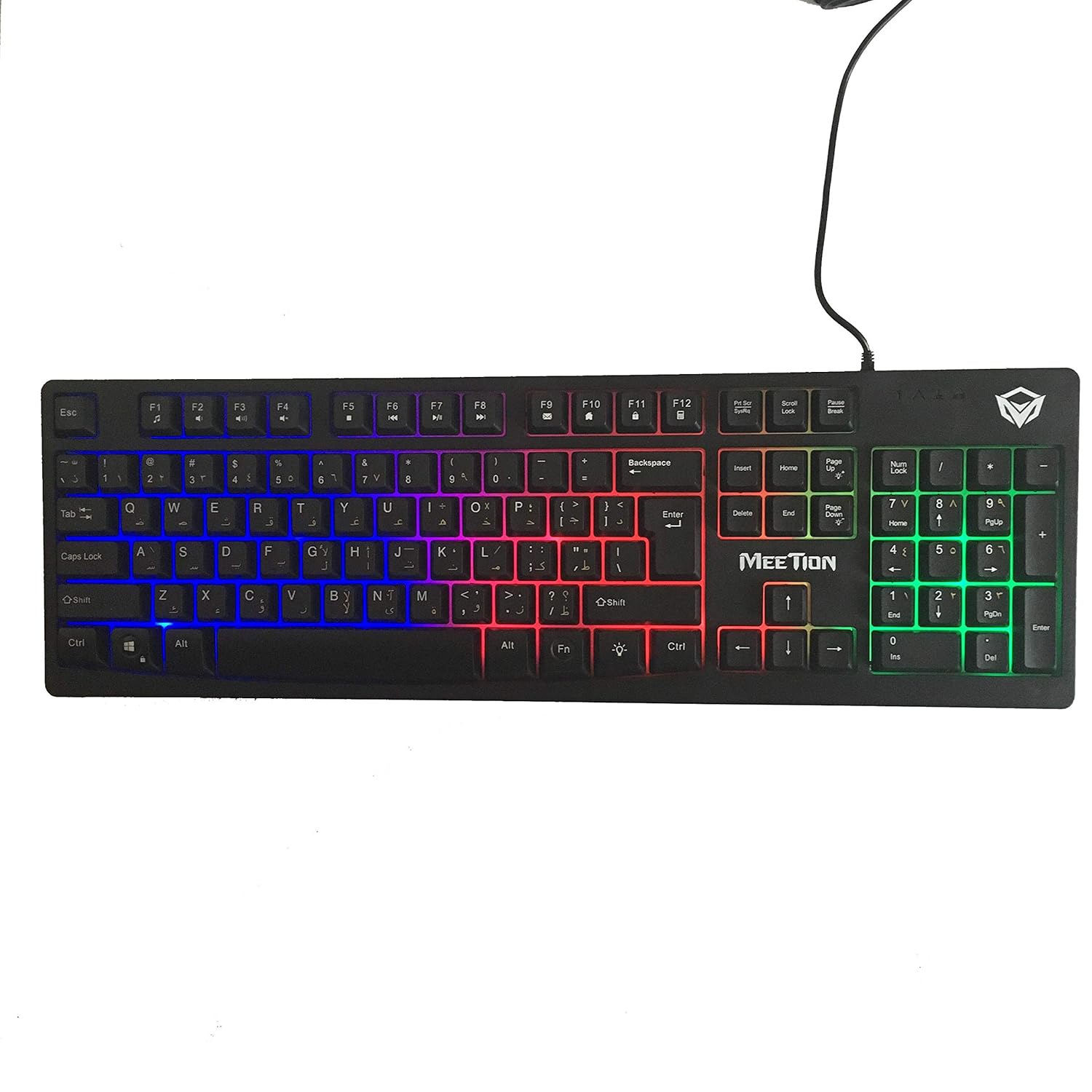
Imaj: Anlè view of the MeeTion K9310 Gaming Keyboard with its multicolor backlighting illuminated.
FN Shortcut Functions
The keyboard includes 12 FN (Function) shortcut buttons. To activate these functions, press and hold the FN key, then press the desired F-key (F1-F12).
| Konbinezon kle | Fonksyon |
|---|---|
| FN + F1 | Media Player |
| FN + F2 | Volim desann |
| FN + F3 | Volim leve |
| FN + F4 | bèbè |
| FN + F5 | Sispann |
| FN + F6 | Previous Track |
| FN + F7 | Jwe/Poz |
| FN + F8 | Next Track |
| FN + F9 | Imèl |
| FN + F10 | Web Navigatè |
| FN + F11 | Òdinatè mwen an |
| FN + F12 | Kalkilatè |
Win Lock Function
To activate or deactivate the Windows key lock function, press FN + genyen kle. When active, the Windows key will be disabled, preventing accidental presses during gaming. An LED indicator on the keyboard will typically illuminate to show the Win Lock status.
Antretyen
Bon antretyen asire lonjevite ak pèfòmans optimal klavye ou a.
- Netwayaj: Use a soft, dry cloth to wipe the surface of the keyboard. For deeper cleaning, a slightly damp Ou ka itilize yon twal ak savon dou, pou asire pa gen likid ki antre nan switch kle yo oswa konpozan entèn yo.
- Retire pousyè: Sèvi ak lè konprese pou retire pousyè ak debri ki ant kle yo.
- Evite likid: Do not spill liquids on the keyboard. If a spill occurs, immediately disconnect the keyboard from the computer and allow it to dry completely before reconnecting.
- Depo: Sere klavye a nan yon kote ki fre epi sèk, lwen limyè solèy dirèk ak tanperati ekstrèm lè w pa itilize li pou yon bon bout tan.

Imaj: Anba view of the MeeTion K9310 Gaming Keyboard, showing the product label and rubber feet.
Depanaj
If you encounter issues with your MeeTion K9310 Gaming Keyboard, refer to the following troubleshooting steps:
- Klavye a pa reponn:
- Asire w kab USB a byen branche nan yon pò USB ki fonksyone sou òdinatè w la.
- Eseye branche klavye a nan yon lòt pò USB.
- Rekòmanse òdinatè w lan.
- Teste klavye a sou yon lòt òdinatè pou detèmine si pwoblèm nan se ak klavye a oswa ak òdinatè a.
- Keys Not Working (e.g., 'W' key):
- Check for any debris or foreign objects lodged under the affected key. Use compressed air to clear it.
- If only specific keys are not responding, and the keyboard is otherwise functional, it might indicate a hardware issue.
- Limyè dèyè a pa fonksyone oswa li ap tranble:
- Asire w klavye a byen konekte.
- Check if the backlight brightness is set to minimum or turned off via FN key combinations.
- If the issue persists, it may indicate a hardware malfunction.
- Win Lock Function Not Working:
- Ensure you are using the correct key combination (FN + Win Key) to toggle the function.
- Check the LED indicator for Win Lock status.
Espesifikasyon
| Karakteristik | Detay |
|---|---|
| Mak | RENYON |
| Modèl | K9310 |
| Kalite klavye | Klavye Gaming |
| Kontak kle | Membrane with tactile feedback |
| Layout | Cyrillic alphabet layout (Windows Keys) |
| Anti-Ghosting | 19 kle |
| Ekleraj | Kle miltikolor retroeklere |
| Win Lock Function | Wi, ak endikasyon ki ap dirije |
| FN Shortcut Buttons | 12 |
| Error-Free Running Time | More than 10 million strokes |
| OS konpatibilite | Windows XP/Vista/7/8/10 |
| Dimansyon | 17.5 × 5.5 x 1.5 inches (approximate) |
| Pwa | 1.2 liv (apeprè) |
| Aparèy konpatib | Laptop (ak òdinatè Desktop) |
Garanti ak sipò
For warranty information or technical support, please refer to the documentation provided at the time of purchase or visit the official MEETION websit la. Kenbe prèv acha ou a pou nenpòt reklamasyon garanti.