
BenQ EX3501R
BenQ EX3501R Ultrawide Curved Gaming Monitor User Manual
Model: EX3501R
1. Enstalasyon
1.1 Depake monitè a
Retire tout konpozan yo nan anbalaj la avèk prekosyon. Asire w ke tout atik ki nan lis anba a yo la:
- BenQ EX3501R Monitor
- Sipò Monitè (Baz ak Kou)
- Adaptè pouvwa
- Kòd pouvwa
- HDMI kab
- DisplayPort kab
- USB-C kab
- Manyèl Itilizatè (dokiman sa a)
1.2 Asanble kanpe la
Swiv etap sa yo pou tache sipò a sou monitè ou a:
- Mete monitè a fas anba sou yon twal mou epi pwòp pou evite li reyur.
- Mete kou sipò a nan dèyè monitè a. Asire w li byen klike nan plas li.
- Connect the stand base to the neck, tightening any screws as indicated in the quick start guide.

Figi 1: Devan view of the BenQ EX3501R monitor with its stand.
1.3 Konekte kab
Connect the necessary cables to the monitor and your computer. The monitor supports various input options:
- Pouvwa: Konekte adaptè kouran an nan monitè a epi answit nan yon priz kouran.
- Videyo Antre: Use either the HDMI, DisplayPort, or USB-C cable to connect your computer to the monitor.
- USB-C: The USB-C port supports video, data transfer, and power delivery, allowing for a single-cable connection with compatible devices.
- Pò USB 3.0: Utilize the integrated USB 3.0 ports for connecting peripherals.
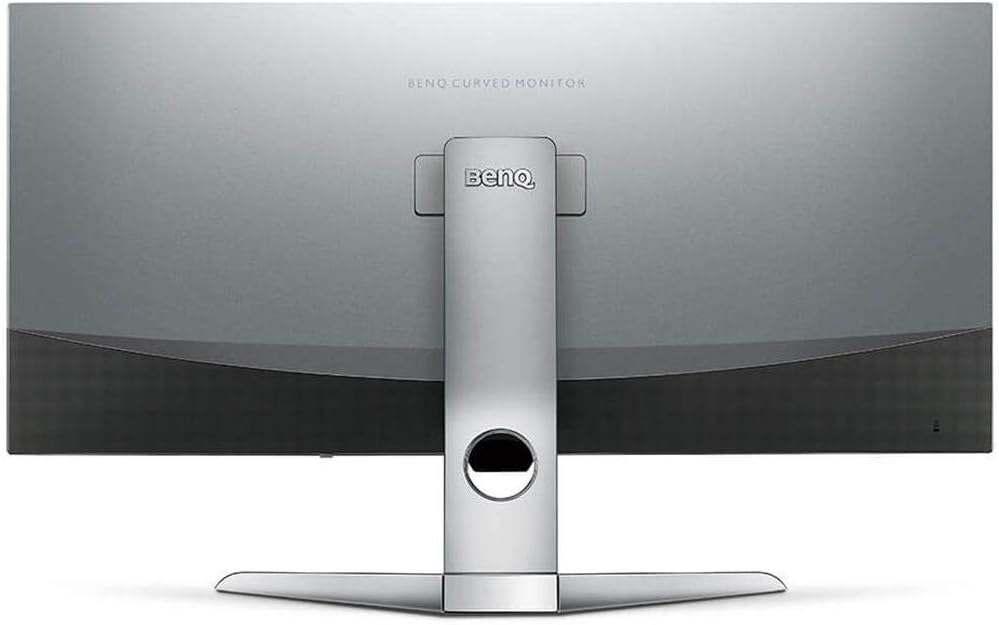
Figi 2: Dèyè view of the monitor displaying the connectivity ports.
2. Opere ki monitè kè bebe a
2.1 Power On/Off
Press the power button, usually located on the bottom right side of the monitor, to turn it on or off. The power indicator light will illuminate when the monitor is active.
2.2 Navigasyon sou ekran (OSD)
Use the joystick or buttons located on the monitor's underside to navigate the On-Screen Display (OSD) menu. This menu allows you to adjust various settings such as brightness, contrast, color modes, and input sources.
2.3 Display Features and Eye-Care Technology
The BenQ EX3501R incorporates several technologies designed to enhance viewing experience and reduce eye strain:
- Entèlijans Klète Plis (BI+): This patented technology automatically senses ambient lighting conditions and adjusts the screen's brightness and color temperature to provide optimal viewing comfort and protect your eyes during extended use.
- Limyè ble ki ba: Filters out harmful blue light emissions to reduce eye fatigue. Multiple levels of blue light reduction are available.
- ZeroFlicker™: Eliminates screen flickering at all brightness levels, further reducing eye strain and discomfort.
- HDR (Segondè Gamme dinamik): Offers enhanced brightness and contrast, bringing greater detail and vibrancy to HDR video content.
Videyo 1: Yon overview of BenQ's Eye-Care technology, including Low Blue Light, ZeroFlicker, and Brightness Intelligence Plus, demonstrating how these features work to reduce eye strain and adjust screen settings automatically based on ambient light.
2.4 Rezolisyon ak To Rafrechisman
The monitor features a QHD (3440x1440) resolution and a 100Hz refresh rate, providing a smooth and detailed visual experience. The 21:9 ultrawide aspect ratio offers ample screen space for multitasking, such as viewing multiple documents side-by-side without needing a second monitor.
2.5 AMD FreeSync
For a fluid gaming experience, the monitor supports AMD FreeSync technology, which synchronizes the monitor's refresh rate with your graphics card's frame rate to eliminate screen tearing and stuttering.
3. Antretyen
3.1 Netwaye monitè a
To maintain optimal performance and appearance, regularly clean your monitor:
- Ekran: Gently wipe the screen with a soft, lint-free cloth. For stubborn smudges, use a monitor-specific cleaning solution applied to the cloth, not directly to the screen.
- Eksteryè: Use a soft, dry cloth to wipe dust and debris from the monitor casing and stand.
Avoid using abrasive cleaners, waxes, or solvents as they can damage the monitor's surface.
3.2 Konsèy Swen Jeneral
- Pa bloke ouvèti vantilasyon sou monitè a.
- Evite mete monitè a nan limyè solèy la dirèk oswa tou pre sous chalè.
- Manyen monitè a ak atansyon pou anpeche domaj fizik.
NAN. Depanaj
If you encounter issues with your BenQ EX3501R monitor, refer to the following common troubleshooting steps:
4.1 No Display or Black Screen
- Asire w ke kab kouran an byen konekte ak monitè a ak priz kouran an.
- Verify that the video cable (HDMI, DisplayPort, or USB-C) is firmly connected to both the monitor and your computer.
- Tcheke si sous opinyon ki kòrèk la chwazi nan meni OSD monitè a.
- Rekòmanse òdinatè w lan.
4.2 Flickering or Unstable Image
- Ensure the ZeroFlicker™ feature is enabled in the OSD menu.
- Tcheke pou koneksyon kab videyo ki lach.
- Mete ajou chofè kat grafik ou yo ak dènye vèsyon an.
- If using AMD FreeSync, ensure it is properly configured in your graphics card settings.
4.3 Color or Brightness Issues
- Ajiste klète, kontras, ak koulè yo atravè meni OSD la.
- Enable or disable Brightness Intelligence Plus (B.I.+) to see if it resolves the issue.
- Perform a factory reset through the OSD menu.
5. Espesifikasyon
Key technical specifications for the BenQ EX3501R monitor:
| Karakteristik | Spesifikasyon |
|---|---|
| Gwosè ekran | 35 pous |
| Rezolisyon ekran maksimòm | 3440 x 1440 Pixels (QHD Ultrawide) |
| Aspè rapò | 21:9 |
| Rafrechisman pousantaj | 100 Hz |
| Koubti | 1800R |
| Kalite Panel | VA (Aliyman vètikal) |
| Koneksyon | USB-C, HDMI, DisplayPort |
| Karakteristik espesyal | AMD FreeSync, Brightness Intelligence Plus, Low Blue Light, ZeroFlicker |
| Pwa atik | 21.3 liv |
| Dimansyon pwodwi | 6.88 x 3.47 x 12.93 pous |
6. Garanti ak sipò
6.1 Pwodwi Garanti
The BenQ EX3501R monitor typically comes with a 3-year manufacturer's warranty. Please refer to the warranty card included in your product packaging for specific terms and conditions, or visit the official BenQ websit pou enfòmasyon detaye sou garanti.
6.2 Sipò pou Kliyan
For further assistance, technical support, or warranty claims, please contact BenQ customer service. You can find contact information and support resources on the official BenQ websit: www.benq.com/en-us/support.html
Ask a question about this manual
Ask about setup, troubleshooting, compatibility, parts, safety, or missing instructions. Manuals+ will review the question and use this page’s manual context to help answer it.