
1. Entwodiksyon
This manual provides essential information for the safe and efficient use of your Alienware AW3418DW 34.1-inch Curved Gaming Monitor. This monitor features a WQHD (3440x1440) resolution, a 120Hz refresh rate (overclocked), and NVIDIA G-SYNC technology for an immersive gaming experience. Please read this manual thoroughly before operating the device.
2. Enfòmasyon sou Sekirite
- Always disconnect the power cable from the wall outlet before cleaning the monitor.
- Pa ekspoze monitè a anba lapli oswa imidite pou evite dife oswa risk pou li pran chòk elektrik.
- Pa ouvri monitè a casing. Pa gen pyès ki ka sèvi ak men itilizatè a anndan an. Konfye tout antretyen bay pèsonèl sèvis kalifye.
- Mete monitè a sou yon sifas ki plat e ki estab pou anpeche l tonbe.
- Asire w ke gen bon vantilasyon toutotou monitè a. Pa bloke ouvèti vantilasyon yo.
- Sèvi sèlman ak adaptè kouran ak kab ki vini ak monitè a.
3. Pake kontni
Verifye ke tout konpozan yo prezan nan pake a:
- Alienware AW3418DW Monitor
- Sipò Monitè (Baz ak Rizè)
- Pouvwa kab
- DisplayPort kab
- HDMI kab
- USB 3.0 en kab
- Documentation (Quick Setup Guide, Safety Information)
4. Enstalasyon
4.1 Enstalasyon fizik
Carefully remove the monitor and its components from the packaging. Place the monitor face down on a soft cloth or cushion to prevent scratches.
Tache kanpe la
- Attach the stand riser to the monitor panel until it clicks into place.
- Attach the stand base to the stand riser and tighten the captive screw.

Figi 4.1: Devan view of the Alienware AW3418DW monitor with its stand attached.

Figi 4.2: Side view of the Alienware AW3418DW monitor with its stand.
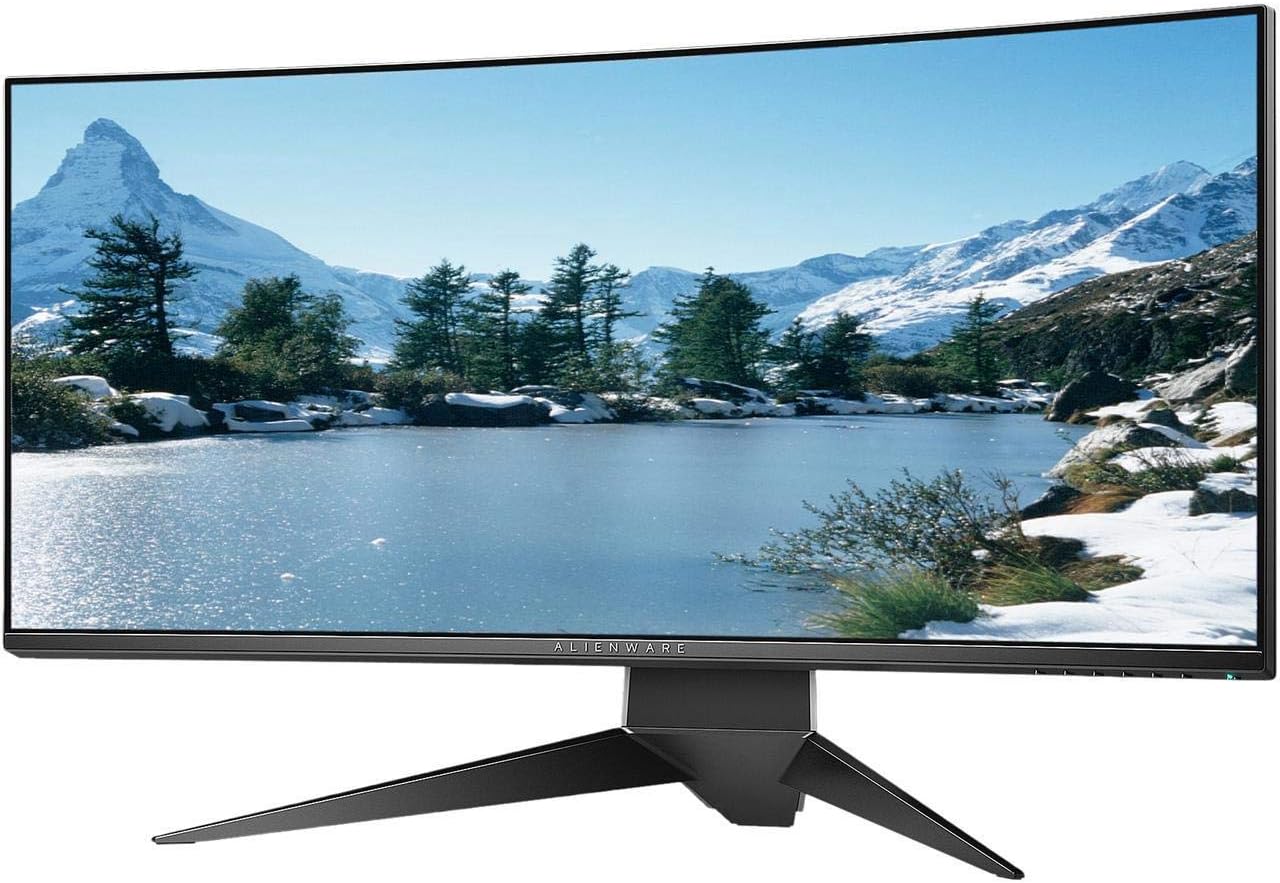
Figi 4.3: Dèyè view of the Alienware AW3418DW monitor showing the stand and AlienFX lighting.
VESA Mounting
The monitor supports VESA mounting (100 x 100 mm). Remove the stand riser by pressing the release button and then attach the VESA-compatible mount to the monitor using appropriate screws. Ensure the mount can support the monitor's weight of 26.1 pounds (without stand).

Figure 4.4: Monitor dimensions for VESA mount compatibility.
4.2 Konekte kab
Konekte kab ki nesesè yo nan monitè w la ak òdinatè w la.
- Kab pouvwa: Connect the power cable to the monitor's power port and then to a wall outlet.
- Kab Videyo: Connect either the DisplayPort cable or the HDMI cable from your computer's graphics card to the corresponding port on the monitor. For optimal performance, especially for 120Hz refresh rate and G-SYNC, use the DisplayPort connection.
- Kab USB an amon: Connect the USB 3.0 upstream cable from your computer to the monitor's upstream USB port to enable the monitor's USB hub functionality.
- Pò USB en: Connect your USB devices (e.g., keyboard, mouse, webcam) to the four USB 3.0 downstream ports on the monitor.
5. Operasyon Enstriksyon
5.1 Power On/Off
Press the power button located on the monitor to turn it on or off. The power LED will indicate the monitor's status.
5.2 Navigasyon sou ekran (OSD)
The On-Screen Display (OSD) menu allows you to adjust various monitor settings. Use the control buttons, typically located on the bottom right or rear of the monitor, to navigate the OSD.
- Press a control button to activate the OSD menu.
- Sèvi ak bouton navigasyon yo (anwo/anba/agoch/adwat) pou deplase nan opsyon meni yo.
- Peze bouton seleksyon an pou konfime yon seleksyon oswa antre nan yon sou-meni.
- Sèvi ak bouton retounen/sòti a pou retounen nan meni anvan an oswa pou sòti nan OSD a.
5.3 Anviwònman ekspozisyon
Ajiste anviwònman ekspozisyon pou pi bon viewing and gaming performance.
- Rezolisyon: Set your computer's display resolution to 3440x1440 for the native WQHD experience.
- Pousantaj rafrechisman: The monitor supports up to 120Hz refresh rate (overclocked). Ensure your graphics card drivers are updated and the refresh rate is set in your operating system's display settings or graphics control panel.
- NVIDIA G-SYNC: For tear-free and smooth gameplay, enable G-SYNC in your NVIDIA Control Panel. This feature synchronizes the monitor's refresh rate with your GPU's frame rate.
- Klate/Kontrast: Adjust these settings in the OSD menu to suit your environment and preference.
5.4 AlienFX Lighting
Customize the AlienFX lighting zones on your monitor through the OSD menu or Alienware Command Center software (if installed on your PC). You can select colors, effects, and synchronize lighting with other Alienware devices.
5.5 USB Hub Usage
The monitor acts as a USB 3.0 hub, providing convenient access to four downstream USB ports for connecting peripherals. Ensure the USB upstream cable is connected to your computer for this feature to function.
6. Antretyen
6.1 Netwaye monitè a
- Always unplug the monitor from the electrical outlet before cleaning.
- Sèvi ak yon moso twal mou, ki san pèl damplave avèk dlo oswa yon pwodui netwayaj ekran ki pa abrazif.
- Pa flite pwodui netwayaj la dirèkteman sou ekran an.
- Siye ekran an dousman pou retire pousyè ak tach.
- Netwaye deyò a casinSiye ak yon twal mou epi sèk.
6.2 Depo
If storing the monitor for an extended period, disconnect all cables, carefully disassemble the stand (if applicable), and store it in its original packaging in a cool, dry place.
NAN. Depanaj
Si ou rankontre pwoblèm ak monitè ou a, gade etap depanaj komen sa yo:
- Pa gen ekspozisyon: Ensure all power and video cables are securely connected. Check if the monitor is powered on and the correct input source is selected in the OSD.
- Flickering/Stuttering: Verify that your graphics drivers are up to date. Ensure G-SYNC is properly configured in the NVIDIA Control Panel. Check for interference from other electronic devices.
- Rezolisyon/vitès rafrechisman ki pa kòrèk: Adjust the display settings in your operating system or graphics control panel to the native resolution (3440x1440) and desired refresh rate (up to 120Hz).
- Piksèl mouri: The Alienware AW3418DW comes with a Premium Panel Guarantee. Refer to the warranty information for details on pixel policy.
- Pò USB pa travay: Ensure the USB 3.0 upstream cable is connected from the monitor to your computer.
8. Espesifikasyon
| Karakteristik | Spesifikasyon |
|---|---|
| Mak | Alienware |
| Nimewo Modèl | AW3418DW |
| Gwosè ekran | 34.1 pous |
| Rezolisyon | WQHD (3440 x 1440 Pixels) |
| Aspè rapò | 21:9 |
| Rafrechisman pousantaj | 120 Hz (Overclocked) |
| Tan repons | 4 Milisegond |
| Teknoloji Adaptive Sync | NVIDIA G-SYNC |
| Kalite ekspozisyon | LED IPS |
| Koubti | 1900R |
| Klète | 300 cd/m² |
| Pwopòsyon kontras | 1000:1 |
| Viewing Ang | 178 Degre |
| Koneksyon | 1x DisplayPort (1.2), 1x HDMI (1.4), 4x USB 3.0 Downstream, 1x USB 3.0 Upstream |
| Pwa atik | 26.1 liv (san sipò) |
| Kalite aliye | VESA Compatible (100 x 100 mm) |
9. Garanti ak sipò
Your Alienware AW3418DW monitor is covered by a 3 Years Limited Hardware Warranty epi 3 Years Advance Exchange Service, ki gen ladan a Premium Panel Guarantee. The Premium Panel Guarantee ensures a free panel replacement during the limited hardware warranty period even if only one bright pixel is found.
For technical support, warranty claims, or additional information, please visit the official Alienware or Dell support website. You may also find updated drivers and firmware there.
Sipò sou entènèt: www.dell.com/support