
1. Entwodiksyon
Mèsi pou acha aasing the Zebronics ZEB-A18 Plus 17.3-inch LED Monitor. This manual provides essential information for setting up, operating, and maintaining your monitor. Please read it thoroughly before use and retain it for future reference.
1.1 Sa ki nan bwat la
- Siveye
- Adaptè pouvwa
- Siveye kanpe
- Manyèl itilizatè
- VGA kab
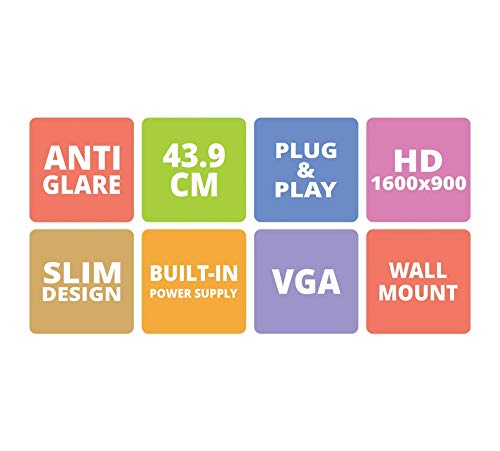
Figure 1: Key features of the Zebronics ZEB-A18 Plus monitor, including Anti Glare, 43.9 CM screen size, Plug & Play functionality, HD 1600x900 resolution, Slim Design, Built-in Power Supply, VGA connectivity, and Wall Mount compatibility.
2. Enfòmasyon sou Sekirite
Pou asire yon operasyon an sekirite epi pou anpeche domaj, tanpri obsève prekosyon sekirite sa yo:
- Pa ekspoze monitè a anba lapli oswa imidite.
- Pa ouvri monitè a casing; konfye tout antretyen bay pèsonèl kalifye.
- Mete monitè a sou yon sifas ki estab, ki plat.
- Asire bon vantilasyon alantou monitè a.
- Itilize sèlman adaptè pouvwa yo bay la.
- Dekonekte kab kouran an pandan tanpèt zèklè oswa lè ou pa itilize li pou yon bon bout tan.
3. Enstalasyon
3.1 Asanble kanpe la
- Retire konpozan monitè a ak sipò a nan anbalaj la avèk prekosyon.
- Tache baz la kanpe nan kou a kanpe.
- Fikse sipò a ki reyini an nan dèyè monitè a avèk vis yo bay yo. Asire w ke li byen tache.
3.2 Konekte monitè a
- Koneksyon pouvwa: Connect the power adapter to the monitor's power input and then plug the adapter into a power outlet.
- Koneksyon videyo: Connect one end of the VGA cable to the VGA port on your computer's graphics card and the other end to the VGA input port on the monitor.
- Koneksyon odyo (si sa aplikab): The monitor has built-in speakers. No separate audio cable is typically needed for VGA connections as audio is not transmitted via VGA. Ensure your computer's audio output is configured correctly.
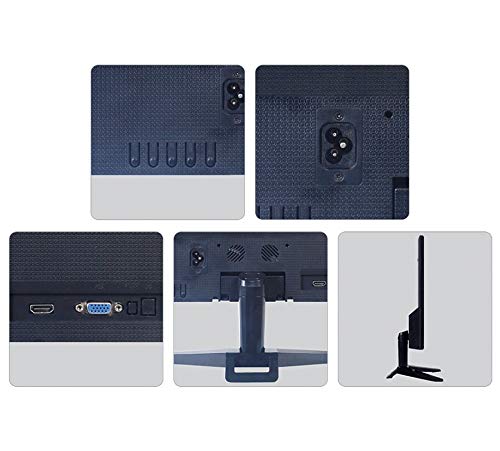
Figi 2: Dèyè view of the Zebronics ZEB-A18 Plus monitor showing the power input, VGA port, and side profile. This image illustrates the available connection points for power and video input.
4. Operasyon Enstriksyon
4.1 Limen/Etenyen
Peze bouton pouvwa ki sitiye sou monitè a pou limen oswa etenn li. Limyè endikatè pouvwa a ap limen lè monitè a aktif.
4.2 Basic Display Adjustments
The monitor features an On-Screen Display (OSD) menu for adjusting various settings. Use the control buttons (usually located on the bottom or back of the monitor) to navigate the OSD menu. Common adjustments include:
- Klate: Ajiste liminans jeneral ekran an.
- Kontras: Ajiste diferans ki genyen ant zòn limyè ak zòn nwa.
- Anviwònman koulè: Ajiste tanperati koulè a oswa nivo RGB endividyèl yo.
- Chwazi Antre: Manually select the video input source (e.g., VGA).
4.3 Oratè Entegre
The ZEB-A18 Plus monitor includes built-in speakers. Ensure your computer's audio output is directed to the monitor if you wish to use them. Volume can typically be controlled via your computer's operating system.
5. Antretyen
5.1 Netwaye monitè a
- Toujou debranche monitè a nan priz kouran anvan ou netwaye li.
- Sèvi ak yon moso twal mou, ki san pèl damplave avèk dlo oswa yon pwodui netwayaj ekran ki pa abrazif.
- Pa flite pwodui netwayaj la dirèkteman sou ekran an.
- Evite itilize pwodui chimik ki agresif, solvang, oswa materyèl abrazif.
- Siye casinSiye ak yon twal mou epi sèk.
NAN. Depanaj
Si ou rankontre pwoblèm ak monitè ou a, gade pwoblèm ak solisyon komen sa yo:
- No Display / "No Signal" Message:
- Ensure the monitor is powered on and the power indicator is lit.
- Check that the VGA cable is securely connected to both the monitor and the computer.
- Verify that your computer is powered on and not in sleep mode.
- Eseye rekòmanse òdinatè w lan.
- If using multiple monitors, ensure the correct display output is selected on your computer.
- Poor Image Quality (Blurry, Distorted, Incorrect Colors):
- Check the VGA cable for damage or loose connections.
- Ajiste rezolisyon òdinatè w la pou l koresponn ak rezolisyon natif natal monitè a (1600 x 900).
- Sèvi ak meni OSD a pou ajiste klète, kontras, ak koulè yo.
- No Sound from Built-in Speakers:
- Ensure the monitor's volume is not muted or set too low via the OSD (if available) or your computer's audio settings.
- Verify that your computer's audio output is correctly configured to send sound to the monitor.
7. Espesifikasyon
| Mak | ZEBRONIK |
| Non modèl | ZEB A18 Plus |
| Nimewo Modèl | ZEB-A18 |
| Gwosè ekran | 17.2 pous |
| Kalite ekspozisyon | dirije |
| Rezolisyon ekspozisyon maksimòm | 1600 x 900 (HD+) |
| Aspè rapò | 16:9 |
| Rafrechisman pousantaj | 60 Hz |
| Tan repons | 8 Milisegond |
| Imaj klète | 220 cd/m² |
| Pwopòsyon kontras | 400:1 |
| Viewing Ang | 178 Degre |
| Koneksyon | VGA |
| Oratè ki entegre yo | Wi |
| Kalite aliye | Mi mòn |
| Koulè | Nwa |
| Konsomasyon pouvwa | 15W |
| Pwa | 1.1 Kgs |
| Dimensions with Stand (W x D x H) | 415 x 13 x 340mm |
8. Garanti ak sipò
8.1 Enfòmasyon sou Garanti
Your Zebronics ZEB-A18 Plus monitor is covered by a limited warranty. Please refer to the warranty card included with your product for specific terms and conditions. Keep your purchase receipt as proof of purchase for warranty claims.
8.2 Sipò pou Kliyan
For technical assistance, troubleshooting, or warranty inquiries, please contact Zebronics customer support. Contact details can typically be found on the official Zebronics websit la oubyen sou anbalaj pwodwi a.