
1. Entwodiksyon
Mèsi pou acha aasing the Genius GX Wired Gaming Keyboard, Scorpion K220. This manual provides detailed instructions for setting up, operating, and maintaining your new gaming keyboard. Designed for PC gaming, the Scorpion K220 features a sleek design, compact construction, and vibrant backlighting for an enhanced gaming experience.

Figi 1.1: Devan view of the Genius GX Wired Gaming Keyboard Scorpion K220, showcasing its design and colorful backlighting.
2. Enfòmasyon sou Sekirite
Please read the following safety precautions carefully before using the device to ensure optimal performance and prevent damage.
- Pa ekspoze klavye a nan dlo oswa lòt likid.
- Avoid extreme temperatures (hot or cold) and high humidity.
- Do not attempt to disassemble or modify the keyboard. This will void the warranty.
- Kenbe klavye a lwen chan mayetik fò.
- Sèvi sèlman ak yon twal sèk epi mou pou netwaye.
- Ensure the USB cable is not pinched or damaged during setup and use.
3. Pake kontni
Verifye ke tout atik yo prezan nan pakè a:
- Genius GX Wired Gaming Keyboard (Scorpion K220)
- Manyèl Itilizatè (dokiman sa a)
4. Enstalasyon
4.1 Konekte klavye a
The Scorpion K220 keyboard uses a standard USB connection for compatibility with PCs and Laptops. No additional drivers are typically required for basic functionality.
- Jwenn yon pò USB ki disponib sou òdinatè w la (PC oubyen Laptop).
- Carefully insert the USB connector of the Scorpion K220 keyboard into the USB port.
- Sistèm operasyon ou an ta dwe detekte epi enstale chofè ki nesesè yo otomatikman. Pwosesis sa a ka pran kèk minit.
- Once installation is complete, the keyboard will be ready for use. The backlighting should illuminate.

Figure 4.1: The Genius GX Wired Gaming Keyboard Scorpion K220, ready for connection to a PC or laptop via its integrated USB cable.
5. Operasyon Enstriksyon
5.1 Fonksyon debaz klavye a
The Scorpion K220 functions as a standard QWERTY keyboard. All standard keys (alphanumeric, function keys, navigation keys, and numeric keypad) operate as expected.
5.2 Kontwòl ekleraj
The Scorpion K220 features vibrant backlighting to enhance your gaming and typing experience. The backlighting is always on when the keyboard is connected and powered.
- Ajisteman klète: Look for dedicated keys or key combinations (often Fn + Scroll Lock or similar) to adjust backlight brightness. Refer to the keyboard's key legends for specific controls.
- Mòd ekleraj: Some models may offer different lighting effects or static color modes. Experiment with function key combinations (e.g., Fn + F1-F12 or dedicated lighting keys) to cycle through available modes.
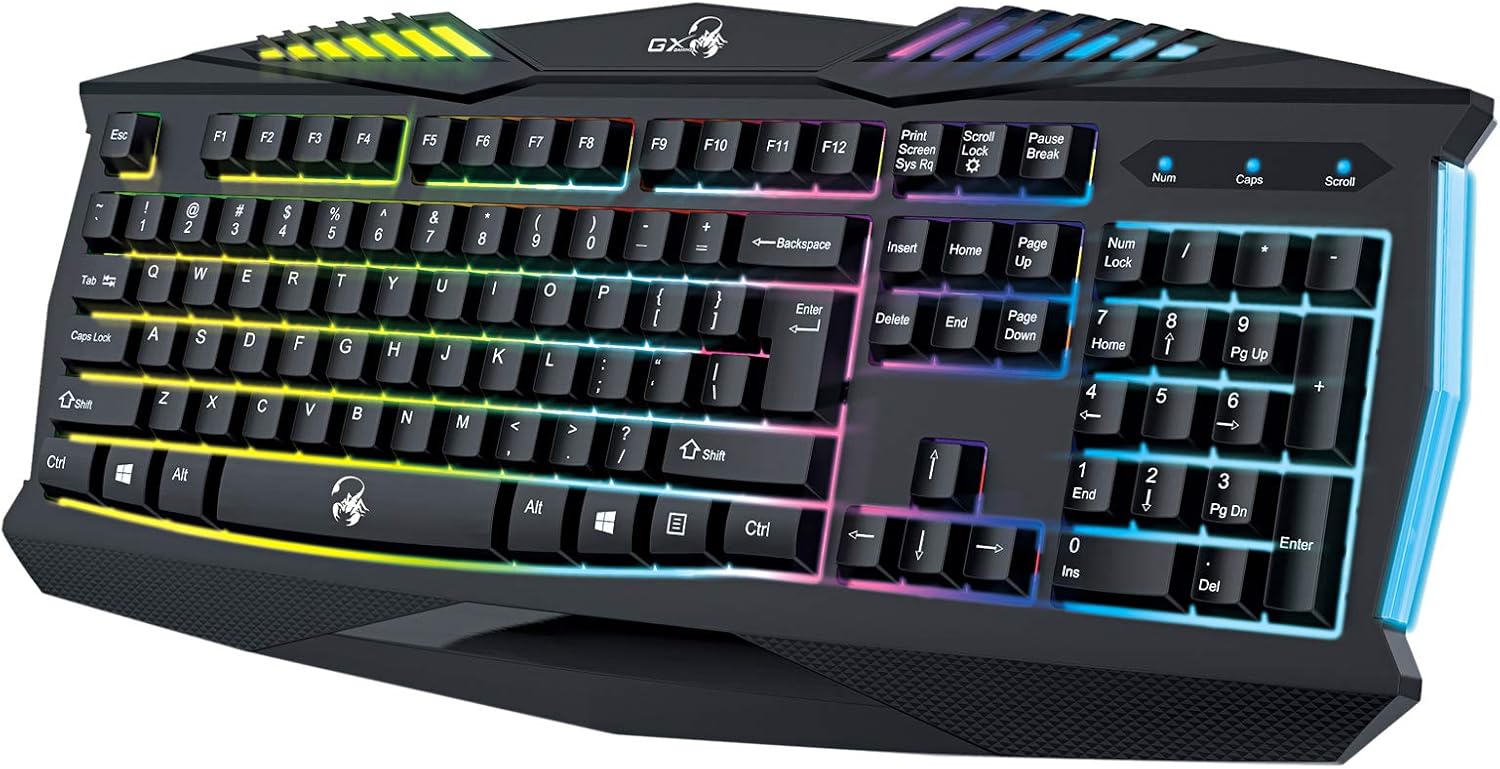
Figi 5.1: Close-up view of the Genius GX Wired Gaming Keyboard Scorpion K220, highlighting the illuminated keys and vibrant backlighting.
5.3 Karakteristik jwèt yo
The Scorpion K220 is designed for gaming with a responsive membrane switch type and a comfortable layout. While it does not feature programmable macro keys, its robust design and anti-ghosting capabilities (where applicable) ensure reliable performance during intense gaming sessions.
6. Antretyen
Bon antretyen asire lonjevite ak pèfòmans optimal klavye ou a.
- Netwayaj:
- Dekonekte klavye a nan òdinatè w la anvan ou netwaye li.
- Use a soft, dry, lint-free cloth to wipe down the surface of the keyboard.
- Pou pousyè ak debri ant kle yo, sèvi ak lè konprese.
- Pa sèvi ak pwodui chimik ki fò, pwodui netwayaj abrazif, oswa solvan.
- Depo: Sere klavye a nan yon kote ki fre epi sèk, lwen limyè solèy dirèk ak tanperati ekstrèm lè w pa itilize li pou yon bon bout tan.
NAN. Depanaj
If you encounter issues with your Scorpion K220 keyboard, refer to the table below for common problems and solutions.
| Pwoblèm | Kòz posib | Solisyon |
|---|---|---|
| Klavye pa reponn | Koneksyon USB ki lach, pò USB ki defektye, pwoblèm chofè. |
|
| Ekleraj dèyè a pa fonksyone | Keyboard not powered, specific lighting mode selected. |
|
| Kle yo kole oswa yo pa reponn | Dirt or debris under the keys. |
|
8. Espesifikasyon
Detailed technical specifications for the Genius GX Wired Gaming Keyboard Scorpion K220:
| Karakteristik | Detay |
|---|---|
| Mak | jeni |
| Nimewo Modèl | K220 |
| Dimansyon pwodwi | 23 x 49 x 4 cm |
| Pwa atik | 980 g |
| Manifakti | jeni |
| Sous pouvwa | Fil elektrik |
| Batri enkli | Non |
| Aparèy konpatib | PC, Laptop |
| Koneksyon Teknoloji | USB |
| Deskripsyon klavye | Gaming |
| Karakteristik espesyal | Retroeklere |
| Materyèl | Materyèl melanje |
| Chanje Kalite | Manbràn |
| Layout klavye | QWERTY |
| Oryantasyon men | Anbidextr |
9. Garanti ak sipò
Genius products are manufactured to the highest quality standards. For information regarding warranty coverage, technical support, or service, please refer to the warranty card included with your product or visit the official Genius websit.
For further assistance, you may contact Genius customer support through their official channels. Please have your product model number (K220) and purchase details ready when contacting support.
Ofisyèl Websit: www.geniusnet.com