
Entwodiksyon
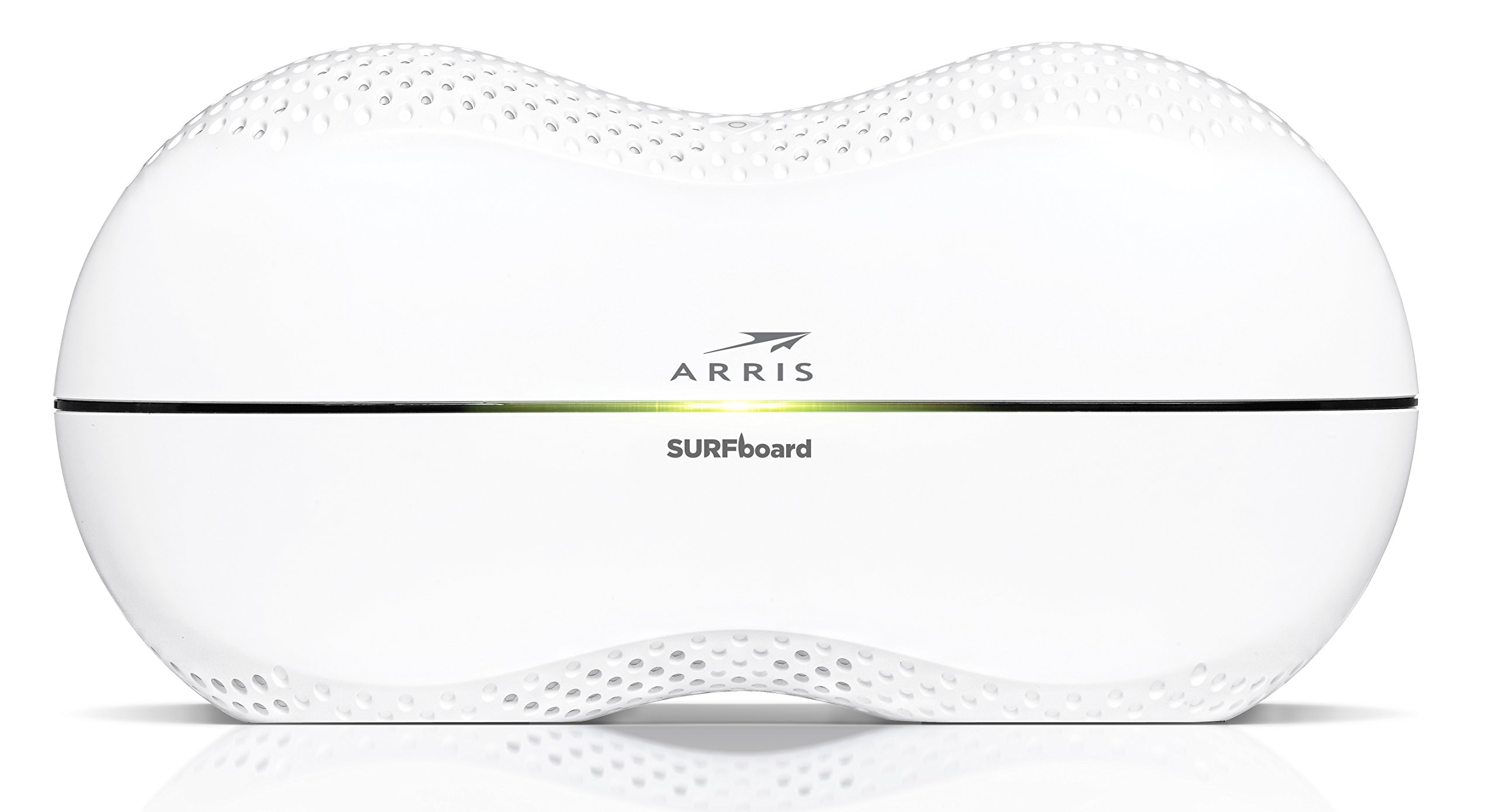
This manual provides detailed instructions for the setup, operation, maintenance, and troubleshooting of your ARRIS SURFboard SBR-AC3200P AC3200 Wi-Fi Router. The SBR-AC3200P is designed to deliver high-speed Wi-Fi performance for various home networking needs, including gaming, streaming, and general internet use. It features tri-band concurrent operation and integrated RipCurrent G.hn Powerline technology for extended network coverage.
Kontni pake
- SURFboard WiFi Router SBR-AC3200P
- Ethernet kab
- AC pouvwa kòd
- Gid Quick Start
Enstalasyon
1. Koneksyon fizik
Before powering on your router, ensure all necessary cables are connected securely. Refer to the diagram below for port identification.
Imaj: Dèyè view of the ARRIS SURFboard SBR-AC3200P AC3200 Wi-Fi Router. From left to right, the ports include the Power input, two USB ports (one USB 2.0, one USB 3.0), a blue WAN port for connecting to a modem, four yellow LAN ports (1-4) for wired devices, and a small recessed Reset button.
- Konekte ak Modem: Connect one end of the provided Ethernet cable to the WAN port (blue) on the back of the SBR-AC3200P router and the other end to your cable/DSL/fiber modem.
- Konekte pouvwa: Plug the AC power cord into the Power input on the router and then into an electrical outlet. The router will begin its startup sequence.
- Pouvwa sou: Wait for the router's indicator lights to stabilize. Refer to the Operating section for LED indicator meanings.
2. Inisyal Konfigirasyon
Ou ka konfigire routeur ou a lè l sèvi avèk yon web browser or the dedicated mobile application.
- Sèvi ak yon Web Navigatè:
- Connect a computer to one of the router's LAN ports (yellow) using an Ethernet cable, or connect wirelessly to the default Wi-Fi network (SSID and password typically found on a label on the router).
- Louvri a web navigatè a epi antre adrès IP default routeur la (pa egzanp,
192.168.0.1or192.168.1.1) into the address bar. Consult the Quick Start Guide for the exact IP address and default login credentials. - Follow the on-screen instructions to set up your internet connection and customize your Wi-Fi network name (SSID) and password.
- Sèvi ak aplikasyon mobil lan: Download the ARRIS SURFboard Manager app from your device's app store. Follow the in-app instructions to set up and manage your router.
Opere
Endikatè ki ap dirije
The front panel of the SBR-AC3200P features several LED indicators that provide status information:
- Pouvwa dirije: Endike estati pouvwa aparèy la.
- Entènèt ki ap dirije: Montre estati koneksyon entènèt la.
- LED Wi-Fi (2.4 GHz ak 5 GHz): Indicate the activity of the wireless networks.
- RipCurrent LED: Displays the status of the G.hn Powerline network.
Refer to the Quick Start Guide for specific color and blinking patterns and their meanings.
Konekte Aparèy
- Aparèy san fil: Chèche pou your customized Wi-Fi network name (SSID) on your device and enter the password you created during setup.
- Aparèy Filaire: Connect devices such as computers, gaming consoles, or smart TVs to the LAN ports (yellow) on the back of the router using Ethernet cables.
RipCurrent G.hn Technology
The SBR-AC3200P integrates RipCurrent G.hn Powerline technology, allowing you to expand your network coverage using your home's existing electrical wiring. This feature enables compatible SURFboard RipCurrent Wi-Fi Hotspots and network extenders (sold separately) to connect to your network through any electrical outlet, providing seamless Wi-Fi extension throughout your home.
Antretyen
- Mizajou mikrolojisyèl: Periodically check the ARRIS support website for firmware updates. Keeping your router's firmware up-to-date ensures optimal performance, security, and access to new features. Firmware updates are typically performed through the router's web interface or the mobile app.
- Netwayaj: Keep the router in a clean, dust-free environment. Use a soft, dry cloth to clean the exterior. Do not use liquid cleaners or abrasive materials. Ensure ventilation openings are not blocked.
- Reyajiste routeur la: If you experience persistent issues, you may need to reset the router. A soft reset (power cycle) can often resolve minor problems. For a factory reset, locate the recessed Reset button on the back of the router. Use a paperclip or similar pointed object to press and hold the button for approximately 10-15 seconds until the LEDs indicate a reset. Avètisman: A factory reset will erase all custom settings, including your Wi-Fi name and password, reverting the router to its default factory settings.
Depanaj
- Pa gen koneksyon entènèt:
- Verifye ke modèm ou a ap fonksyone byen epi li gen yon koneksyon entènèt aktif.
- Check all Ethernet cable connections between the modem and the router's WAN port.
- Restart both your modem and router by unplugging them from power for 30 seconds and then plugging them back in, starting with the modem.
- Slow Wi-Fi Speeds or Dropped Connections:
- Asire w ke routeur la mete nan yon kote santral, lwen obstak ak sous entèferans (pa egzanp, mikwo ond, telefòn san fil).
- Tcheke pou mizajou firmwèr.
- Consider using RipCurrent extenders to improve coverage in dead zones.
- Perform a factory reset if issues persist after other troubleshooting steps.
- M pa ka jwenn aksè nan paramèt routeur yo:
- Asire w aparèy ou an konekte ak rezo routeur la (ak fil oswa san fil).
- Verify the correct IP address for the router's web koòdone.
- Vide kach navigatè w la oubyen eseye yon lòt navigatè.
Espesifikasyon
| Karakteristik | Deskripsyon |
|---|---|
| Mak | ARRIS |
| Non modèl | SBR-AC3200P |
| Wireless Creole | 802.11ac |
| Gwoup Gwoup Frekans | Tri-Band (N450 + AC1350 + AC1350) |
| Pousantaj Transfè Done | Jiska 3200 Megabit pa segonn |
| Pò Ethernet | 4 Gigabit Ethernet pò |
| Pò USB | 1x USB 2.0, 1x USB 3.0 |
| Karakteristik espesyal | RipCurrent G.hn Powerline Technology, Wi-Fi Beamforming |
| Pwotokòl Sekirite Sosyal | WPA2, WPA3 |
| Metòd kontwòl | App |
| Pwa atik | 3.8 liv |
Enfòmasyon sou Garanti
The ARRIS SURFboard SBR-AC3200P AC3200 Wi-Fi Router comes with a 2-ane garanti limite. For detailed terms and conditions, please refer to the warranty documentation included with your product or visit the official ARRIS support websit.
Sipò
For further assistance, technical support, or to access additional resources, please visit the official ARRIS support website. You can find FAQs, updated documentation, and contact information for customer service.