
Rii RK202
Rii RK202 Gaming Keyboard User Manual
Modèl: RK202
1. Entwodiksyon
The Rii RK202 Gaming Keyboard is designed to provide an enhanced experience for both gaming and general typing. It features a full-size layout with 105 keys, multi-color LED backlighting, and dedicated multimedia functions. This manual provides detailed instructions for setup, operation, maintenance, and troubleshooting to ensure optimal performance and longevity of your keyboard.
2. Enstalasyon
2.1 Kontni pake a
- Rii RK202 Gaming Keyboard (with integrated USB cable)
2.2 Konekte klavye a
- Locate an available USB port on your computer, laptop, gaming console (PS4, Xbox One), Smart TV, or other compatible device.
- Mete konektè USB klavye Rii RK202 la byen fèm nan pò USB a.
- Klavye a se yon fonksyon branche-epi-l itilize. Sistèm operasyon ou an ta dwe detekte epi enstale chofè ki nesesè yo otomatikman. Anjeneral, ou pa bezwen enstale okenn lòt lojisyèl.
The keyboard is compatible with Windows 95/98/XP/2000/ME/VISTA/7/8/9/10, Google Android TV Box, HTPC, IPTV, Mac OS (with limited backlight functionality), Chrome OS, and all versions of Raspberry Pi.

Image: The Rii RK202 Gaming Keyboard connected to a device via its integrated USB cable.
3. Operasyon Enstriksyon
3.1 Fonksyon debaz klavye a
The Rii RK202 features a standard QWERTY layout with 105 keys, including a numeric keypad and function keys (F1-F12). It supports 19-key anti-ghosting for accurate input during fast-paced gaming.
3.2 kle miltimedya
The keyboard includes dedicated multimedia functions accessible via the Fn key combined with the F-keys. These shortcuts allow quick control over media playback and system functions.

Image: A visual guide to the multimedia functions (Fn + F1-F12) on the Rii RK202 keyboard.
- Fn+F1: Jwe mizik
- Fn+F2: Volim desann
- Fn+F3: Volim leve
- Fn+F4: bèbè
- Fn+F5: One Stop lèktur
- Fn+F6: Previous Track
- Fn+F7: Jwe/Poz
- Fn+F8: Next Track
- Fn+F9: Imèl
- Fn+F10: Web Paj Kay
- Fn+F11: Fèmen òdinatè
- Fn+F12: Kalkilatè
3.3 Kontwòl ekleraj
The Rii RK202 keyboard features 7-color LED backlighting with adjustable brightness and various lighting modes.

Image: A visual guide to controlling the LED backlight, including brightness adjustment and mode changes.
- Turn Backlight ON/OFF: Peze Fn + * (asterisk key, located near the right Shift key).
- Ajiste klète: Peze Fn + PgUp to increase brightness (4 levels). Press Fn + PgDn diminye klète.
- Chanje mòd ekleraj: Peze Fn + Light Bulb Key (located next to the right Shift key) to cycle through static color, breathing mode, and off.
Nòt: The backlight function is not supported on MacOS systems.
3.4 Mode dòmi otomatik
To conserve energy, the keyboard will automatically enter a sleep mode if there is no interaction for approximately 10 minutes. The backlight will turn off. To reactivate the keyboard, simply press any key, and it will return to operational mode.
3.5 Integrated Smartphone Holder
The keyboard features a built-in slot designed to hold a smartphone, providing convenient access to your device while using the keyboard.
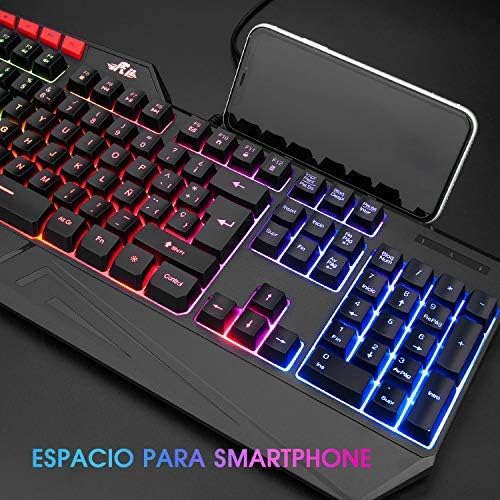
Image: The Rii RK202 keyboard featuring its integrated smartphone holder, with a phone placed in the slot.
4. Antretyen
4.1 Netwaye klavye a
- Dekonekte klavye a nan aparèy ou an anvan ou netwaye li.
- Use a soft, dry, lint-free cloth to gently wipe the surface of the keys and the keyboard body.
- Pou pousyè tè oswa salte ki difisil pou retire, siye yon ti kras.ampRense twal la avèk dlo oswa yon solisyon netwayaj dou ki pa abrazif. Asire w ke twal la pa mouye.
- Avoid spraying cleaning solutions directly onto the keyboard. Do not allow any liquid to seep into the key switches or internal components.
- Sèvi ak lè konprese pou retire pousyè ak debri ki ant kle yo.
- Ensure the keyboard is completely dry before reconnecting it to your device.
4.2 Swen Jeneral
- Evite ekspoze klavye a nan tanperati ekstrèm, limyè solèy dirèk, oswa imidite ki wo.
- Pa lage klavye a oswa pa sibi gwo enpak.
- Kenbe likid lwen klavye a pou anpeche domaj.
NAN. Depanaj
5.1 Klavye a pa reponn
- Tcheke koneksyon USB a: Ensure the USB cable is securely plugged into both the keyboard and the device. Try unplugging and re-plugging the cable.
- Eseye yon lòt pò USB: Connect the keyboard to a different USB port on your device.
- Tès sou yon lòt aparèy: If possible, test the keyboard on another computer or compatible device to determine if the issue is with the keyboard or your original device.
- Rekòmanse aparèy: Rekòmanse òdinatè w la oswa aparèy ou an.
5.2 Limyè dèyè a pa fonksyone
- Aktive ekleraj dèyè a: Ensure the backlight is turned on by pressing Fn + *.
- Ajiste klète: Ogmante klète a lè l sèvi avèk Fn + PgUp.
- Check Lighting Mode: Chanje mòd ekleraj yo lè l sèvi avèk Fn + Light Bulb Key.
- MacOS Compatibility: Remember that backlight functionality is not supported on MacOS systems.
5.3 Specific Keys Not Registering
- Clean Under Keys: Use compressed air to remove any debris or dust that might be lodged under the unresponsive keys.
- Konfli Lojisyèl: Check if any recently installed software or drivers are causing conflicts.
- If the issue persists after trying these steps, contact customer support for further assistance.
6. Espesifikasyon
| Karakteristik | Detay |
|---|---|
| Nimewo Modèl | RK202 |
| Dimansyon (L x W x H) | 47.5 x 21.49 x 3 cm (18.7 x 8.46 x 1.18 pous) |
| Pwa | 840 g (1.85 lbs) |
| Koneksyon | Fil USB |
| Konte kle | 105 kle |
| Anti-Ghosting | 19 kle |
| Ekleraj | 7-color LED with adjustable brightness and modes |
| Materyèl | ABS plastik |
| Dire lavi kle | Jiska 50 milyon klik |
| Konpatibilite | Windows (95/98/XP/2000/ME/VISTA/7/8/9/10), PC, Laptop, Google Android TV Box, HTPC, IPTV, Smart TV, Mac OS (limited backlight), Chrome OS, Raspberry Pi |
7. Enfòmasyon sou Garanti
Please refer to the warranty policy provided by your retailer or the manufacturer's official website for detailed information regarding warranty coverage, terms, and conditions. Keep your proof of purchase for any warranty claims.
8. Sipò pou Kliyan
For technical assistance, troubleshooting not covered in this manual, or other inquiries, please visit the official Rii website or contact your point of purchase. Ensure you have your product model number (RK202) available when seeking support.
Ask a question about this manual
Ask about setup, troubleshooting, compatibility, parts, safety, or missing instructions. Manuals+ will review the question and use this page’s manual context to help answer it.