
Entwodiksyon
Welcome to your new Targus Compact Wireless Mouse. This manual provides essential information for proper setup, operation, and maintenance of your device. Please read these instructions carefully before use.
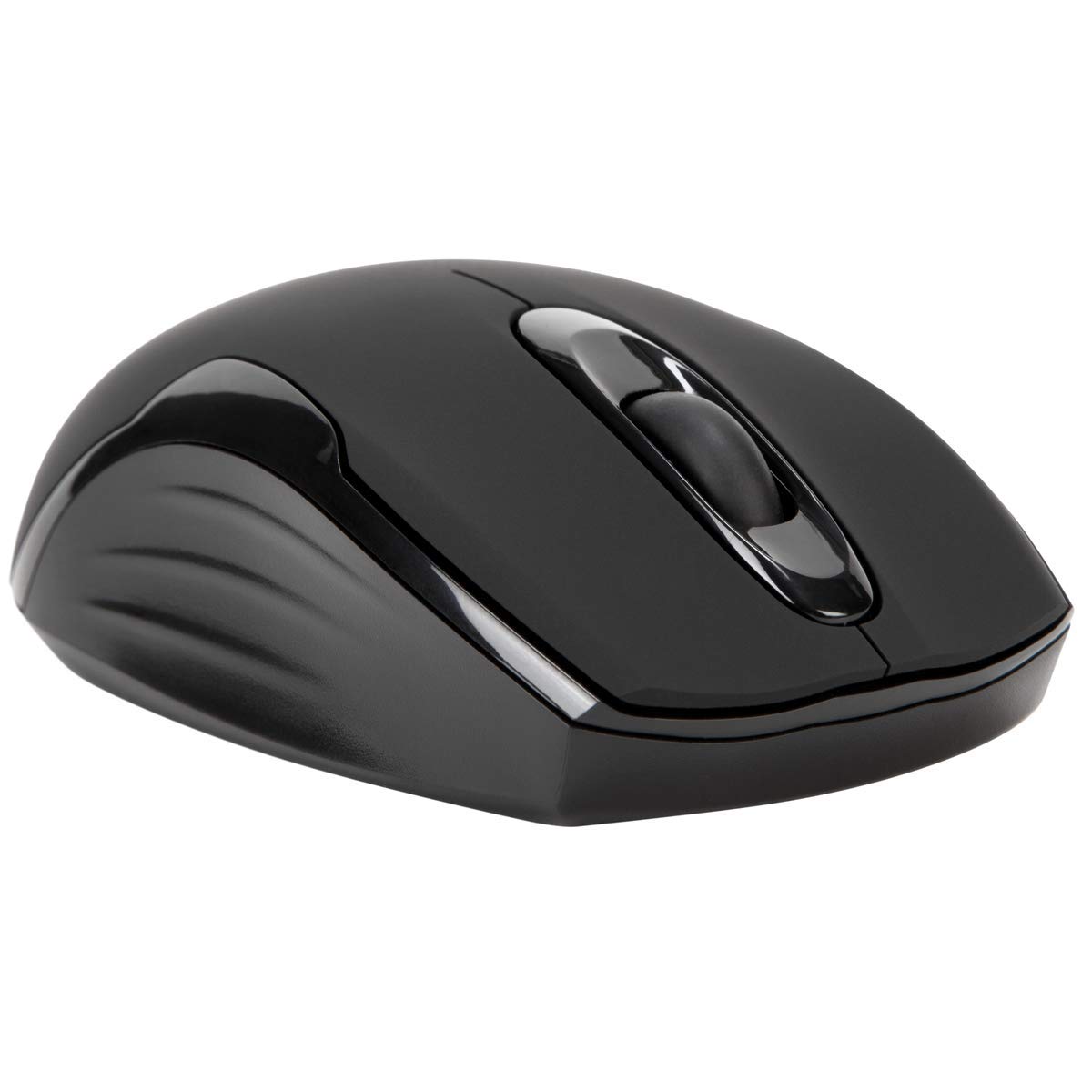
Kontni pake
- Targus Compact Wireless Mouse
- Reseptè USB
- 1 x batri AA
- Manyèl Enstriksyon (dokiman sa a)
Enstalasyon
1. Enstale batri
Locate the battery compartment on the underside of the mouse. Insert the provided 1 x AA battery, ensuring correct polarity (+/-). Close the battery compartment cover securely.

2. Connect USB Receiver
Remove the USB receiver from its storage compartment, typically located near the battery. Plug the USB receiver into an available USB port on your computer.


3. Power On
Turn on the mouse using the power switch, usually located on the underside. The mouse should automatically connect to the receiver, and you can begin using it.
Operasyon
Fonksyon debaz yo
- Klike Goch: Use for primary selection, opening items, and activating functions.
- Klike sou dwa: Access contextual menus and additional options.
- wou woulo liv: Navige dokiman ak web pages vertically. Pressing the scroll wheel typically functions as a middle-click.
Blue Trace Technology
The Targus Compact Wireless Mouse features Blue Trace Technology, which allows it to track accurately on a wider variety of surfaces compared to standard optical mice, including glass, granite, and wood.
DPI sansiblite
The mouse is equipped with a 1,600 DPI (Dots Per Inch) optical sensor, providing a precise and responsive cursor movement for various tasks.
Antretyen
Ranplasman batri
When the mouse performance degrades or if it stops responding, it may be time to replace the AA battery. The average battery life is approximately 6 months, but this can vary based on usage.
Netwayaj
Pou netwaye sourit la, sèvi ak yon twal mou epi sèk. Pou pousyè tè ki difisil pou netwaye, sèvi ak yon ti twal mouye.amp cloth can be used, ensuring no moisture enters the internal components. Avoid using harsh chemicals, solvents, or abrasive cleaners, as these can damage the mouse's surface or internal parts.
Depo Reseptè USB
For convenient transport or storage, the USB receiver can be securely stored inside a dedicated compartment within the mouse itself. This helps prevent loss of the small receiver.
Depanaj
Sourit la pa reponn
- Ensure the mouse is powered on using the switch on its underside.
- Check the battery level and replace the AA battery if necessary.
- Verify that the USB receiver is securely plugged into a working USB port on your computer.
- Eseye branche reseptè USB a nan yon lòt pò USB sou òdinatè w la.
- Restart your computer to refresh the connection.
Mouvman Kurseur Iregilye
- Netwaye detèktè optik ki anba sourit la avèk yon twal mou epi sèk.
- Ensure the surface you are using the mouse on is clean, flat, and suitable for optical tracking. Avoid highly reflective or transparent surfaces.
- Move the mouse closer to the USB receiver to reduce potential wireless interference.
Pwoblèm Koneksyon
The mouse uses 2.4 GHz wireless technology designed for stable connection. If you experience persistent connectivity issues, try to minimize other wireless devices operating in close proximity that might cause interference.
Espesifikasyon
| Mak | Targus |
| Non modèl | AMW575TT |
| Koneksyon Teknoloji | USB (San fil 2.4 GHz) |
| Mouvman Deteksyon | Optical (Blue Trace Technology) |
| Kantite bouton | 3 |
| Oryantasyon men | Anbidextr |
| Aparèy konpatib | Universal (Windows® 10/8.1/8/7/Vista/XP/2000, Mac OS® X 10.6-10.12.4) |
| Sous pouvwa | Battery Powered (1 AAA battery required, included) |
| Mouse Maximum Sensitivity | 1600 Dots per Inch (DPI) |
| Wireless Range | 33.0 pye (10 mèt) |
| Lavi Mwayèn Batri | 6 mwa |
| Pwa atik | 0.14 liv |
| Dimansyon atik (L x W) | 4.4"L x 2.3"Lajè |
| Materyèl patiraj | Plastik |
| Karakteristik adisyonèl | 128-bit AES-CCM encryption |
Garanti ak sipò
Enfòmasyon sou Garanti
This Targus product is covered by a 1-ane Garanti Manifakti. Please retain your proof of purchase for any warranty claims. The warranty covers defects in materials and workmanship under normal use.
Sipò pou Kliyan
For further assistance, technical support, or to inquire about warranty services, please visit the official Targus website or contact their customer service department. Contact information can typically be found on the Targus websit.
Nòt: Avètisman Pwopozisyon 65: Pwodui sa a ka genyen pwodui chimik ke Eta Kalifòni konnen ki lakòz kansè ak domaj nesans oswa lòt pwoblèm repwodiksyon.


