
1. Entwodiksyon
This manual provides detailed instructions for the installation, operation, and maintenance of your Tiandy TC-NR4008M7-S2 Network Video Recorder (NVR). This NVR is designed for IP surveillance systems, supporting up to 8 channels at 1080P resolution, and features advanced video analysis and smart recording capabilities. It is ONVIF compatible, ensuring broad compatibility with various IP cameras.
Please read this manual thoroughly before using the product to ensure proper and safe operation.
2. Enfòmasyon sou Sekirite
To prevent electrical hazards and ensure safe operation, observe the following precautions:
- Do not disassemble the equipment yourself. Disassembly and maintenance of the equipment must be carried out by qualified professionals.
- Ensure the NVR is connected to a grounded power source to prevent electric shock.
- Avoid exposing the NVR to moisture, rain, or extreme temperatures.
- Pa bloke ouvèti vantilasyon yo. Asire w ke gen ase sikilasyon lè toutotou aparèy la.
- Sèvi sèlman ak adaptè kouran ki vini ak NVR la.
Imaj 2.1: Rear panel of the NVR showing various ports and a caution label. The label warns against self-disassembly due to electrical hazard and states that maintenance should be performed by professionals.
3. Pwodwi souview
The Tiandy TC-NR4008M7-S2 NVR is a robust solution for managing your IP surveillance cameras. Key features include:
- Antre 8-chanèl: Supports up to 8 IP camera channels.
- 1080P Resolution: Records video at up to 1080P resolution.
- Depo: Accommodates two 3.5-inch SATA hard drives, each up to 4TB (hard drives not included).
- Sorti Videyo: HDMI and VGA for local display.
- Pò USB: Two USB ports for mouse and data backup.
- Karakteristik avanse: Video Analysis and Smart Recording capabilities.
- Koneksyon: Ethernet port for network connection.
- Odyo ak alam: Supports audio input/output and alarm functions.
- ONVIF konpatibilite: Ensures interoperability with ONVIF-compliant IP cameras.
3.1 Panèl devan

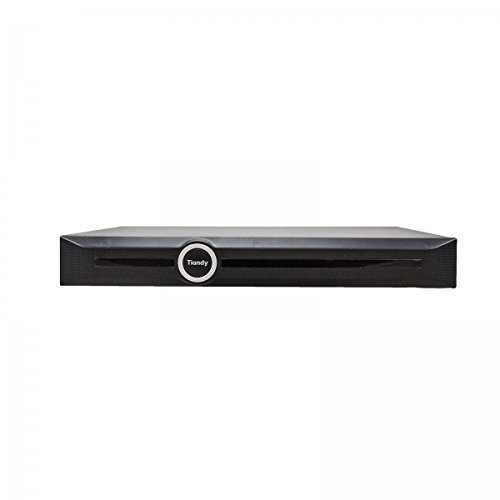
Imaj 3.1: Devan view of the Tiandy TC-NR4008M7-S2 NVR. The front panel typically includes status indicators and the brand logo.
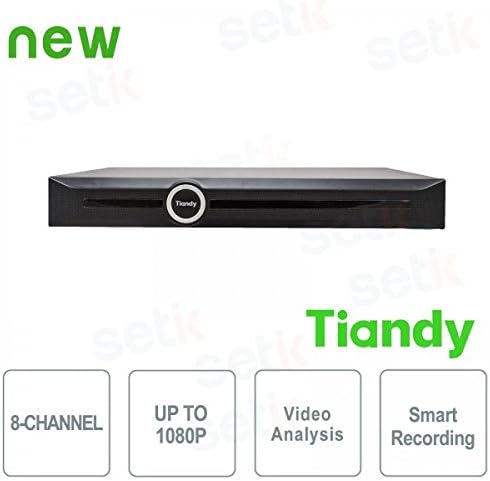
Imaj 3.2: Devan view of the Tiandy NVR with graphical indicators for 8-Channel support, Up to 1080P resolution, Video Analysis, and Smart Recording.
3.2 Panèl dèyè
The rear panel provides all necessary connection ports for the NVR:
- Antre pouvwa: Pou konekte adaptè pouvwa a.
- Ethernet Port: RJ45 port for network connection to IP cameras and the internet.
- Sòti HDMI: For connecting to an HDMI monitor or TV.
- Sòti VGA: For connecting to a VGA monitor.
- Pò USB: Two USB ports for mouse connection and external storage.
- Antre/soti odyo: Pou konekte aparèy odyo ekstèn.
- Antre/Sòti Alam: Pou konekte aparèy alam ekstèn yo.
Imaj 3.3: Detailed rear panel of the NVR, illustrating the layout of the power input, Ethernet port, HDMI, VGA, USB ports, audio, and alarm connections.
4. Enstalasyon
4.1 Disk Disk Enstalasyon
The NVR supports two 3.5-inch SATA hard drives (not included). It is recommended to use surveillance-grade hard drives for optimal performance and reliability. To install:
- Power off the NVR and disconnect all cables.
- Remove the NVR's cover by unscrewing the retaining screws.
- Mount the hard drives into the designated bays using the provided screws.
- Connect the SATA data and power cables from the NVR motherboard to the hard drives.
- Ranplase kouvèti a epi an sekirite li ak vis yo.
Nòt: SSDs may not have dedicated mounting slots and might require alternative securing methods if used.
4.2 Koneksyon Inisyal yo
- Konekte yon monitè nan pò pwodiksyon HDMI oswa VGA NVR la.
- Connect the included USB mouse to one of the NVR's USB ports.
- Konekte NVR a ak rezo w la lè l sèvi avèk yon kab Ethernet.
- Konekte adaptè kouran an nan NVR a epi answit nan yon priz kouran.
- Pouvwa sou NVR la.
4.3 Konfigirasyon Premye Fwa
Lè w ap demarre pou premye fwa a, NVR a ap gide w nan yon premye asistan konfigirasyon. Sa anjeneral gen ladan l:
- Konfigirasyon modpas administratè a.
- Formatting the installed hard drives.
- Network settings configuration (DHCP or static IP).
- Paramèt tan ak dat.
- Adding IP cameras (the NVR should be able to recognize and connect to ONVIF-compatible cameras).
5. Opere
5.1 Viv View
After successful setup, you can access the live view of your connected cameras through the NVR's local interface. The live view is designed to be fluid and responsive.
5.2 Konfigirasyon anrejistreman
NVR a sipòte plizyè mòd anrejistreman:
- Anrejistreman kontinyèl: Anrejistreman 24/7.
- Mouvman Deteksyon Anrejistreman: Records only when motion is detected by the cameras.
- Anrejistreman pwograme: Anrejistreman pandan peryòd tan espesifik.
- Anrejistreman Alam: Records when an alarm event is triggered.
Access the recording settings through the NVR's menu to configure your preferred recording schedule and modes for each channel.
5.3 Video Analysis and Smart Recording
The NVR includes advanced video analysis features. These can be configured to trigger recordings or alarms based on specific events, such as line crossing, intrusion detection, or object removal. Smart Recording optimizes storage by adjusting recording parameters based on event types.
5.4 Aksè a distans (Aplikasyon mobil)
The NVR supports remote viewing and management via a mobile application, such as 'Easy Live Plus'. To use the app:
- Download the 'Easy Live Plus' app from your smartphone's app store.
- Anrejistre yon kont epi konekte.
- Add your NVR to the app using its serial number or QR code.
Nòt: While the app provides remote access, some users have reported limitations in its functionality and configuration options compared to the local NVR interface. It is recommended to configure detailed settings directly on the NVR.
6. Antretyen
6.1 Jesyon Disk Di
Regularly check the status of your hard drives through the NVR's storage management menu. You may need to:
- Format Hard Drives: If you install new drives or encounter recording issues, formatting can resolve problems. This will erase all data on the drive.
- Replace Hard Drives: If a hard drive fails or reaches its end of life, replace it following the installation steps in Section 4.1.
6.2 Mizajou lojisyèl
Periodically check the Tiandy official website for firmware updates. Firmware updates can improve performance, add new features, and fix bugs. Follow the instructions provided with the firmware update package carefully.
6.3 Netwayaj
Keep the NVR clean and free from dust. Use a soft, dry cloth to wipe the exterior. Ensure ventilation openings are not obstructed by dust buildup. Do not use liquid cleaners directly on the unit.
NAN. Depanaj
Seksyon sa a adrese pwoblèm komen ou ka rankontre ak NVR ou a.
7.1 Pa gen Sòti Videyo
- Check if the monitor is properly connected to the HDMI or VGA port.
- Asire w ke monitè a limen epi li configuré sou sous antre ki kòrèk la.
- Verify that the NVR is powered on and its status indicators are normal.
7.2 Pwoblèm Anrejistreman
- No Recordings: Check if hard drives are installed, formatted, and healthy. Verify recording schedules and motion detection settings.
- Paramèt yo pa anrejistre: If settings revert to default, especially after using the mobile app, try configuring settings directly on the NVR's local interface. Ensure the NVR's firmware is up to date.
- Kalite anrejistreman ki pa bon: Check camera resolution settings and NVR recording parameters. Ensure sufficient bandwidth for IP cameras.
7.3 Network and Remote Access Problems
- Ensure the Ethernet cable is securely connected to the NVR and your router/switch.
- Verify network settings (IP address, gateway, DNS) on the NVR.
- For remote access, ensure your NVR has internet access and port forwarding (if required by your network setup) is correctly configured on your router.
- If using the mobile app, ensure the app is updated to the latest version.
7.4 NVR Not Powering On
- Check the power cable connection to the NVR and the power outlet.
- Asire w adaptè pouvwa a ap fonksyone kòrèkteman.
- Eseye yon priz kouran diferan.
8. Espesifikasyon
| Karakteristik | Spesifikasyon |
|---|---|
| Nimewo Modèl | TC-NR4008M7-S2 |
| Mak | Tiandy |
| Chanèl | 8 Chanèl IP yo |
| Max Rezolisyon | 1080P (Full HD) |
| Sipò pou HDD | 2 x 3.5" SATA HDD, up to 4TB each (8TB total) |
| Sorti Videyo | 1 x HDMI, 1 x VGA |
| Pò USB | 2 x USB |
| Entèfas rezo a | 1 x RJ45 Ethernet |
| Odyo | Audio In/Out support |
| Alam | Alarm In/Out support |
| Karakteristik | Video Analysis, Smart Recording, ONVIF Compatible |
| Pwa atik | 2.8 kg |
| Aparèy konpatib | Smartphone (for remote access) |
9. Garanti ak sipò
For warranty information, please refer to the warranty card included with your product or contact your point of purchase. For technical support, please contact Tiandy customer service or your authorized dealer. Ensure you have your product model number (TC-NR4008M7-S2) and purchase details available when seeking support.