
1. Entwodiksyon
This manual provides detailed instructions for the setup, operation, maintenance, and troubleshooting of your EXCELVAN E300 Portable Thermal Printer. Please read this manual carefully before using the printer to ensure proper function and longevity of the device.
The EXCELVAN E300 is a compact and efficient thermal printer designed for printing receipts and tickets. It features high-speed printing, a durable print head, and versatile connectivity options including Bluetooth and USB, making it suitable for various point-of-sale (POS) environments.
2. Pwodwi souview
2.1 Kontni pake a
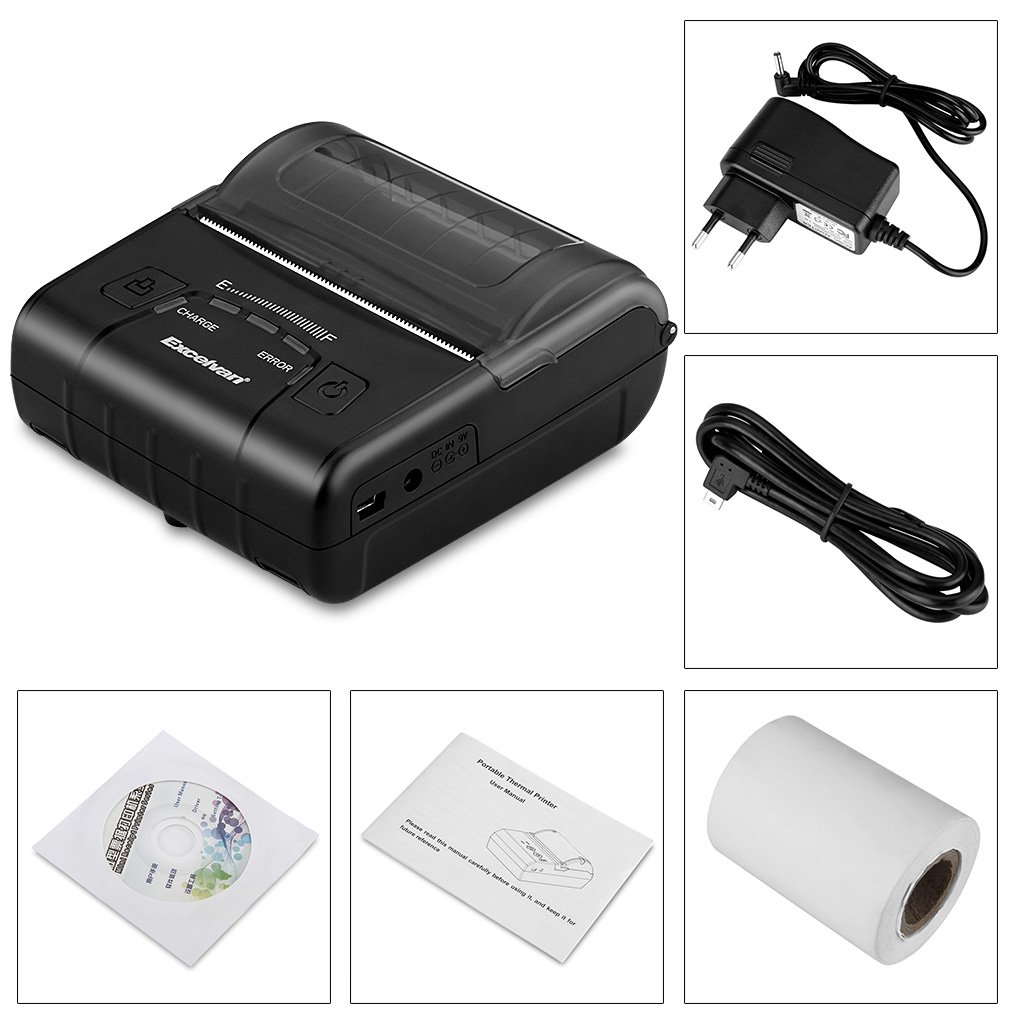
Lè w ap debale, tanpri verifye si tout atik ki nan lis anba a yo enkli:
- 1 x 80mm Thermal Printer
- 1 x pouvwa adaptè
- 1 x batri ityòm
- 1 x USB kab (110 cm)
- 1 x woulo papye tèmik
- 1 x Manyèl Itilizatè (dokiman sa a)
- 1 x CD (containing drivers and software)
2.2 Konpozan Enprimant lan
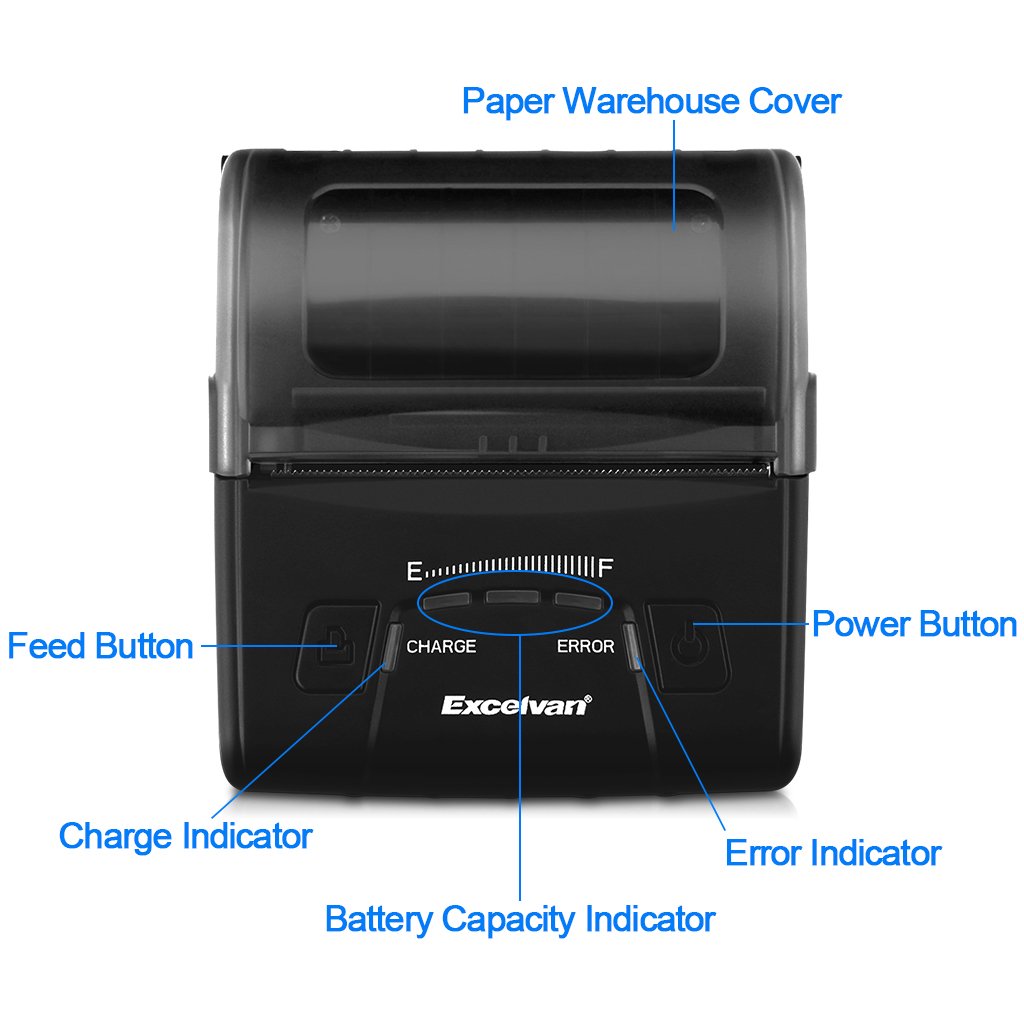
Familiarize yourself with the main components of your EXCELVAN E300 printer:

Figi 1: Devan view of the EXCELVAN E300 printer with key components labeled.
- Paper Warehouse Cover: Protects the paper roll compartment.
- Bouton Feed: Advances the paper.
- Endikatè Chaj: Lights up when the battery is charging.
- Endikatè kapasite batri: Montre nivo batri aktyèl la.
- Endikatè erè: Lights up to indicate an error (e.g., paper out, cover open).
- Bouton pouvwa: Turns the printer on/off.
3. Enstalasyon
3.1 Enstalasyon batri
- Open the battery compartment cover located on the bottom of the printer.
- Insert the provided lithium battery, ensuring the contacts align correctly.
- Enpòtan: Remove any insulating tape from the battery contacts before installation or charging.
Figi 2: Battery installation and warning to remove insulating tape.
- Fèmen kouvèti lòj batri a byen.
3.2 Chaje batri a
Before first use, fully charge the printer battery.
- Connect the power adapter to the printer's DC IN 9V port.
- Ploge adaptè pouvwa a nan yon priz miray.
- The Charge Indicator light will illuminate during charging. It will turn off or change color (depending on model) when fully charged.
- Nòt: The USB cable is for data connection to a computer only and does not charge the device.
Figi 3: Charging port and USB port. Use the power adapter for charging.
3.3 Chaje Papye Tèmik la
The printer uses 80mm wide thermal paper rolls.
- Open the Paper Warehouse Cover by gently lifting it.
- Insert the thermal paper roll into the compartment, ensuring the paper feeds from the bottom and the leading edge comes out towards the front of the printer.
- Rale yon ti kantite papye ki depase kwen koupe a.
- Close the Paper Warehouse Cover firmly until it clicks into place.
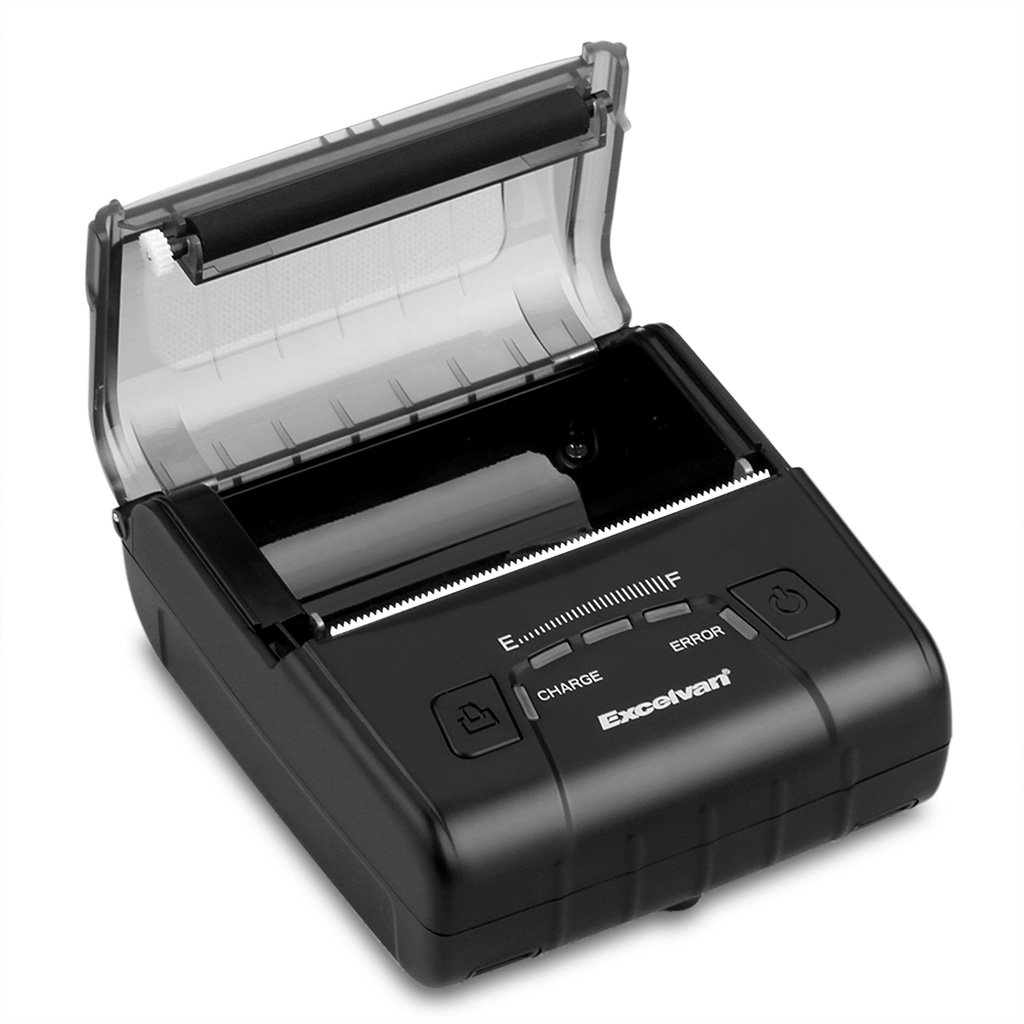
Figi 4: Loading thermal paper into the printer.
4. Operasyon Enstriksyon
4.1 Power On/Off
- Pou limen: Press and hold the Power Button until the indicator lights illuminate.
- Pou etenn: Press and hold the Power Button until the indicator lights turn off.
4.2 Enstalasyon chofè
Install the appropriate drivers for your operating system from the provided CD or download them from the official EXCELVAN websit (si disponib).
- Supported Operating Systems: Android, iOS, Linux, Windows (2000, 2003, XP, 7, 8, 8.1, 10).
4.3 Konekte enprimant lan
The EXCELVAN E300 supports both Bluetooth and USB connectivity.
4.3.1 Bluetooth Koneksyon
- Asire enprimant lan limen.
- Sou aparèy ou an (telefòn entelijan, tablèt, òdinatè), aktive Bluetooth epi chèche aparèy ki disponib yo.
- Select "EXCELVAN E300" or a similar name from the list.
- Enter the pairing PIN (usually "0000" or "1234") if prompted.
- Once paired, you can select the printer from your application's print settings.
4.3.2 USB Koneksyon
- Konekte yon bout kab USB a nan pò USB enprimant lan.
- Konekte lòt bout la nan yon pò USB ki disponib sou òdinatè w lan.
- Ensure the necessary drivers are installed. The printer should appear as an available printing device in your system settings.
4.4 Enpresyon
Once connected and drivers are installed, you can initiate printing from your application.

Figi 5: The printer in operation, producing a receipt.
- Use the Feed Button to advance paper manually if needed.
- The printer supports ESC/POS commands for advanced control.
- Graphic printing, including bitmaps and QR codes, is supported.
5. Antretyen
5.1 Netwaye tèt enprime a
Regular cleaning of the print head ensures optimal print quality and extends the printer's lifespan.
- Turn off the printer and disconnect the power adapter.
- Open the Paper Warehouse Cover.
- Sèvi ak yon ti koton ki mouye dousmanampened with isopropyl alcohol to gently wipe the thermal print head (the dark strip inside the cover).
- Kite tèt enprime a seche nèt anvan ou fèmen kouvèti a epi limen enprimant lan.
5.2 Swen Batri
- Evite dechaje batri a nèt souvan.
- Charge the battery regularly, even if the printer is not in use for extended periods.
- Sere enprimant lan nan yon kote ki fre, sèk lè li pa itilize.
NAN. Depanaj
This section addresses common issues you might encounter with your EXCELVAN E300 printer.
| Pwoblèm | Kòz posib | Solisyon |
|---|---|---|
| Enprimant lan pa limen. | Batri ki ba oswa pa gen pouvwa. | Charge the battery using the power adapter. Ensure the power adapter is correctly connected. |
| No paper output. | Paper out, paper jam, or cover not closed. | Check if the paper roll is empty and replace if necessary. Clear any paper jams. Ensure the Paper Warehouse Cover is securely closed. |
| Error Indicator is lit. | Paper out, cover open, or print head overheating. | Check paper status and cover. If the printer has been printing continuously, allow it to cool down. |
| Move kalite enprime. | Dirty print head, low battery, or incorrect paper. | Clean the print head (see Section 5.1). Ensure the battery is sufficiently charged. Use high-quality thermal paper. |
| Pa ka konekte via Bluetooth. | Bluetooth not enabled, incorrect pairing, or interference. | Ensure Bluetooth is enabled on both devices. Re-attempt pairing. Move closer to the printer and away from other wireless devices. |
7. Espesifikasyon
Detailed technical specifications for the EXCELVAN E300 Thermal Printer:
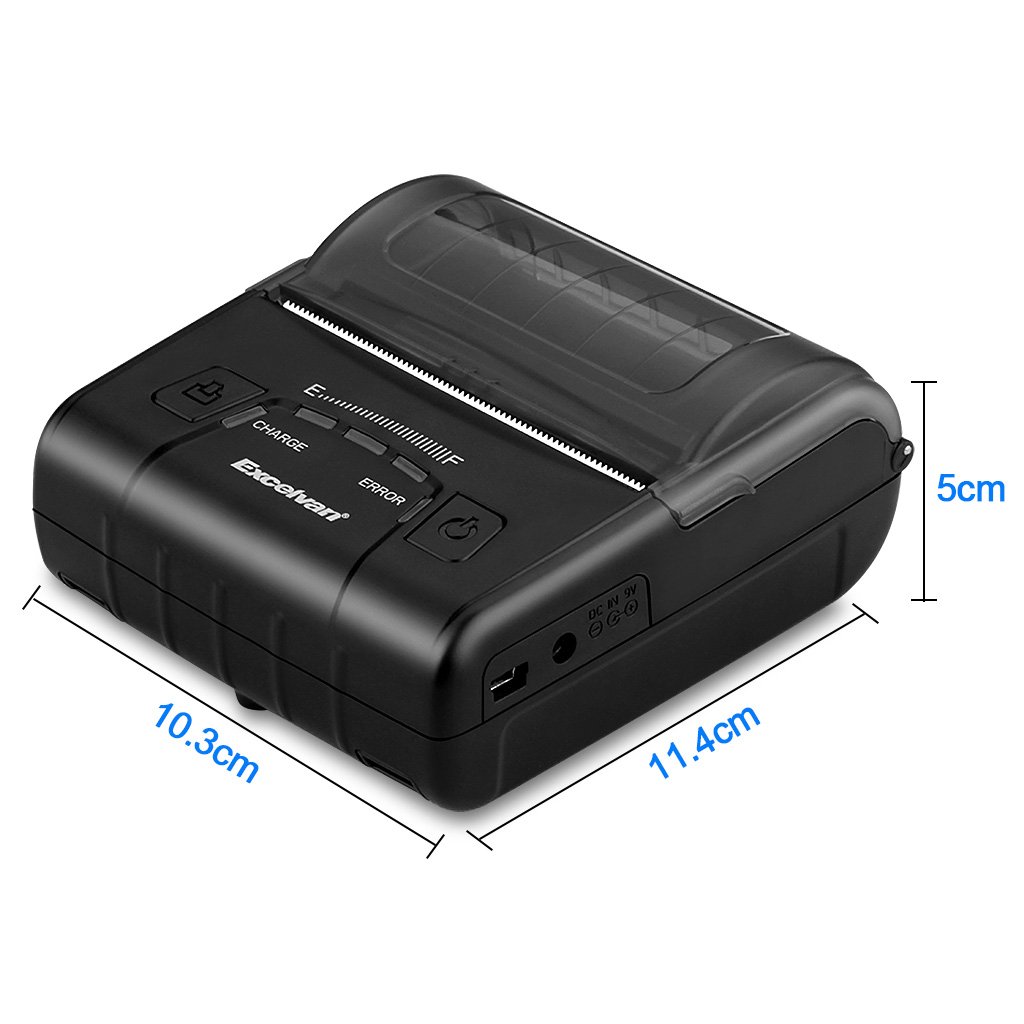
Figi 6: EXCELVAN E300 Printer Dimensions.
| Karakteristik | Spesifikasyon |
|---|---|
| Metòd enprime | Enpresyon tèmik liy |
| Efektif Enprime Lajè | 72 mm |
| Rezolisyon | 384 pwen / liy |
| Vitès enprime | 90 mm/s |
| Entèfas | USB, Bluetooth |
| Kalite Papye | Papye tèmik |
| Lajè papye | 79.5 ± 0.5 mm |
| Dyamèt papye | ≤ 43 mm (40 mm recommended) |
| Kòmandman | ESC/POS compatible |
| Pwovizyon pou pouvwa | Rechargeable Polymère ityòm batri |
| Kapasite batri | 2500 mAh / 7.4 V |
| Sòti adaptè pouvwa | 9.0 V / 2 A |
| Lojisyèl chofè | Android, iOS, Linux, Win2000/2003/XP/7/8/8.1/10 |
| Enprime tèt lavi | 50 km (Print Density ≤ 12.5) |
| Tanperati Fonksyònman | 5 °C ~ 45 °C |
| Operasyon Imidite | 10% ~ 80% |
| Dimansyon (L x W x H) | 11 x 5 x 10 cm (apeprè) |
| Pwa | 285 gram |
8. Garanti ak sipò
8.1 Enfòmasyon sou Garanti
The EXCELVAN E300 printer comes with a standard manufacturer's warranty. Please refer to the warranty card included in your package or contact your retailer for specific terms and conditions regarding warranty coverage and duration.
8.2 Sipò pou Kliyan
For technical assistance, troubleshooting not covered in this manual, or inquiries about your product, please contact EXCELVAN customer support or your authorized dealer. Contact information can typically be found on the product packaging or the official EXCELVAN websit.