
1. Entwodiksyon
The StarTech.com USB-C Multiport Adapter DKT30CHV is designed to expand the connectivity of your USB-C enabled laptop, tablet, or smartphone. This portable travel dock allows you to connect to a 4K HDMI or 1080p VGA display, a Gigabit Ethernet network, and a 5Gbps USB-A 3.0 peripheral, all through a single USB-C port on your host device. It is bus-powered, eliminating the need for an external power adapter, making it ideal for mobile use.
Karakteristik kle:
- 4-in-1 Portable Dock: Provides 4K 30Hz HDMI or 1080p VGA video output, one USB-A (USB 3.1 Gen 1 5Gbps) port, and Gigabit Ethernet.
- Wide konpatibilite aparèy: Compatible with USB-C and Thunderbolt 3 (TB3) devices from various brands including HP, Dell, Lenovo, Apple MacBook Pro/Air, and Chromebooks.
- Wide Operating System Compatibility: Supports Windows, macOS, Ubuntu, and Chrome OS.
- Compact & Light Design: Easily fits into a laptop bag or pocket for travel.

Image 1: The StarTech.com USB-C Multiport Adapter DKT30CHV, a compact black device with various ports.
2. Pake kontni
- 1x USB-C Multiport Adapter (DKT30CHV)
- 1x manyèl enstriksyon
3. Enstalasyon
Follow these steps to set up your StarTech.com USB-C Multiport Adapter:
- Konekte ak aparèy lame a: Plug the integrated USB-C cable from the adapter into an available USB-C or Thunderbolt 3 port on your laptop, tablet, or smartphone. Ensure your host device's USB-C port supports video (DisplayPort Alternate Mode) for video output functionality.
- Konekte Ekspozisyon: Connect an HDMI cable from your monitor to the adapter's HDMI port for up to 4K 30Hz resolution, or connect a VGA cable to the adapter's VGA port for up to 1080p resolution. The adapter supports one video output at a time.
- Konekte sou rezo a: Connect an Ethernet cable from your network router or switch to the adapter's Gigabit Ethernet port for a wired network connection.
- Konekte periferik USB yo: Plug your USB-A devices (e.g., mouse, keyboard, external hard drive) into the adapter's USB 3.0 (USB 3.1 Gen 1) port.

Imaj 2: Yon gwo plan view of the adapter's ports, including Gigabit Ethernet, USB-A 3.0, VGA, and HDMI.
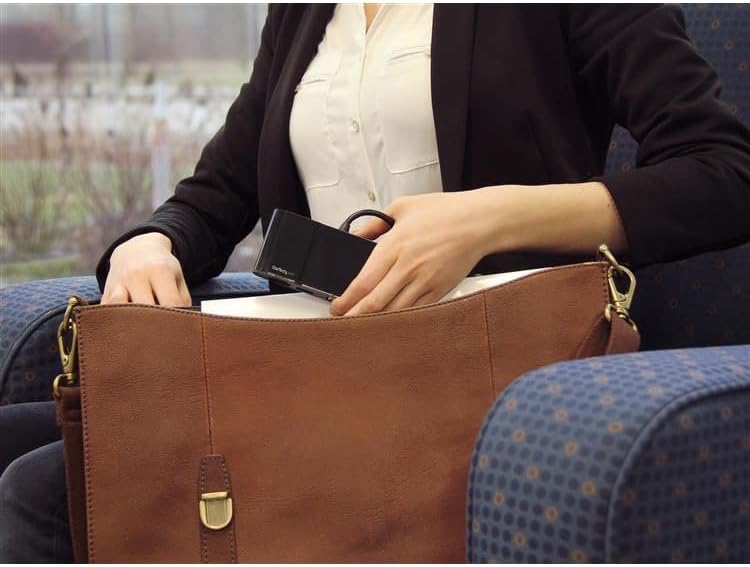
Image 3: The compact USB-C Multiport Adapter being stored in a bag, highlighting its portability.
4. Operasyon Enstriksyon
Once connected, the adapter functions as an extension of your host device's capabilities. Most operating systems provide native support, meaning drivers are often not required for basic functionality. However, for optimal performance, especially with the Gigabit Ethernet port, it is recommended to check the StarTech.com support websit for the latest drivers specific to your operating system.
Ekspozisyon Sòti:
The adapter supports either HDMI or VGA output, but not simultaneously. Your operating system should automatically detect the connected display. You can configure display settings (e.g., extended desktop, duplicate display) through your computer's display preferences.
USB 3.0 pò:
The USB 3.0 port provides 5Gbps data transfer speeds for connecting peripherals. It is backward compatible with USB 2.0 devices.
Gigabit-Ethernet:
The Gigabit Ethernet port provides a stable and fast wired network connection. Ensure the Ethernet cable is securely connected to both the adapter and your network device.
Video 1: An official StarTech.com video demonstrating the general benefits and ease of use of their docking stations and adapters for various professional scenarios.
5. Antretyen
To ensure the longevity and optimal performance of your StarTech.com USB-C Multiport Adapter, follow these maintenance guidelines:
- Netwayaj: Use a soft, dry cloth to clean the adapter. Avoid using harsh chemicals or abrasive cleaners.
- Depo: Sere adaptè a nan yon kote ki fre epi sèk, lwen limyè solèy dirèk ak tanperati ekstrèm.
- Manyen: Handle the adapter with care. Avoid dropping it or subjecting it to strong impacts. Do not pull on the integrated cable forcefully.
NAN. Depanaj
If you encounter issues with your USB-C Multiport Adapter, refer to the following common troubleshooting steps:
- Pa gen okenn rezilta ekspozisyon:
- Ensure your host laptop's USB-C port supports video (DisplayPort Alternate Mode). Not all USB-C ports have this capability.
- Verify that the video cable (HDMI or VGA) is securely connected to both the adapter and the display.
- Try connecting the display directly to your laptop (if possible) to rule out display or cable issues.
- Rekòmanse aparèy lame ou a.
- No Network Connection (Gigabit Ethernet):
- Ensure the Ethernet cable is securely connected to both the adapter and your network device.
- Check your host device's network settings to ensure the Ethernet adapter is recognized and enabled.
- Vizite la StarTech.com support websit to download and install the latest Ethernet drivers for your operating system, if necessary.
- USB Peripherals Not Recognized:
- Ensure the USB peripheral is properly connected to the adapter's USB 3.0 port.
- Try connecting the USB peripheral directly to your host device (if possible) to confirm it is functional.
- If connecting a high-power USB device, ensure your host device can provide sufficient power through its USB-C port. The DKT30CHV is bus-powered and does not support USB Power Delivery to charge other devices.
- Intermittent Connections or Performance Issues:
- Ensure all cables are firmly seated and not loose.
- Avoid excessive bending or strain on the integrated USB-C cable.
- Reduce the number of simultaneously active high-bandwidth devices if experiencing slowdowns, as all ports share the USB 3.0 bandwidth.
7. Espesifikasyon

Image 4: Diagram showing the dimensions of the StarTech.com USB-C Multiport Adapter: 4.5 inches (11.4 cm) length, 2.1 inches (5.4 cm) width, and 0.7 inches (1.7 cm) height.
| Karakteristik | Spesifikasyon |
|---|---|
| Mak | StarTech.com |
| Nimewo Modèl | DKT30CHV |
| Koulè | Nwa |
| Entèfas Materyèl | Thunderbolt, USB, USB 2.0, USB 3.0, USB 3.1 Type C, USB Type C |
| Karakteristik espesyal | Pòtab |
| Aparèy konpatib | Audio/Video Device, Chromebook, Docking Station, Monitors, Network Device, Notebook, Projectors, Workstation |
| Total pò USB | 1 (USB-A 3.0) |
| Pousantaj Transfè Done | 5 Gigabit pou chak segonn |
| Kantite pò | 4 (HDMI, VGA, USB-A 3.0, Gigabit Ethernet) |
| Sistèm operasyon | Chrome OS, Linux, macOS, Windows |
| Materyèl patiraj | Metal |
| Dimansyon atik (L x W x H) | 4.5"L x 2.1"W x 0.7"H (11.4 cm x 5.4 cm x 1.7 cm) |
| Pwa atik | 0.16 liv (72.57 g) |
| UPC | 662919087369, 065030864695 |
8. Garanti ak sipò
The StarTech.com USB-C Multiport Adapter DKT30CHV is backed by a 3-ane garanti. StarTech.com also offers free lifetime technical support to assist you with any questions or issues you may encounter.
For technical assistance, product information, or to download drivers, please visit the official StarTech.com support websit: www.startech.com/support