
1. Entwodiksyon
The DNP DS620A is a professional dye-sublimation photo printer designed for high-quality, rapid photo production. It is capable of producing up to 400 prints per hour, with a print speed of approximately 8.3 seconds for a 4x6 inch print. This printer supports various print formats, including 2x6 inch photobooth strips, 4x6 inch, 5x7 inch, and 6x8 inch enlargements. It also features a unique watermark option for the back of photos and produces prints with high gloss and vivid colors. The DS620A incorporates energy-saving features, including a standby mode, and is compatible with Hot Folder Print (HFP) Utility version 2.1 and mini photobook software. Mac users can utilize a specific driver for square photo prints (6x6 inch and 5x5 inch).
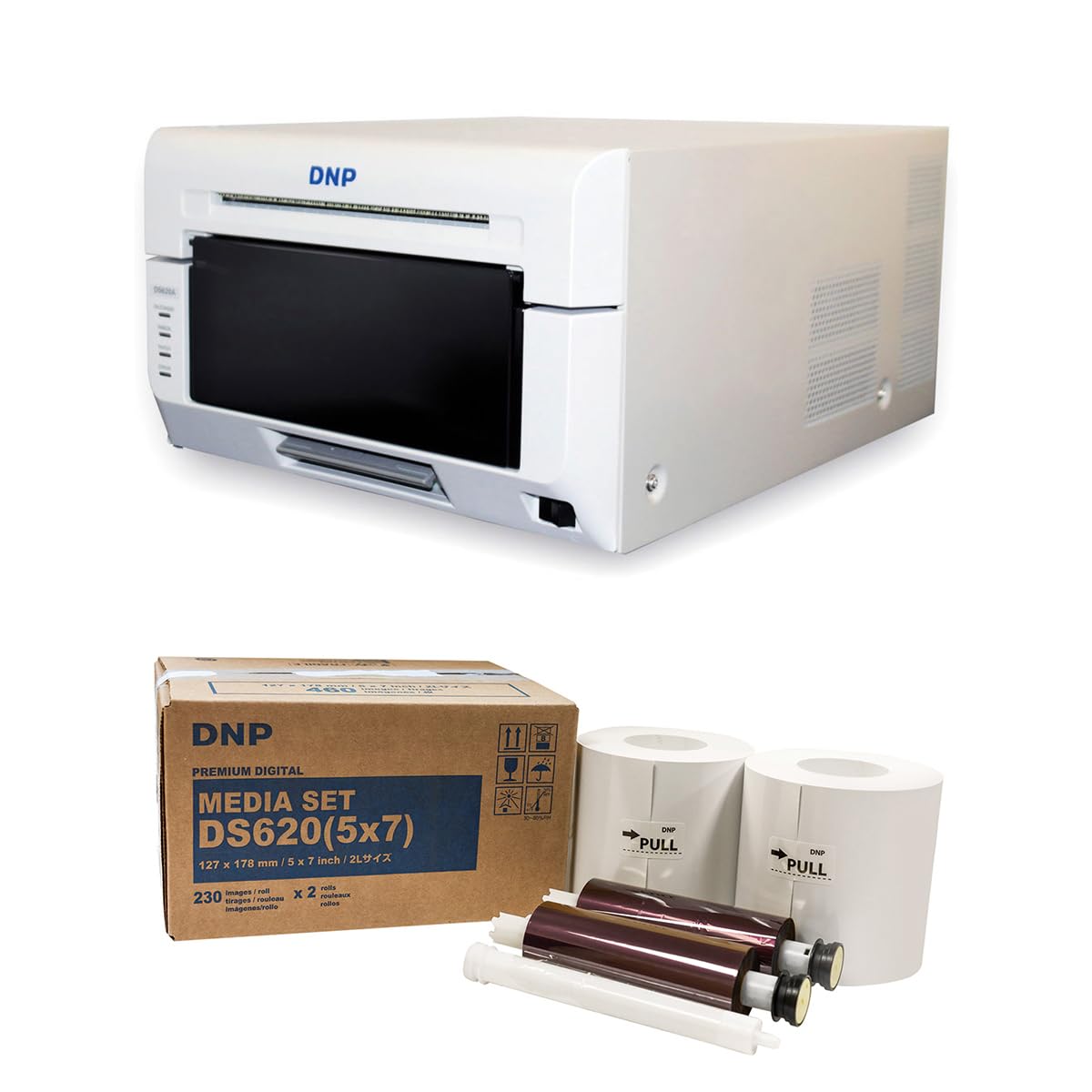
Imaj 1.1: Devan view of the DNP DS620A Professional Photo Printer. The printer is white with a black front panel where prints exit.
2. Pake kontni
Verifye ke tout atik ki nan lis anba a yo enkli nan pakè ou a:
- DNP DS620A Printer Unit
- 4x6 inch Print Catcher
- 5x7 inch Spacer
- USB kab
- Kòd pouvwa
- CD chofè
- DNP 5x7 inch Dye Sub Media (for initial use)

Image 2.1: DNP 5x7 inch Dye Sub Media Set, including paper rolls and ribbon cartridges, packaged in a brown box.
3. Enstalasyon
3.1 Debalaj ak plasman
- Retire enprimant lan ak tout akseswa yo nan anbalaj la avèk prekosyon.
- Place the printer on a stable, level surface with adequate ventilation. Ensure sufficient space around the printer for media loading and print output.
3.2 Konekte pouvwa
- Konekte kòd kouran an nan antre kouran enprimant lan epi answit nan yon priz elektrik ki gen tè.
- Do not power on the printer until all other connections are made.
3.3 Konekte sou yon òdinatè
- Connect the provided USB cable from the printer to an available USB port on your computer.
3.4 Enstalasyon chofè
- Insert the Driver CD into your computer's optical drive and follow the on-screen instructions to install the printer drivers.
- Alternatively, download the latest drivers from the official DNP websit pou sistèm operasyon ou an.
- For Mac users, ensure you install the specific Mac driver to enable features like square photo prints.
3.5 Chaje Medya yo
- Louvri kouvèti devan enprimant lan.
- Carefully load the DNP dye-sublimation paper roll and ribbon cartridge according to the instructions provided inside the printer or in the quick start guide.
- Ensure the media is correctly seated to prevent jams or print errors.
4. Operasyon Enstriksyon
4.1 Limen ak Off
- To power on, press the power button located on the printer. The indicator light will illuminate.
- Pou etenn enprimant lan, peze epi kenbe bouton pouvwa a jiskaske li fèmen.
4.2 Enprime Foto
- Asire w ke enprimant lan limen epi li konekte ak òdinatè w la.
- Open the image you wish to print using your preferred photo editing or printing software.
- Select the DNP DS620A as your printer.
- In the printer settings, choose your desired print size (e.g., 4x6 inch, 5x7 inch, 6x8 inch, 2x6 inch strips).
- For square prints (6x6 inch or 5x5 inch), ensure you are using the appropriate media pack (6x8 inch for 6x6 inch, 5x7 inch for 5x5 inch) and that the Mac driver is correctly configured.
- Initiate the print command. The printer will process and output the photo.

Image 4.1: The DNP DS620A printer in operation, with a photo emerging from the output slot.
4.3 Karakteristik avanse
- Watermark Feature: The printer can apply a unique watermark to the back of your photos. Refer to the driver settings for configuration.
- Hot Folder Print (HFP) Utility: Utilize HFP Utility version 2.1 for multi-cut support for 4x6 inch and additional sizes.
- Mini Photobook Software: The printer supports the mini photobook software application for creative projects.
- Mode sibstiti: The printer features a standby mode to reduce energy consumption when not actively printing.
5. Antretyen
5.1 Netwaye aparèy pou enprime a
- Regularly clean the exterior of the printer with a soft, dry cloth.
- Evite itilize pwodui netwayaj abrazif oswa solvang.
- Refer to the detailed cleaning instructions in the full manual for internal components.
5.2 Media Handling and Storage
- Store dye-sublimation media in a cool, dry place away from direct sunlight.
- Handle media by the edges to avoid fingerprints or damage to the printing surface.
- Replace media rolls and ribbon cartridges as instructed by the printer or when print quality degrades.
NAN. Depanaj
This section provides general guidance for common issues. For detailed troubleshooting, consult the comprehensive DNP DS620A service manual or contact customer support.
6.1 Enprimant lan pa reponn
- Asire w ke enprimant lan limen epi kòd kouran an byen konekte.
- Verify the USB cable is firmly connected to both the printer and the computer.
- Check the printer's status lights for any error indicators.
- Rekòmanse tou de enprimant lan ak òdinatè a.
6.2 Pwoblèm Kalite Enpresyon
- Ensure the correct media type is loaded and that it is not damaged or expired.
- Check for any dust or debris inside the printer that might affect print quality.
- Verify that the printer drivers are up to date.
- Perform a test print to diagnose specific quality issues.
6.3 Blokaj Medya
- Etenn enprimant lan imedyatman.
- Carefully open the printer cover and remove any jammed media following the instructions in the full manual. Avoid tearing the paper.
- Ensure media is loaded correctly and not overfilled.
7. Espesifikasyon
| Karakteristik | Spesifikasyon |
|---|---|
| Mak | DNP |
| Non modèl | DS620A |
| Teknoloji Enpresyon | Dye sublimasyon |
| Koneksyon Teknoloji | USB |
| Sòti enprimant | Koulè |
| Maksimòm vitès enprime (koulè) | 1 ppm (approx. 8.3 seconds for 4x6") |
| Rezolisyon | 300 x 300 dpi |
| Koulè lank | CMJN |
| Enprime Media | Papye foto briyan |
| Gwosè Papye Sipòte | 3.5x5, 4x6, 5x7, 6x8, 8x10 inches (and multi-cut options like 2x6, 5x5, 6x6) |
| Maximum Sheet Capacity | 400 (4x6 inch prints per roll) |
| Pwa atik | 37.65 liv |
| Karakteristik espesyal | Wireless (via optional accessory), Standby Mode |
| Kalite kontwolè | iOS (via App) |
8. Garanti ak sipò
8.1 Enfòmasyon sou Garanti
The DNP DS620A Professional Photo Printer typically includes a 3-ane garanti limite. This warranty covers defects in materials and workmanship under normal use. Please refer to the warranty card included with your product or visit the official DNP websit la pou tout tèm ak kondisyon yo.

Image 8.1: The DNP DS620A printer alongside a badge indicating a 3-Year Advance Exchange Extended Warranty.
8.2 Sipò pou Kliyan
For technical assistance, troubleshooting beyond this manual, or warranty claims, please contact DNP customer support. Contact information can typically be found on the DNP official websit la oubyen nan dokimantasyon ki vini ak enprimant ou an.