
1. Entwodiksyon
This manual provides essential information for the safe and efficient use of your InFocus IF195a Touch Pad. Please read this manual thoroughly before operating the device and retain it for future reference.
2. Enfòmasyon sou Sekirite
- Pa ekspoze aparèy la nan tanperati ekstrèm, limyè solèy dirèk, oswa imidite ki wo.
- Evite jete oswa sibi aparèy la nan gwo enpak.
- Use only the charger provided or approved by InFocus.
- Pa eseye demonte oswa repare aparèy la tèt ou. Konfye tout antretyen bay pèsonèl kalifye.
- Kenbe aparèy la lwen dlo ak lòt likid.
- Jete aparèy la ak batri li yon fason responsab dapre règleman lokal yo.
3. Pwodwi souview
The InFocus IF195a is a 20-inch Android-powered touch pad designed for interactive use. Familiarize yourself with its components.
3.1 Devan View

Figi 1: Devan view of the InFocus IF195a Touch Pad. This image shows the large 20-inch display with the Android operating system interface, including various app icons and the Google search bar. The device features a sleek bezel around the screen.
- Ekspozisyon: 20-inch multi-touch screen.
- Kamera devan: Located at the top center bezel.
- Mikwofòn: Integrated for voice input.
3.2 Bò View ak Pò yo
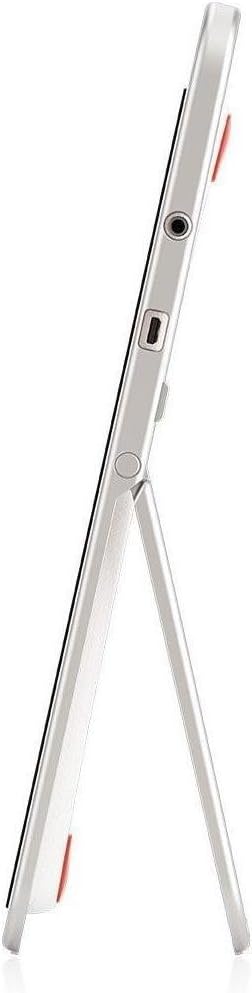
Figi 2: Side view of the InFocus IF195a Touch Pad. This image highlights the device's slim profile and the integrated kickstand, which allows for upright positioning. Visible ports include a headphone jack and a USB port.
- Bouton pouvwa: Used to turn the device on/off or put it to sleep.
- Bouton Volim: Adjust the device's audio output.
- Jack kas ekoutè (3.5mm): Pou konekte aparèy odyo ekstèn.
- Mikwo-USB pò: Pou chaje ak transfè done.
- Sipò entegre: Allows the device to stand upright.
4. Enstalasyon
4.1 Debale ak Premye Chajman
- Carefully remove the InFocus IF195a Touch Pad and all accessories from the packaging.
- Connect the provided power adapter to the Micro-USB port on the device and plug it into a power outlet. Allow the device to charge fully before first use. The charging indicator will typically show a full battery when complete.
4.2 Limen/Etenyen
- Pou limen: Press and hold the Power button until the InFocus logo appears on the screen.
- Pou etenn: Peze epi kenbe bouton Power la jiskaske yon meni pou etenn parèt. Chwazi "Power off" epi konfime.
- Pou dòmi/reveye: Peze bouton Power la yon ti tan pou mete aparèy la nan mòd dòmi oubyen pou reveye li.
4.3 Asistan Enstalasyon Inisyal
Upon first power-on, the device will guide you through an initial setup process:
- Seleksyon Lang: Chwazi lang ou prefere.
- Koneksyon Wi-Fi: Select your Wi-Fi network from the list and enter the password. A stable internet connection is required for many features.
- Kont Google: Sign in with an existing Google account or create a new one. This is necessary to download apps from the Google Play Store and access Google services.
- Dat ak Lè: Set the correct date and time or allow the device to set it automatically via the network.
- Anviwònman konfidansyalite: Review epi ajiste paramèt konfidansyalite yo jan ou vle.
5. Opere Aparèy la
5.1 Manyen Jès
- Tape: Touche ekran an yon fwa pou chwazi yon atik oswa louvri yon aplikasyon.
- Manyen epi kenbe: Press and hold an item to access contextual menus or drag items.
- Glise: Trennen dwèt ou sou ekran an pou defile nan lis yo oubyen pou chanje ant ekran prensipal yo.
- Zoom-pou-Zoom: Use two fingers to zoom in or out on images, maps, or web paj.
5.2 Home Screen and Navigation
- Bouton Kay: Returns you to the main home screen.
- Bouton tounen: Returns to the previous screen or closes the current application.
- Bouton Aplikasyon Dènye: Displays a list of recently used applications for quick switching.
- Panèl Notifikasyon: Glise anba soti anwo ekran an pou jwenn aksè a notifikasyon yo ak paramèt rapid yo.
5.3 Installing and Managing Applications
- Google Play Store: Open the "Play Store" app to browse and download applications. A Google account is required.
- Enstale aplikasyon: Select an app and tap "Install." Follow on-screen prompts for permissions.
- Dezenstalasyon aplikasyon yo: Ale nan Anviwònman > Aplikasyon, select the desired app, and tap "Uninstall." Alternatively, touch and hold an app icon on the home screen and drag it to the "Uninstall" option (if available).
5.4 Konekte ak Aparèy Ekstèn
- kas ekoutè: Ploge kas ekoutè 3.5mm nan jack kas ekoutè a.
- Aparèy USB: Connect compatible USB devices (e.g., flash drives, keyboards) to the Micro-USB port using an appropriate adapter if necessary. The device supports USB On-The-Go (OTG).
6. Antretyen
6.1 Netwaye Aparèy la
- Sèvi ak yon twal mou, ki pa gen pèl pou netwaye ekran an ak kò aparèy la.
- Pou mak ki difisil pou retire, yon ti kras dampRense twal la avèk dlo oswa yon pwodui netwayaj ekran ki fèt espesyalman pou aparèy elektwonik.
- Evite itilize pwodui chimik ki agresif, pwodui netwayaj abrazif, oswa espre ayewosòl.
6.2 Swen Batri
- Pou pwolonje lavi batri a, evite dechaje batri a nèt souvan.
- Do not leave the device connected to the charger for extended periods after it is fully charged.
- Sere aparèy la nan yon kote ki fre epi sèk si ou pa itilize li pou yon bon bout tan, ak batri a chaje a apeprè 50%.
6.3 Mizajou lojisyèl
Periodically check for software updates to ensure optimal performance and security. Go to Anviwònman > Konsènan tablèt > Mizajou sistèm to check for and install available updates. Ensure your device is connected to Wi-Fi and has sufficient battery charge before starting an update.
NAN. Depanaj
| Pwoblèm | Solisyon posib |
|---|---|
| Aparèy la pa vle limen. | Ensure the device is charged. Connect the charger and wait a few minutes before attempting to power on again. If unresponsive, perform a hard reset by holding the power button for 10-15 seconds. |
| Pwoblèm koneksyon Wi-Fi. | Tcheke si Wi-Fi a aktive nan paramèt yo. Rekòmanse routeur Wi-Fi ou a. Bliye rezo a epi rekonekte. Asire w ke ou nan zòn siyal Wi-Fi a. |
| Applications are crashing or freezing. | Close and restart the application. Clear the app's cache (Anviwònman > Aplikasyon > [Non Aplikasyon an] > Depo > Efase kach la). If the problem persists, uninstall and reinstall the app. |
| Ekran an pa reponn. | Restart the device. Ensure the screen is clean and free of debris. If the issue continues, contact support. |
| Pèfòmans ralanti. | Close unnecessary background applications. Clear cache for frequently used apps. Check available storage (Anviwònman > Depo) and free up space if needed. Consider a factory reset as a last resort. |
7.1 Reset faktori
Yon réinitializasyon faktori ap efase tout done ki nan aparèy ou an epi retabli li nan paramèt faktori orijinal li yo. Fè yon kopi tout done enpòtan yo anvan ou kontinye.
- Ale nan Anviwònman > Sovgad ak Reyajiste > Reyajiste done faktori.
- Read the warning message carefully.
- Tap "Reset tablet" and then "Erase everything" to confirm.
- Aparèy la pral rekòmanse epi kòmanse pwosesis reset la.
8. Espesifikasyon teknik
| Karakteristik | Spesifikasyon |
|---|---|
| Modèl | IF195a |
| Mak | Enfocus |
| Gwosè ekspozisyon | 20 pous |
| Rezolisyon maksimòm | 1600 x 900 |
| Processeur | ARM Cortex-A15 Quad-Core 1.8 GHz |
| Kapasite RAM | 2 GB |
| Kapasite Depo | 16 GB |
| Sistèm operasyon | Android 4.4 KitKat |
| Rezolisyon kamera dèyè | 5 MP |
| Dimansyon (L x W x H) | 61.6 x 47 x 8.6 cm |
| Pwa | 3.7 kg |
| Koulè | Gri |
9. Garanti ak sipò
For warranty information, please refer to the warranty card included with your product or visit the official InFocus website. For technical support, product registration, or service inquiries, please contact InFocus customer service through their official channels.
Please note that warranty terms may vary by region and retailer. Keep your proof of purchase for warranty claims.