
1. Entwodiksyon
Mèsi pou acha aasing the ELECOM M-XGM10DBBK Wireless 5-Button BlueLED Mouse. This mouse is designed for comfort and precision, featuring an ergonomic shape that fits naturally in your hand and BlueLED technology for reliable tracking on various surfaces. This manual provides essential information for proper setup, operation, and maintenance of your device.
2. Pwodwi souview
The M-XGM10DBBK mouse is part of the "EX-G" series, known for its ergonomic design and comfortable grip. It features five buttons, including dedicated back and forward buttons, to enhance productivity.
Karakteristik kle:
- Konsepsyon ergonomique: Shaped to fit the hand for ultimate grip comfort.
- Capteur BlueLED: Provides precise tracking on a wide range of surfaces, including glass and fabric.
- Fonksyonalite 5 bouton: Includes left, right, scroll wheel, and dedicated back/forward buttons.
- 2.4GHz Wireless Koneksyon: Offers a stable connection with a range of approximately 10 meters (3 meters on steel desks).
- Bouton personnalisable: Button functions can be re-assigned using the free "ELECOM Mouse Assistant" software (Windows/Mac only).
- Endikatè batri: A lamp indicates remaining battery life.
Eleman:
Familiarize yourself with the mouse components:

Figi 2.1: Top view of the mouse, highlighting the main buttons.
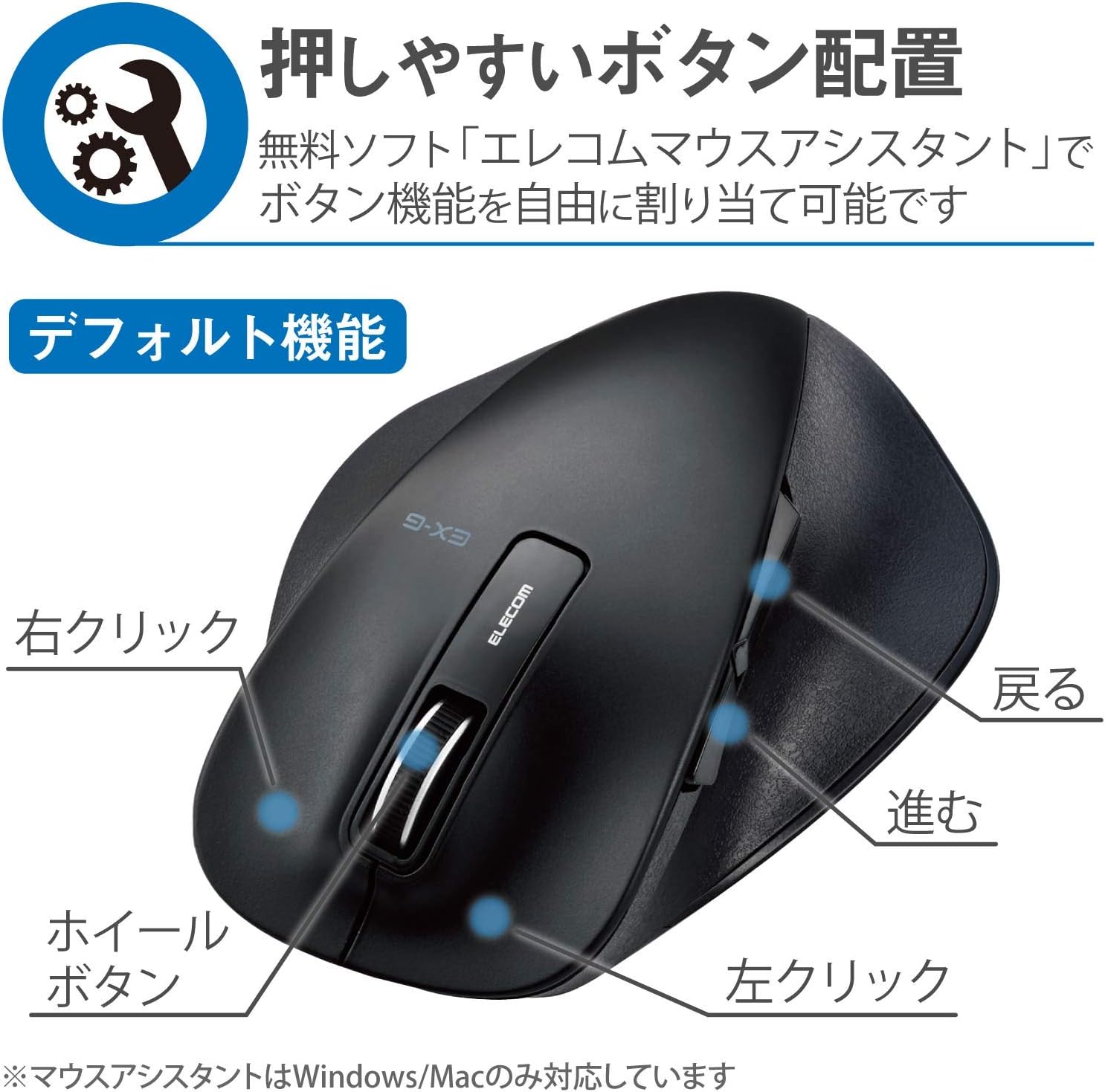
Figi 2.2: Side view of the mouse, showing the back and forward buttons.
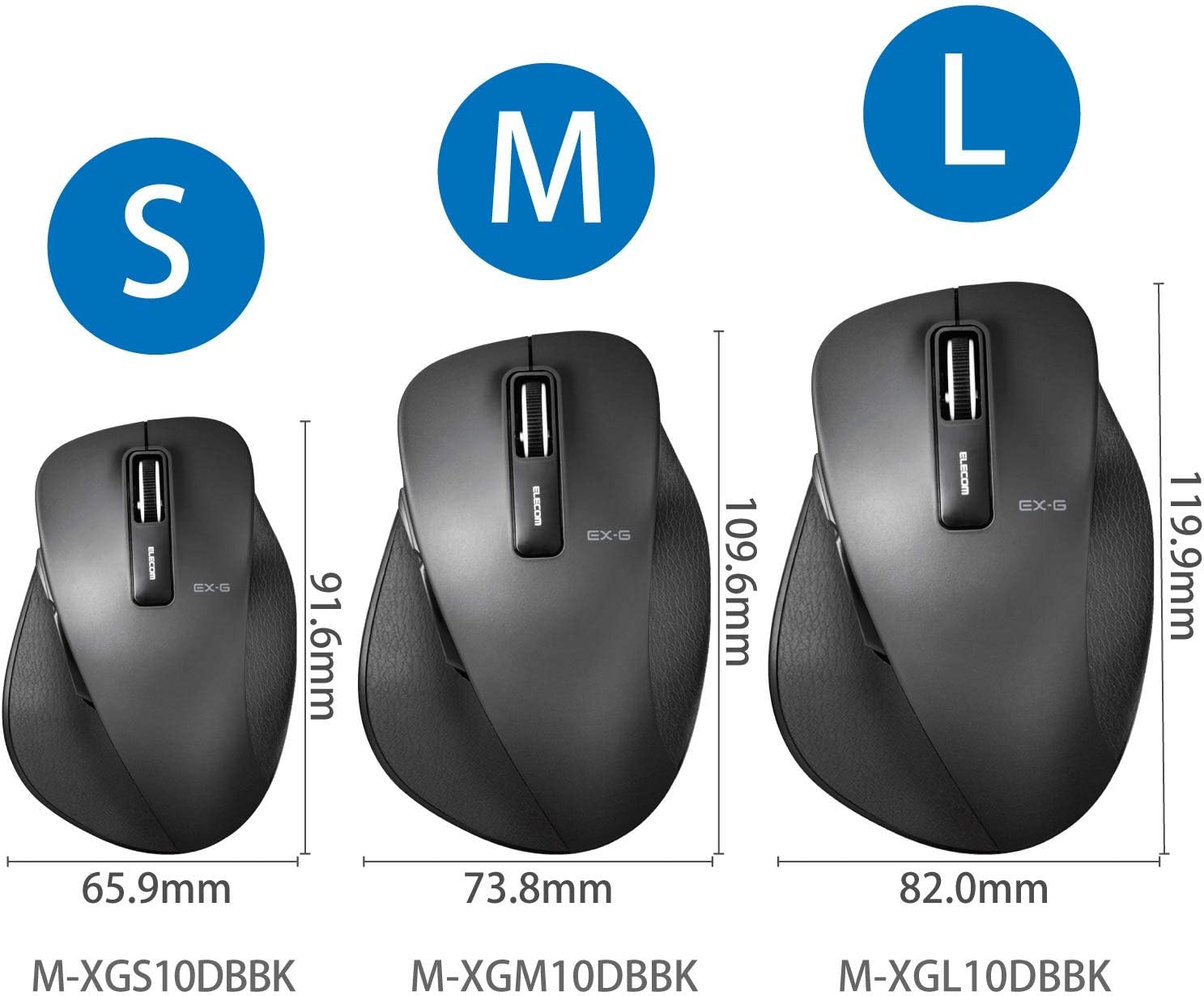
Figure 2.3: Size comparison of EX-G mice (S, M, L). The M-XGM10DBBK is the M size.

Figi 2.4: Anba view of the mouse, indicating the optical sensor, power switch, and receiver storage compartment.

Figure 2.5: Illustration of the durable Omron switches used for the left and right click buttons.
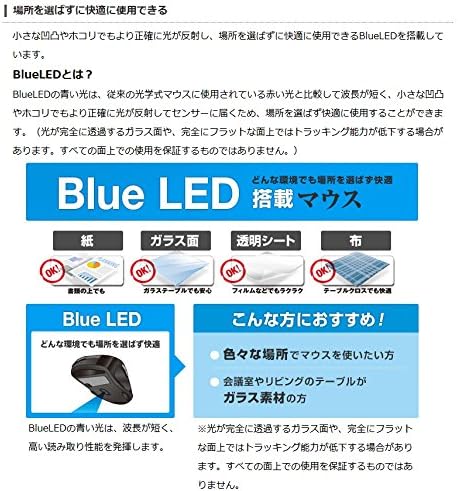
Figure 2.6: Explanation of BlueLED technology, demonstrating its versatility on different surfaces. Note: Tracking performance may decrease on completely transparent or perfectly flat surfaces.

Figure 2.7: Details on 2.4GHz wireless, battery indicator, and 2000 DPI resolution for smooth operation.

Figure 2.8: The ELECOM M-XGM10DBBK mouse is certified to work with Chromebooks.
3. Enstalasyon
3.1 Enstalasyon batri
- Locate the battery cover on the bottom of the mouse.
- Glise kouvèti a louvri.
- Insert one AA alkaline, manganese, or nickel-metal hydride battery, ensuring correct polarity (+/-).
- Fèmen kouvèti batri a byen.
3.2 Koneksyon reseptè
- Remove the USB receiver from its storage compartment on the bottom of the mouse.
- Branche reseptè USB a nan yon pò USB-A ki disponib sou òdinatè w la.
- Odinatè w la ta dwe detekte epi enstale chofè ki nesesè yo otomatikman. Sa ka pran kèk segond.
3.3 Limen
- Slide the power switch on the bottom of the mouse to the "ON" position.
- Sourit la se kounye a pare pou itilize.
4. Operasyon Enstriksyon
4.1 Fonksyon debaz
- Klike Goch: Seleksyon prensipal ak aktivasyon.
- Klike sou dwa: Ouvri meni kontèks yo.
- wou woulo liv: Dokiman defile ak web pages vertically. Can also be clicked for middle-click functionality.
4.2 Back/Forward Buttons
The dedicated back and forward buttons located on the side of the mouse allow for quick navigation in web navigatè ak file eksploratè.
- Peze a Retounen button to go to the previous page or folder.
- Peze a Pi devan button to go to the next page or folder.
4.3 Customizing Buttons (ELECOM Mouse Assistant)
For advanced customization, download the free "ELECOM Mouse Assistant" software from the official ELECOM website. This software allows you to re-assign functions to the mouse buttons according to your preferences. Please note that this software is compatible with Windows and macOS only.
5. Antretyen
5.1 Netwayaj
Pou kenbe pèfòmans ak ijyèn optimal, netwaye sourit ou regilyèman:
- Etenn sourit la lè l sèvi avèk bouton pouvwa a.
- Sèvi ak yon twal mou epi sèk pou siye sifas sourit la.
- Pou pousyè tè ki difisil pou retire, yon ti kras dampRense twal la avèk dlo oswa yon solisyon netwayaj dou, apresa siye l sèk imedyatman.
- Evite itilize pwodui chimik ki fò, abrazif, oswa solvan.
- Gently clean the optical sensor area on the bottom of the mouse with a cotton swab if tracking issues occur.
5.2 Ranplasman batri
Lè endikatè batri a lamp flashes or the mouse performance degrades, replace the battery:
- Etenn sourit la.
- Louvri kouvèti batri a.
- Retire vye batri a epi jete li selon règleman lokal yo.
- Mete yon nouvo pil AA, asire w ke polarite a kòrèk.
- Close the battery cover and turn the mouse back on.
NAN. Depanaj
Si ou rankontre pwoblèm ak sourit ou a, gade pwoblèm ak solisyon komen sa yo:
| Pwoblèm | Kòz posib | Solisyon |
|---|---|---|
| Sourit pa reponn | Low battery; Power switch off; Receiver not connected; Receiver interference. | Replace battery; Turn power switch ON; Ensure receiver is firmly plugged in; Try a different USB port; Move closer to the receiver. |
| Mouvman iregilye kurseur | Capteur optik sal; Sifas ki pa apwopriye; Entèferans. | Clean optical sensor; Use on a suitable mouse pad or surface; Reduce interference from other wireless devices. |
| Bouton pa travay | Software conflict; Driver issue. | Restart computer; Reinstall mouse drivers; Check for conflicting software. |
| Pwoblèm koneksyon san fil | Distance too far; Obstructions; Interference. | Ensure mouse is within range (10m); Remove obstructions between mouse and receiver; Avoid using near other 2.4GHz devices. |
7. Espesifikasyon
| Karakteristik | Detay |
|---|---|
| Nimewo Modèl | M-XGM10DBBK |
| Metòd Koneksyon | 2.4GHz san fil (Reseptè USB-A) |
| Kalite Capteur | BlueLED Optik |
| Bouton | 5 buttons (Left, Right, Scroll Wheel, Back, Forward) |
| Rezolisyon | 2000 DPI |
| Dimansyon (W x P x H) | 73.8 x 109.6 x 40.8 mm (M Size) |
| Pwa | Apeprè. 151.95 g (ki gen ladan batri) |
| Sous pouvwa | 1 x AA battery (Alkaline, Manganese, or Ni-MH) |
| Estimasyon lavi batri | Approx. 722 days (based on typical usage) |
| OS konpatib | Windows 11, 10, RT8.1, 8.1, 7, Vista; macOS High Sierra 10.13, OS X 10.10; Chrome OS |
| Koulè | Nwa |
8. Garanti ak sipò
8.1 Enfòmasyon sou Garanti
Pwodwi sa a vini ak yon 6-mwa garanti apati dat acha a. Tanpri konsève prèv acha ou a pou reklamasyon garanti. Garanti a kouvri domaj fabrikasyon anba itilizasyon nòmal. Li pa kouvri domaj ki koze pa move itilizasyon, aksidan, modifikasyon san otorizasyon, oswa mete ak chire nòmal.
8.2 Sipò pou Kliyan
For technical assistance, troubleshooting, or warranty inquiries, please visit the official ELECOM website or contact ELECOM customer support. Contact details can typically be found on the ELECOM website under the 'Support' or 'Contact Us' section.