
1. Pwodwi souview
The TP-Link TL-WA750RE is a 150Mbps Universal Wireless Range Extender designed to expand the coverage of an existing wireless network. It eliminates Wi-Fi dead zones by boosting the wireless signal to previously unreachable or hard-to-wire areas. Its compact, wall-mounted design allows for flexible deployment and easy relocation within your home or office.
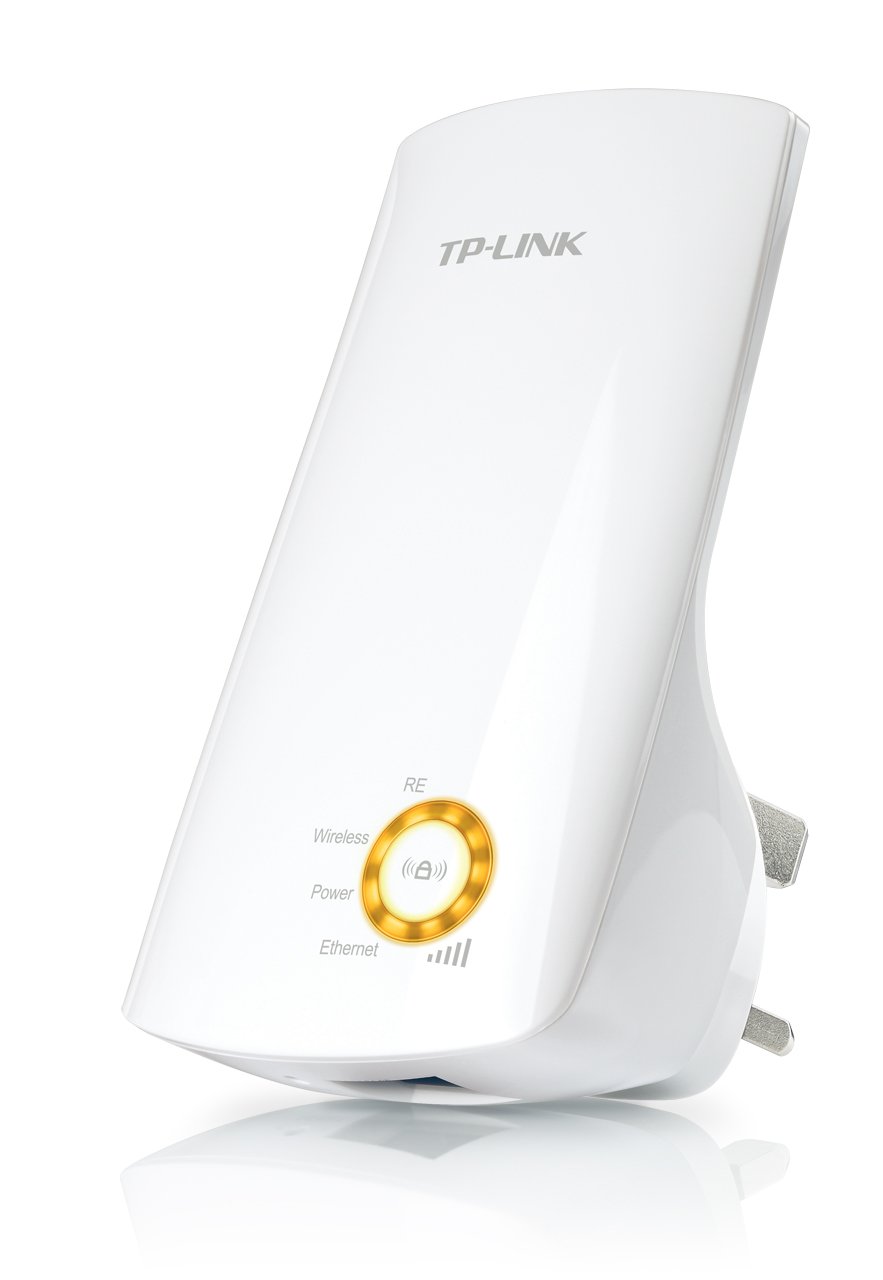
Figi 1: TP-Link TL-WA750RE Universal Wireless Range Extender. This image shows the device in its retail packaging, highlighting its compact design and wall-plug form factor.
2. Karakteristik kle
- Range Extender Mode: Boosts wireless signal to eliminate Wi-Fi dead zones and extend network coverage.
- Konsepsyon kontra enfòmèl ant: Small size and wall-mounted design for easy deployment and flexible movement.
- WPS bouton: Allows for instant setup and secure connection with compatible routers.
- Endikatè siyal entelijan: Helps users find the optimal location for placing the range extender for best performance.
- Inivèsèl konpatibilite: Works seamlessly with all 802.11n/g/b wireless devices.
3. Pake kontni
Pake pwodwi a tipikman gen ladan atik sa yo:
- TP-Link TL-WA750RE 150Mbps Universal Wireless Range Extender
- Manyèl Enstriksyon
4. Gid Enstalasyon
4.1. Quick Setup using WPS Button
- Ploge nan: Branche TL-WA750RE a nan yon priz elektrik toupre routeur san fil ou a.
- Aktive WPS sou routeur la: Press the WPS button on your main wireless router. Refer to your router's manual for the exact location and procedure.
- Aktive WPS sou Extender a: Within two minutes, press the WPS button on the TL-WA750RE. The Signal LED on the extender should begin to flash.
- Tann Koneksyon an: The Signal LED will turn solid blue or green when a successful connection is established.
- Deplase ekstansyon: Unplug the extender and move it to a location between your router and the Wi-Fi dead zone. Ensure the Signal LED indicates a strong connection (e.g., solid blue or green) in the new location.
4.2. Manual Setup via Web Navigatè
- Ploge nan: Plug the TL-WA750RE into an electrical outlet near your computer.
- Konekte ak ekstansyon an: Connect your computer to the extender's Wi-Fi network (e.g., "TP-LINK_Extender_XXXXXX"). No password is required initially.
- Aksè Web Entèfas: Louvri a web navigatè ak kalite http://tplinkrepeater.net or the extender's default IP address (usually 192.168.0.254) into the address bar.
- Konekte: Enter "admin" for both the username and password when prompted.
- Swiv Enstriksyon ki sou Ekran yo: Use the Quick Setup wizard to select your main Wi-Fi network and enter its password.
- Deplase ekstansyon: Once configured, unplug the extender and move it to an optimal location between your router and the desired coverage area.
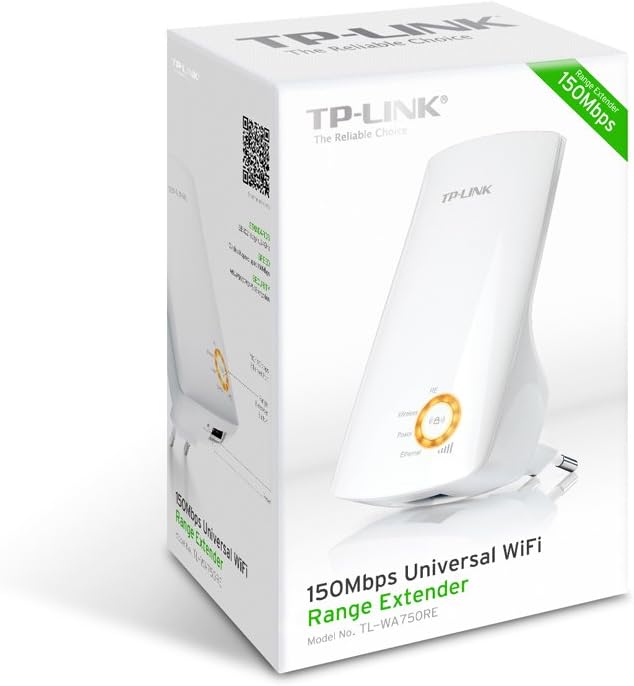
Figi 2: Side view of the TL-WA750RE. This image illustrates the physical layout of the device, including the WPS button and Ethernet port, which are crucial for setup and operation.
5. Itilizasyon Range Extender la
Once the TL-WA750RE is successfully set up, it will automatically extend your existing Wi-Fi network. Devices within the extended range can connect to the network name created by the extender (e.g., "YourNetworkName_EXT").
5.1. Endikatè Siyal Entelijan
The Smart Signal Indicator LEDs on the front of the device provide real-time feedback on the signal strength received from your main router. This helps you determine the best placement for the extender:
- Solid ble/vèt: Excellent signal strength.
- Solid Wouj: Weak signal strength. Consider relocating the extender closer to your router.
- Off: No connection to the main router.
5.2. Itilizasyon Pò Ethernet
The TL-WA750RE includes an Ethernet port. This port can be used to connect a wired device, such as a desktop computer, gaming console, or smart TV, to your wireless network, providing a stable wired connection in the extended Wi-Fi area.
6. Antretyen
- Netwayaj: Sèvi ak yon twal mou epi sèk pou netwaye aparèy la. Pa sèvi ak pwodui netwayaj likid oswa ayewosòl.
- Plasman: Evite mete ekstansè a anba limyè solèy dirèk, toupre sous chalè, oswa nan zòn ki gen anpil imidite.
- Mizajou mikrolojisyèl: Tcheke enfòmasyon ofisyèl TP-Link yo detanzantan. websit pou mizajou firmwèr pou asire pèfòmans ak sekirite optimal.
- Sik pouvwa: If the device experiences issues, try unplugging it from the power outlet for 10 seconds and then plugging it back in.
NAN. Depanaj
- Q1: What should I do if I cannot access the extender's web paj jesyon?
- A1: Ensure your computer is connected to the extender's network. Verify that http://tplinkrepeater.net is correctly typed in the browser. If issues persist, try using the extender's IP address (e.g., 192.168.0.254) or reset the extender to factory defaults.
- Q2: My extended network has poor signal or frequent disconnections.
- A2: Check the Smart Signal Indicator on the extender. If it's red or off, the extender is too far from your main router. Relocate the extender to a position where the indicator shows a strong signal (solid blue/green). Ensure there are no major obstructions between the router and the extender.
- Q3: How do I reset the extender to factory default settings?
- A3: With the extender powered on, use a pin to press and hold the Reset button (usually a small hole) for approximately 5-10 seconds until all LEDs flash briefly. The extender will then restart with factory default settings.
8. Espesifikasyon
| Mak | TP-Link |
| Nimewo Modèl | TL-WA750RE |
| Wireless Creole | 802.11b/g/n |
| Pousantaj Transfè Done | 150 Mbps |
| Frekans | 2.4 GHz |
| Karakteristik espesyal | Smart Signal Indicator, WPS Button |
| Kalite Connector | RJ45 (Ethernet Port) |
| Pwa atik | 0.4 liv |
| Koulè | Blan |
9. Garanti ak sipò
9.1. Enfòmasyon sou Garanti
This TP-Link TL-WA750RE device comes with a 2-ane garanti apati dat acha a. Tanpri konsève prèv acha ou pou reklamasyon garanti. Garanti a kouvri domaj nan materyèl ak nan fabrikasyon anba itilizasyon nòmal.
9.2. Sipò teknik
Pou asistans teknik, depanaj, oswa plis kesyon, tanpri vizite sipò ofisyèl TP-Link la. website or contact their customer service. You can find detailed support resources, FAQs, and contact information at www.tp-link.com/support.