
1. Entwodiksyon
This manual provides detailed instructions for the installation, operation, and maintenance of the Supermicro MBD-X10SLH-F-O uATX Server Motherboard. Please read this manual thoroughly before beginning installation to ensure proper setup and to maximize the performance and longevity of your system. This motherboard is designed for server applications, supporting Intel LGA1150 processors and DDR3 memory.
2. Pwodwi souview
The Supermicro MBD-X10SLH-F-O is a high-performance uATX server motherboard featuring the Intel C226 chipset. It is engineered for reliability and efficiency in server environments.
Karakteristik kle:
- Sokèt CPU: LGA1150, supporting Intel Xeon E3-1200 v3/v4 series, 4th/5th Gen Core i3, Pentium, Celeron processors.
- memwa: 4x 204-pin DDR3-1600 SODIMM slots, supporting up to 32GB ECC/non-ECC Unbuffered memory.
- Fant ekspansyon: 1x PCI-Express 3.0 x16, 1x PCI-Express 2.0 x8, 1x PCI-Express 2.0 x4.
- Depo: 6 pò SATA3 (6Gbps).
- Koneksyon: Dual Gigabit Ethernet LAN ports (2x RJ45) and 1x Dedicated IPMI LAN port (RJ45).
- Pò USB: 4x USB 3.0 ports, 6x USB 2.0 ports.
- Sòti videyo: 1x VGA port.
- Faktè fòm: uATX (9.6" x 9.6").
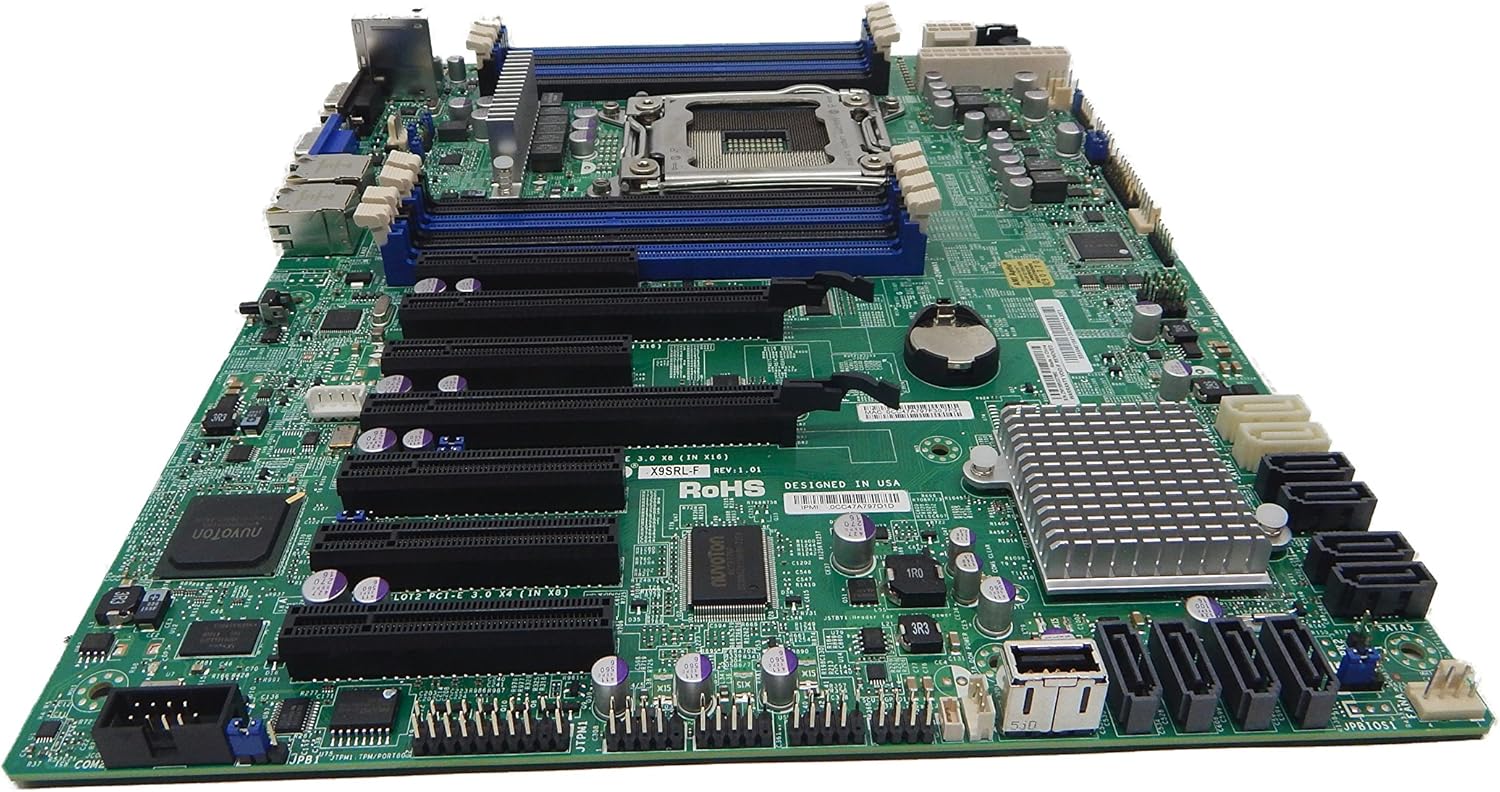
Figi 2.1: Top-desann view of the Supermicro MBD-X10SLH-F-O motherboard, showing the CPU socket, RAM slots, and various expansion slots.

Figi 2.2: Angle view of the motherboard, highlighting the LGA1150 CPU socket and the four DDR3 SODIMM memory slots.

Figi 2.3: Dèyè view of the Supermicro MBD-X10SLH-F-O motherboard, displaying the I/O panel with USB, VGA, LAN, and IPMI ports.

Figi 2.4: Fèmen view of the motherboard, showing the six SATA3 ports and other onboard connectors.
3. Espesifikasyon
| Karakteristik | Spesifikasyon |
|---|---|
| Mak | Supermicro |
| Non modèl | MBD-X10SLH-F-O |
| CPU Socket | LGA 1150 |
| Kalite Chipset | Intel C226 |
| Procesè konpatib yo | Intel Core i3-4xxx, i5-4xxx, i7-4xxx, i3-5xxx, i5-5xxx, i7-5xxx, Intel Xeon E3-1200 v3/v4 series |
| Teknoloji memwa RAM | DDR3 |
| Vitès memwa | 1600 MHz |
| Maksimòm RAM Sipòte | 32 GB |
| Kantite USB 2.0 pò | 6 |
| Kantite USB 3.0 pò | 4 |
| Pò SATA | 6x SATA3 (6Gbps) |
| Fant ekspansyon | 1x PCIe 3.0 x16, 1x PCIe 2.0 x8, 1x PCIe 2.0 x4 |
| Faktè fòm | uATX |
| Dimansyon (LxWxH) | 14 x 11 x 3.5 pous |
| Pwa atik | 3.52 ons |
4. Enstalasyon
Before beginning installation, ensure your system is powered off and disconnected from the power source. Always handle the motherboard by its edges to avoid static discharge.
4.1. Enstalasyon CPU a
- Leve levye priz CPU a dousman.
- Aliyen CPU a ak priz la, pou asire w ke triyang lò ki sou CPU a koresponn ak triyang ki sou priz la.
- Mete CPU a nan priz la ak anpil atansyon san fòse li.
- Lower the socket lever and secure it.
- Aplike pat tèmik epi enstale radyatè CPU a dapre enstriksyon manifakti a.
4.2. Enstalasyon Memwa
- Louvri klip yo nan tou de bout fant DIMM lan.
- Align the memory module's notch with the key in the DIMM slot.
- Peze byen fèm sou tou de bout modil memwa a jiskaske klip yo kase nan plas yo.
4.3. Enstalasyon Kat Ekspansyon
- Remove the corresponding slot cover from your chassis.
- Align the expansion card with the desired PCIe slot.
- Press down firmly until the card is fully seated.
- Sere kat la ak yon vis oswa yon klip retansyon.
4.4. Koneksyon Aparèy Depo
- Konekte yon bout kab done SATA a nan yon pò SATA sou kat manman an.
- Konekte lòt bout kab done SATA a ak aparèy depo ou a (HDD/SSD).
- Konekte yon kab kouran SATA soti nan ekipman pou pouvwa a nan aparèy depo a.
4.5. Koneksyon pouvwa
- Konekte konektè prensipal ATX 24-pin ki soti nan ekipman pou pouvwa a ak kat manman an.
- Konekte konektè pouvwa CPU ATX 12V 8-pin (oswa 4-pin) la ak kat manman an.
4.6. Koneksyon Panèl Devan an
Connect the front panel headers (Power LED, HDD LED, Power Switch, Reset Switch, USB, Audio) to the corresponding pins on the motherboard. Refer to the motherboard's silkscreen labels for correct pin orientation.
5. Operasyon Enstriksyon
5.1. Premye Demaraj
- After all components are installed and connected, connect the power cord to your power supply and turn on the power switch.
- Peze bouton pouvwa a sou chasi ou a.
- The system should power on, and you should see a display on your monitor.
5.2. Aksè BIOS/UEFI
To enter the BIOS/UEFI setup utility, press the designated key (commonly DEL or F2) during the initial boot sequence. The exact key may vary; observe the on-screen prompts.
5.3. IPMI Remote Management
This motherboard features a dedicated IPMI LAN port for remote management. To access the IPMI interface, connect the IPMI LAN port to your network. Obtain the IP address assigned to the IPMI interface (either from BIOS or a network scan) and access it via a web browser from another computer on the same network. Java may be required for remote console functionality.
6. Antretyen
Regular maintenance helps ensure the stability and longevity of your motherboard and system.
- Retire pousyè: Netwaye pousyè ki sou kat manman an ak konpozan yo detanzantan avèk lè konprese. Asire w ke sistèm nan etenn epi debranche anvan ou netwaye li.
- Jesyon kab: Ensure all cables are neatly routed and secured to prevent obstruction of airflow and accidental disconnections.
- BIOS/Firmware Updates: Tcheke Supermicro la website for the latest BIOS and IPMI firmware updates. Follow the provided instructions carefully. Note that IPMI BIOS upgrades may require a separate license. Always update BIOS before IPMI firmware.
- Verifikasyon Konpozan: Occasionally inspect all connections (power, data, expansion cards) to ensure they are securely seated.
NAN. Depanaj
Seksyon sa a adrese pwoblèm komen ou ka rankontre.
7.1. System Fails to Boot
- Tcheke Koneksyon Pouvwa: Ensure the 24-pin ATX and 8-pin CPU power connectors are securely attached.
- Remonte konpozan yo: Remove and re-install the CPU, memory modules, and any expansion cards to ensure they are properly seated.
- Klè CMOS: Refer to your motherboard's detailed manual for instructions on how to clear the CMOS, which can resolve boot issues caused by incorrect BIOS settings.
- Konfigirasyon minimòm: Try booting with only essential components (CPU, one RAM stick, power supply, and display) to isolate the problem.
7.2. Fan Speed Issues
Some low RPM, high-efficiency fans may not be accurately detected by the motherboard's fan controller, leading to erratic fan speed behavior (e.g., fans spinning up to max RPM). This is often due to the controller expecting server-grade fans with higher RPM ranges.
- Anviwònman BIOS: Check BIOS settings for fan control options. Adjust fan curves or modes if available.
- 3-Pin vs. 4-Pin Fans: If using 4-pin PWM fans that exhibit this behavior, consider using 3-pin adapters if available with your fans. This can sometimes provide a more stable, albeit less precise, fan control.
- IPMI Fan Control: While IPMI offers fan control, it may have limitations for low RPM fans.
7.3. SATA Port Obstruction
When installing a full-size graphics processing unit (GPU), some SATA ports may become physically blocked or difficult to access.
- Planifye davans: Connect SATA cables to the necessary ports before installing large expansion cards.
- Angled SATA Cables: Use SATA cables with angled connectors if straight connectors are obstructed.
- Alternative Ports: Utilize any unblocked SATA ports first.
8. Enfòmasyon sou garanti ak sipò
For detailed warranty information, including terms, conditions, and duration, please refer to the official Supermicro website or the warranty card included with your product. For technical support, driver downloads, and additional documentation, visit the Supermicro support portal.
Supermicro Ofisyèl Websit: www.supermicro.com