
Entwodiksyon
This manual provides comprehensive instructions for the installation, operation, and maintenance of your Dell DW1397 Broadcom 802.11a/b/g Wireless Card. Please read this manual carefully before proceeding with installation to ensure proper functionality and to avoid potential issues.
Important Compatibility Note: This wireless card is not compatible with IBM, Lenovo, Thinkpad, or HP brand laptops. Attempting to install it in these systems may result in non-functionality or system instability.
Pwodwi souview

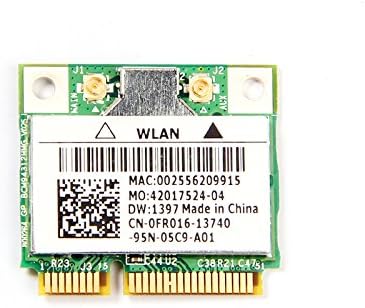
The Dell DW1397 Broadcom Wireless Card is an internal Mini PCI Express component designed to provide wireless network connectivity to compatible laptops. It supports 802.11a/b/g standards, operating on both 2.4 GHz and 5 GHz frequency bands, with a maximum data transfer rate of 54 Mbps.
- Modèl: Dell DW1397 (Broadcom BCM94312HMG)
- Estanda san fil: 802.11a/b/g compliant
- Gwoup frekans: 2.4 GHz oswa 5 GHz
- Pousantaj done: Jiska 54 Mbps
- Entèfas: Mini PCI Express
Enstalasyon ak Enstalasyon
Installing the Dell DW1397 wireless card requires opening your laptop. If you are not comfortable performing this procedure, it is recommended to seek assistance from a qualified technician. Ensure your laptop is powered off and disconnected from all power sources before beginning.
- Prepare espas travay ou a: Work on a clean, static-free surface. Consider using an anti-static wrist strap.
- Power Down Laptop: Shut down your laptop completely and remove the battery. Disconnect the AC adapter.
- Access Mini PCI Express Slot: Refer to your laptop's service manual for instructions on how to open the chassis and locate the Mini PCI Express slot. This often involves removing a bottom panel or keyboard.
- Remove Old Card (if applicable): If replacing an existing wireless card, carefully disconnect any antenna cables attached to it and remove the screw securing the card. Gently slide the old card out of the slot.
- Install New Card: Align the Dell DW1397 card with the Mini PCI Express slot. Gently push the card into the slot at an angle until it is fully seated. Press the card down and secure it with the screw.
- Konekte antèn: Carefully reattach the antenna cables to the corresponding connectors on the new wireless card. Ensure a secure connection.
- Ransanble òdinatè pòtab la: Close the laptop chassis, reinsert the battery, and reconnect the AC adapter.
- Enstale chofè yo: Power on your laptop. Windows may automatically detect and install basic drivers. If not, you may need to download the latest drivers from the Dell or Broadcom support website for your specific laptop model and operating system.
Enstriksyon Operasyon
Once the wireless card is installed and drivers are in place, you can connect to wireless networks.
- Pèmèt Wi-Fi: Ensure your laptop's Wi-Fi function is enabled. This is often done via a physical switch, a function key combination (e.g., Fn + F2), or through software settings in your operating system.
- Connect to a Network (Windows):
- Click the Wi-Fi icon in the system tray (usually bottom-right corner).
- Select your desired wireless network from the list of available networks.
- Klike sou "Konekte" epi antre kle sekirite rezo a (modpas) si yo mande w.
- Once connected, the Wi-Fi icon will indicate an active connection.
- Connect to a Network (Other OS): Consult your operating system's documentation for specific steps to connect to a wireless network.
Antretyen
The Dell DW1397 wireless card requires minimal maintenance. Follow these guidelines to ensure optimal performance:
- Mizajou chofè: Periodically check the Dell or Broadcom support websites for updated drivers. Keeping your drivers current can improve performance, stability, and security.
- Mizajou sistèm: Ensure your operating system is up-to-date, as system updates often include network-related improvements.
- Enspeksyon fizik: If you experience persistent issues, a physical inspection of the card and antenna connections (after powering down the laptop) can help identify loose connections.
Depanaj
| Pwoblèm | Kòz posib | Solisyon |
|---|---|---|
| No Wi-Fi networks detected. | Wi-Fi disabled, incorrect drivers, card not seated correctly. |
|
| Pa ka konekte ak yon rezo espesifik. | Incorrect password, network out of range, router issue. |
|
| Vitès Wi-Fi ki ba. | Interference, outdated drivers, network congestion. |
|
| Card not recognized by laptop. | Incompatible laptop model, improper installation, faulty card. |
|
Espesifikasyon
| Karakteristik | Detay |
|---|---|
| Mak | Broadcom |
| Modèl | DW1397 (BCM94312HMG) |
| Entèfas Materyèl | Mini PCI Express |
| Estanda san fil | 802.11a / b / g |
| Bann Frekans | 2.4 GHz, 5 GHz |
| Pousantaj Transfè Done | Jiska 54 Mbps |
| Aparèy konpatib | Laptop (excluding IBM/Lenovo/Thinkpad/HP) |
| Pwa atik | 0.8 ons |
| Dimansyon pake | 6.4 x 4.8 x 0.4 pous |
| UPC | 613846759409 |
Garanti ak sipò
This product is typically covered by the manufacturer's standard warranty. For specific warranty terms, duration, and support, please refer to the documentation provided with your purchase or visit the official Broadcom support website. For driver downloads and further technical assistance, please visit the Dell or Broadcom support portals.
- Broadcom Support: www.broadcom.com/support
- Dell Support: www.dell.com/support