
1. Entwodiksyon
This manual provides comprehensive instructions for the setup, operation, maintenance, and troubleshooting of your DNP DS-RX1HS Dye Sublimation Photo Printer. The DS-RX1HS is designed for high-volume photo printing, offering enhanced efficiency and print speed for various applications, including photo booths and event photography. It supports multiple print sizes and features USB iSerial connectivity for seamless integration with Mac and PC systems.

Figure 1: DNP DS-RX1HS Photo Printer, angled front view. This image shows the compact design of the printer with its front media tray and the DNP logo.
2. Enstalasyon
Follow these steps to set up your DNP DS-RX1HS printer.
2.1 Debake
- Ak anpil atansyon retire enprimant lan nan anbalaj li yo.
- Verify that all included components are present: Printer CD, Drivers for Windows OS7 and 8.1, Printhead Cushion, Power Cord. (Print media is not included and must be purchased separately).
- Remove any protective tapes or packing materials from the printer.
2.2 Konekte enprimant lan
The DS-RX1HS connects to your computer via a USB 2.0 Type B port.
- Locate the USB 2.0 Type B port on the rear of the printer.
- Connect one end of a USB 2.0 cable (not included) to the printer and the other end to an available USB port on your computer.
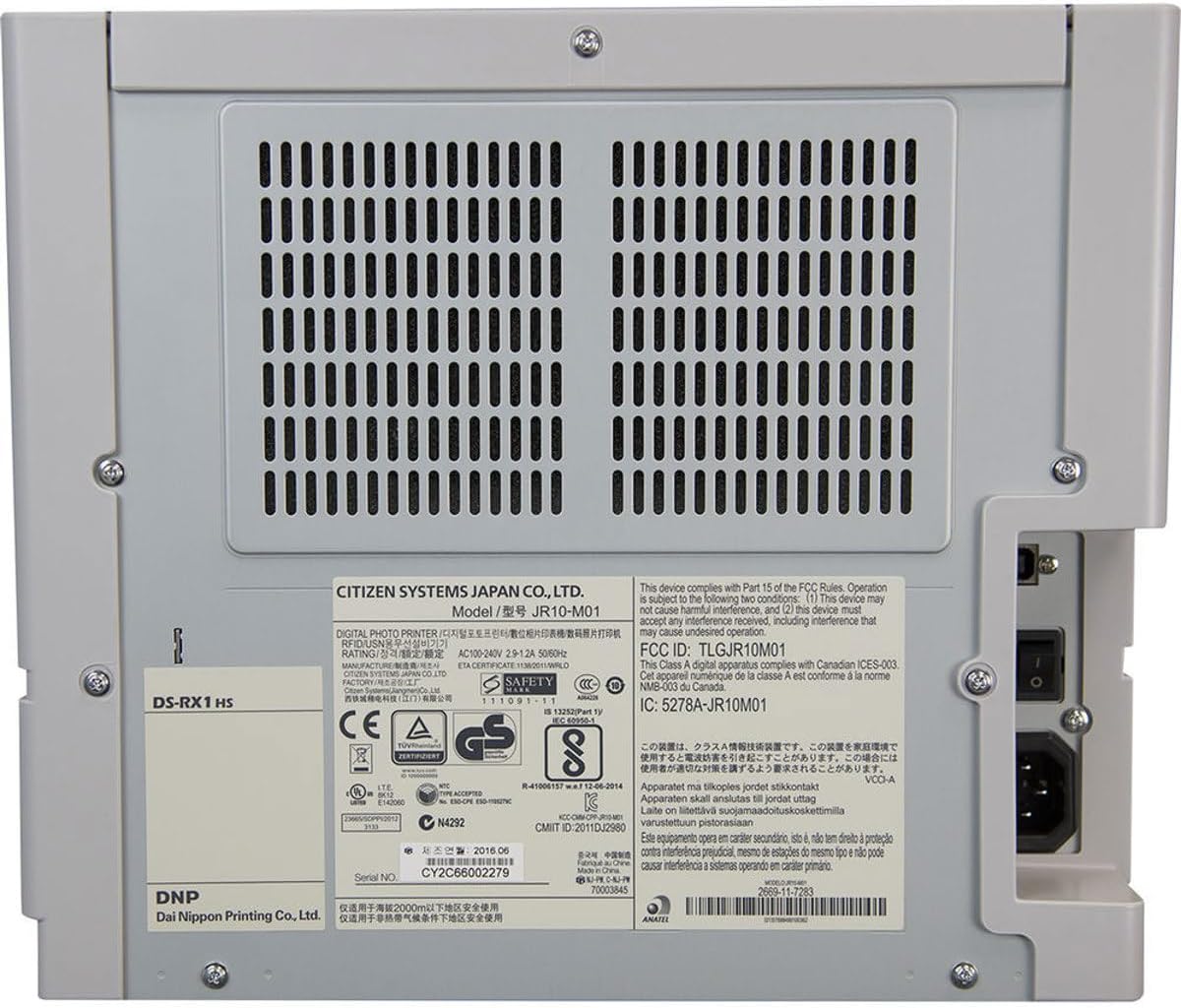
Figi 2: Dèyè view of the DNP DS-RX1HS Photo Printer. This image highlights the power input and USB connectivity port on the back panel.
2.3 Enstalasyon chofè
Install the necessary drivers before operating the printer.
- Pou Windows: Insert the included Printer CD and follow the on-screen instructions to install drivers for Windows OS7 and 8.1. Drivers for newer Windows versions and a printer Status App for RX1HS are available for download from the DNP websit.
- Pou Mac: A Mac OS-X Print Center Driver is available for download from the DNP websit.
2.4 Loading Print Media
The DS-RX1HS uses dye-sublimation media, consisting of a ribbon and glossy photo paper.
- Louvri kouvèti devan aparèy pou enprime a.
- Carefully insert the paper roll into the designated slot.
- Load the ribbon cartridge according to the instructions provided with your media kit. Ensure it is securely seated.
- Fèmen kouvèti devan an.

Figi 3: Enteryè view of the DNP DS-RX1HS Photo Printer with media loaded. This image shows the paper roll and ribbon cartridge installed inside the printer.
2.5 Koneksyon pouvwa
- Connect the power cord to the power input on the rear of the printer.
- Branche lòt bout kòd kouran an nan yon priz elektrik ki apwopriye.
- Press the power button, usually located on the front or side, to turn on the printer. The POWER indicator light should illuminate.
3. Itilizasyon Enprimant lan
Once the printer is set up and drivers are installed, you can begin printing.
3.1 Pwosesis Enpresyon Debaz
- Asire w ke enprimant lan limen epi li konekte ak òdinatè w la.
- Open the image you wish to print using your preferred photo editing or printing software.
- Select the DNP DS-RX1HS as your printer.
- In the print settings, choose your desired print size (e.g., 4x6", 6x8") and quality (300x300dpi or 300x600dpi).
- Initiate the print command. The printer will process and output the photo.
3.2 Print Speed and Sizes
- Vitès enprime: Approximately 12.4 seconds for a 4x6" print and 22 seconds for a 6x8" print.
- Gwosè sipòte: The printer supports 2x6", 4x6", and 6x8" print formats.
3.3 USB iSerial Functionality
The USB iSerial feature allows for simplified management when connecting multiple DS-RX1HS units to a single computer, enhancing productivity for large-scale events. Refer to the DNP website for specific software and setup instructions for this feature.
4. Antretyen
Regular maintenance ensures optimal performance and extends the life of your printer.
4.1 Ranplasman Medya
The printer can produce up to 700 4x6" sheets per roll. Replace the ribbon and paper roll when the media runs out or when prompted by the printer status.
- Louvri kouvèti devan an.
- Remove the used paper roll and ribbon cartridge.
- Install new media as described in Section 2.4.
- Fèmen kouvèti devan an.
4.2 Printhead Cleaning
A printhead cushion is included with the printer. Refer to the DNP official documentation for detailed instructions on printhead cleaning procedures to maintain print quality.
4.3 Netwayaj jeneral
- Siye deyò enprimant lan avèk yon twal mou epi sèk.
- Evite itilize pwodui chimik piman bouk oswa pwodui netwayaj abrazif.
- Ensure no dust or debris accumulates in the media loading area.
NAN. Depanaj
This section addresses common issues you might encounter with your DS-RX1HS printer.
5.1 Endikatè Limyè
The front panel of the printer features several indicator lights to communicate its status.

Figi 4: Devan view of the DNP DS-RX1HS Photo Printer. This image shows the indicator lights for Power, Ribbon, Paper, and Error on the left side of the front panel.
- POUVWA: Endike enprimant lan limen.
- RIBBON: Illuminates when the ribbon needs replacement or is incorrectly installed.
- PAPYE: Illuminates when the paper roll needs replacement or is incorrectly installed.
- ERÈ: Indicates a general error. Refer to the printer's Status App or driver software for specific error codes.
5.2 Pwoblèm komen ak solisyon
| Pwoblèm | Kòz posib | Solisyon |
|---|---|---|
| Enprimant lan pa limen. | Kòd kouran an pa konekte, pwoblèm ak priz kouran an. | Ensure power cord is securely connected to both printer and outlet. Test outlet with another device. |
| "RIBBON" light is on. | Ribbon is empty or incorrectly installed. | Replace the ribbon cartridge or re-install it correctly. |
| "PAPER" light is on. | Paper roll is empty or incorrectly installed. | Replace the paper roll or re-install it correctly. |
| Poor print quality (streaks, incorrect colors). | Dirty printhead, old media, incorrect driver settings. | Clean the printhead (refer to Section 4.2). Replace media. Verify print settings in your software. |
| Odinatè a pa rekonèt enprimant lan. | Incorrect or missing drivers, loose USB connection. | Reinstall drivers (Section 2.3). Check USB cable connection. Try a different USB port or cable. |
For more detailed troubleshooting, consult the DNP Status App for Windows or the official DNP support websit.
6. Espesifikasyon
Key technical specifications for the DNP DS-RX1HS Photo Printer:
| Karakteristik | Detay |
|---|---|
| Non modèl | DS-RX1HS |
| Teknoloji Enpresyon | Dye sublimasyon |
| Sòti enprimant | Koulè |
| Koneksyon Teknoloji | USB 2.0 |
| Sipò pou Medya Gwosè | 2x6", 4x6", 6x8" |
| Kalite Medya Enprime | Papye foto briyan |
| Max Kapasite Fèy Antre | 350 sheets (for 4x6" media) |
| Maximum Print Speed (4x6") | Apeprè. 12.4 segonn |
| Maximum Print Speed (6x8") | Apeprè. 22 segonn |
| Rezolisyon | 300x300dpi (high speed), 300x600dpi |
| Dimansyon pwodwi | 6"D x 290"W x 4"H (Note: The width '290"W' appears to be a data entry anomaly; actual printer width is significantly less.) |
| Pwa atik | 30.8 liv (14 kilogram) |
| Kapasite Depo memwa | 64 MB |
| Konpozan ki enkli | Printer CD, Drivers for Windows OS7 and 8.1, Printhead Cushion, Power Cord (Print Media Not Included) |
7. Garanti ak sipò
For information regarding product warranty, technical support, and additional resources, please contact DNP directly or visit their official websit.
- Manifakti: DNP
- Ofisyèl Websit: Refer to your product packaging or the DNP website for the most current support information and driver downloads.