
Entwodiksyon
This manual provides comprehensive instructions for the Ken-A-Vision 7200HD Video Flex Digital Document Camera. It covers setup, operation, maintenance, and troubleshooting to ensure optimal performance and longevity of your device. Please read this manual thoroughly before using the product.
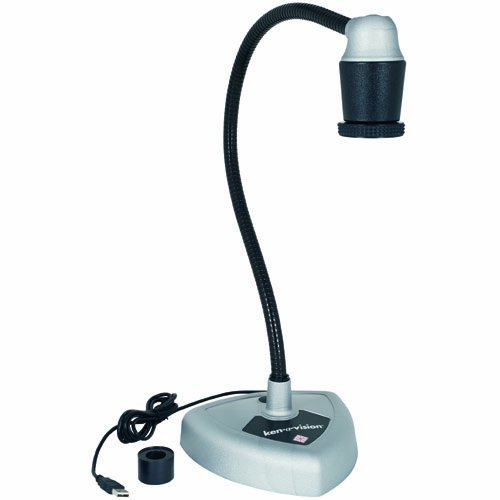
Figure 1: Ken-A-Vision 7200HD Video Flex Digital Document Camera.
This image displays the Ken-A-Vision 7200HD Video Flex Digital Document Camera from a front perspective. It features a flexible black neck extending from a grey triangular base, topped with a black and silver camera head. A USB cable is visible extending from the base.
Kontni pake
Verifye ke tout atik yo prezan nan pakè a:
- Ken-A-Vision 7200HD Video Flex Digital Document Camera
- Mikwoskòp adaptè
- Ka pote
- Discovery Scope Kit
- Applied Vision 4.0 Software (Windows, Mac, Linux compatible)
- USB 2.0 Cable (factory installed, 1.7 m)
Enstalasyon
Debake: Retire tout konpozan yo nan bwat transpò a avèk prekosyon.
Plasman: Place the camera base on a stable, flat surface. Ensure adequate space for the flexible neck and the object being viewed.
Koneksyon USB: Connect the integrated USB 2.0 cable from the camera base to an available USB port on your computer. The device is UVC Driverless, supporting plug-and-play functionality.
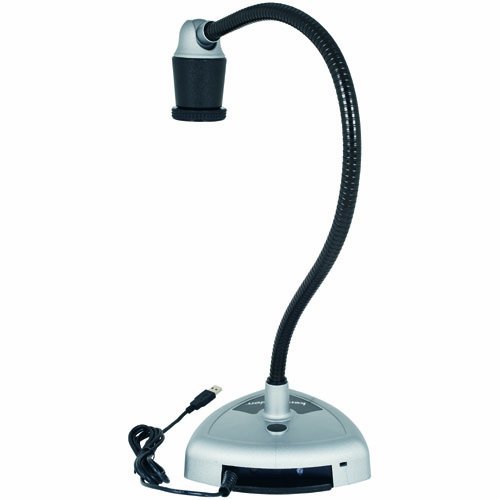
Figure 2: USB Connection Point.
This image shows the rear of the Ken-A-Vision 7200HD base, highlighting the integrated USB cable extending from the unit for connection to a computer.
Enstalasyon lojisyèl: Install the Applied Vision 4.0 software from the provided media or download the latest version from the Ken-A-Vision website. Follow the on-screen instructions for installation. The software is compatible with Windows, Mac, and Linux operating systems.
Enstriksyon Operasyon
Operasyon debaz
Pouvwa sou: The device powers on automatically when connected via USB to a powered computer.
Lanse lojisyèl: Open the Applied Vision 4.0 software on your computer.
Ajiste Viewing Ang: The flexible neck allows for a 180-degree ball and socket head viewing angle. Position the camera head over the object you wish to display.
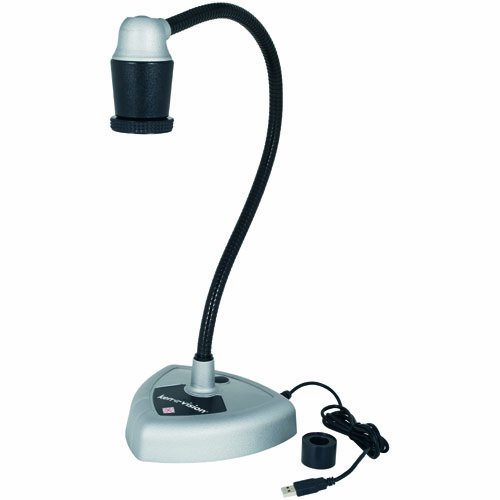
Figure 3: Flexible Neck Adjustment.
Imaj sa a montre yon bò view of the Ken-A-Vision 7200HD, illustrating the flexibility of its neck, which allows for precise positioning of the camera head.
Ajisteman konsantre: The camera features manual focus with a quick-turn focus ring located on the camera head. Rotate the ring until the image on your screen is clear.
Software Features (Applied Vision 4.0)
Zoom dijital: Utilize the software buttons to digitally zoom in on your subject up to 16x magnification.
Negative/Positive: Toggle between negative and positive image modes using the dedicated software buttons.
Wotasyon imaj: Rotate the image 360 degrees in both directions via software controls.
Image Capture/Video Recording: Refer to the Applied Vision 4.0 software manual for detailed instructions on capturing still images and recording video.
Aplikasyon espesyal
Adaptè mikwoskòp: Attach the provided microscope adapter to the camera head to connect the Video Flex to a microscope eyepiece for magnified viewing.
Interactive Whiteboards: The Ken-A-Vision 7200HD is compatible with various interactive whiteboards. Connect the camera to your computer, and the image can be projected and interacted with through your whiteboard software.
Antretyen
Netwaye lantiy la: Use a soft, lint-free cloth specifically designed for optical lenses to gently clean the camera lens. Avoid abrasive materials or harsh chemicals.
Netwaye kò a: Wipe the camera body and flexible neck with a soft, damp cloth. Do not immerse the device in water or use excessive moisture.
Depo: When not in use, store the Ken-A-Vision 7200HD in its provided carrying case to protect it from dust and physical damage. Store in a cool, dry place.
Depanaj
| Pwoblèm | Kòz posib | Solisyon |
|---|---|---|
| No image displayed in software. |
|
|
| Imaj la twoub. |
|
|
| Lojisyèl la plante oswa li bloke. |
|
|
Espesifikasyon
| Karakteristik | Detay |
|---|---|
| Modèl | 7200HD |
| Capteur Imaj | CMOS |
| Konte piksèl | 1920 x 1080 (3.2 megapiksèl) |
| Sòti Rezolisyon | 1080P High Definition |
| To Frame | Default 13 fps at 1280 x 1024; VGA 30 fps at 640 x 480 |
| Koneksyon | USB 2.0 (UVC Driverless) |
| Longè kab USB | 1.7 m (factory installed) |
| Viewing Ang | 180-degree ball and socket head |
| Zoom dijital | Up to 16x (controlled by software) |
| Konsantre | Manual (quick turn focus) |
| Kontwòl Imaj | Negative/Positive, 360-degree rotation (controlled by software) |
| Lojisyèl enkli | Applied Vision 4.0 (Windows, Mac, Linux compatible, free upgrades, unlimited site licenses) |
| Pwodwi pou Telefòn enkli | Microscope adapter, carrying case, discovery scope kit |
| Dimansyon (Pake) | 18.5 x 13.4 x 8.5 pous |
| Pwa (Pakè) | 12.3 liv |
| Koulè | Black, Off-White |
Garanti ak sipò
Enfòmasyon sou Garanti
The Ken-A-Vision 7200HD Video Flex Digital Document Camera comes with a 5-ane garanti limite. Please retain your proof of purchase for warranty claims. For detailed terms and conditions, refer to the warranty documentation included with your product or visit the official Ken-A-Vision websit.
Sipò pou Kliyan
For technical assistance, software updates, or further inquiries, please contact Ken-A-Vision customer support. Contact information can typically be found on the manufacturer's official websit oswa nan anbalaj pwodwi a.