
1. Entwodiksyon
The SteelSeries Sensei Laser Gaming Mouse is designed for precision and customization, catering to both casual and competitive gamers. It features an advanced laser sensor, an ambidextrous design, and extensive customization options through its dedicated software. This manual provides detailed instructions for setup, operation, maintenance, and troubleshooting to ensure optimal performance of your device.

Imaj 1: Anwo-anba view of the SteelSeries Sensei Laser Gaming Mouse, showcasing its sleek grey finish and central scroll wheel.
2. Pake kontni
Tanpri verifye ke tout atik yo prezan nan pakè ou a:
- SteelSeries Sensei Laser Gaming Mouse
- Gid pou kòmanse rapidman (si li enkli)

Image 2: Retail packaging for the SteelSeries Sensei Laser Gaming Mouse, displaying the product name and brand logo.
3. Enstalasyon
3.1 Koneksyon Materyèl
- Unpack the SteelSeries Sensei Laser Gaming Mouse from its packaging.
- Connect the USB cable of the mouse to an available USB port on your computer. The mouse is plug-and-play compatible, and your operating system should automatically detect and install the necessary basic drivers.
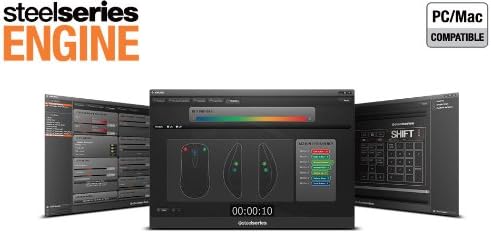
3.2 Software Installation (SteelSeries Engine)
For full customization and advanced features, it is recommended to install the SteelSeries Engine software:
- Visit the official SteelSeries websit (steelseries.com/engine) to download the latest version of the SteelSeries Engine software.
- Swiv enstriksyon ki sou ekran an pou enstale lojisyèl an.
- Once installed, launch the SteelSeries Engine to configure your mouse settings, including CPI, button assignments, macros, and lighting effects.
Imaj 3: Anba view of the SteelSeries Sensei Laser Gaming Mouse, showing the laser sensor and product information label.
4. Itilizasyon Sourit la
4.1 Konsepsyon Anbidèkst
The Sensei mouse features an ambidextrous shape, making it comfortable for both left-handed and right-handed users. The side buttons are mirrored on both sides to accommodate different grip styles and preferences.
4.2 Bouton pwogramasyon
The mouse is equipped with 7 programmable buttons. These buttons can be customized using the SteelSeries Engine software to perform various functions, including:
- Standard mouse clicks (left, right, middle)
- Keyboard key assignments
- Complex macros
- CPI switching

Imaj 4: Kote view of the SteelSeries Sensei Laser Gaming Mouse, highlighting the two programmable side buttons.
4.3 CPI Adjustment
The Sensei mouse allows for on-the-fly CPI (Counts Per Inch) adjustment. The dedicated CPI indicator button, typically located behind the scroll wheel, allows you to cycle between two user-defined CPI settings. These settings can be configured within the SteelSeries Engine software to match your preferred sensitivity levels for different tasks or games.
4.4 Ekleraj
The mouse features three-zone illumination: the scroll wheel, the CPI indicator, and the SteelSeries logo. The color and lighting effects (e.g., steady, pulse) for these zones can be customized through the SteelSeries Engine software.
5. SteelSeries Engine Software
The SteelSeries Engine is a powerful software suite that unlocks the full potential of your Sensei mouse. Key functionalities include:
- Kat bouton: Assign any function, keyboard key, or macro to any of the 7 programmable buttons.
- CPI Settings: Fine-tune and save multiple CPI profiles pou diferan aplikasyon oswa jwèt.
- Macro Editè: Create and manage complex macros for in-game actions or productivity tasks.
- Pousantaj biwo vòt: Ajiste vitès sondaj sourit la pou yon repons optimal.
- Kontwòl ekleraj: Customize LED colors and effects for the scroll wheel, CPI indicator, and logo.
- Profile Jesyon: Kreye epi sove plizyè pwofesyonèlfiles, allowing you to switch between different configurations quickly.
- Mizajou mikrolojisyèl: Keep your mouse's firmware up-to-date for improved performance and new features.

Image 5: Screenshot of the SteelSeries Engine software interface, showing options for button mapping, CPI adjustment, and lighting customization.
6. Antretyen
To ensure the longevity and optimal performance of your SteelSeries Sensei mouse, follow these maintenance guidelines:
- Netwayaj: Sèvi ak yon twal mou epi sèk pou siye sifas sourit la. Pou pousyè tè ki difisil pou retire, yon ti kras siye.amp Ou ka itilize twal, men asire w pa gen imidite ki antre nan sourit la. Evite pwodui chimik ki agresif oswa pwodui netwayaj abrazif.
- Swen Capteur: Keep the laser sensor on the bottom of the mouse clean and free from dust or debris. Use a cotton swab or compressed air if necessary.
- Jesyon kab: Evite pliye byen file oswa rale kab USB a twòp pou anpeche li domaje.
NAN. Depanaj
If you encounter issues with your SteelSeries Sensei mouse, refer to the following common solutions:
- Sourit la pa reponn:
- Asire w ke kab USB a byen konekte ak òdinatè w lan.
- Eseye konekte sourit la nan yon lòt pò USB.
- Rekòmanse òdinatè w lan.
- Inconsistent Tracking:
- Clean the laser sensor on the bottom of the mouse.
- Asire w ke w ap itilize sourit la sou yon sifas ki apwopriye (pa egzanp, yon tapi sourit).
- Check for dust or debris on your mouse pad.
- Bouton pa travay:
- Verify button assignments in the SteelSeries Engine software.
- Ensure the software is running correctly and profiles yo chaje.
- Pwoblèm lojisyèl:
- Update the SteelSeries Engine software to the latest version.
- Reinstall the SteelSeries Engine software.
- Check for any available firmware updates for your mouse within the software.
8. Espesifikasyon
| Karakteristik | Detay |
|---|---|
| Mak | SteelSeries |
| Nimewo Modèl | 62150 |
| Teknoloji deteksyon mouvman | Lazè |
| Koneksyon Teknoloji | USB |
| Koulè | Gri |
| Platfòm pyès ki nan konpitè | PC |
| Sistèm operasyon konpatibilite | All Major PC Operating Systems |
| Pwa atik | 14.6 ons |
| Dimansyon pwodwi (LxWxH) | 7.9 x 6.8 x 2.3 pous |
| Bouton pwogramasyon | 7 |
| Illumination Zones | 3 (Scroll Wheel, CPI Indicator, Logo) |
9. Garanti ak sipò
The SteelSeries Sensei Laser Gaming Mouse is covered by a manufacturer's warranty. For detailed information regarding warranty terms, conditions, and duration, please refer to the warranty card included with your product or visit the official SteelSeries website. For technical support, driver downloads, and frequently asked questions, please visit the SteelSeries support page.
SteelSeries Official Websit: steelseries.com
SteelSeries Support: support.steelseries.com