
1. Entwodiksyon
Thank you for choosing the NEC LCD4215 42-inch MultiSync LCD Monitor. This manual provides essential information for the safe and efficient use of your new display. Please read these instructions thoroughly before installation and operation, and retain them for future reference.
2. Enfòmasyon sou Sekirite
Obsève prekosyon sekirite sa yo pou evite domaje monitè a epi asire sekirite itilizatè a:
- Sous pouvwa: Connect the monitor only to a grounded power outlet with the correct voltage jan sa endike sou etikèt pwodwi a.
- Vantilasyon: Asire w ke gen ase vantilasyon toutotou monitè a. Pa bloke ouvèti vantilasyon yo.
- Ekspozisyon likid: Avoid exposing the monitor to rain, moisture, or excessive humidity. Do not place liquid-filled objects on or near the monitor.
- Netwayaj: Dekonekte kòd kouran an anvan ou netwaye li. Sèvi ak yon twal mou epi sèk. Evite pwodui netwayaj likid oswa ayewosòl.
- Sèvis: Pa eseye fè sèvis pwodui sa a tèt ou. Refere tout sèvis yo bay pèsonèl sèvis kalifye.
- Plasman: Mete monitè a sou yon sifas ki estab e plat pou anpeche l tonbe.
3. Pake kontni
Verify that all items are present in the package. If any items are missing or damaged, contact your dealer immediately.
- NEC LCD4215 42-inch MultiSync LCD Monitor
- Kòd pouvwa
- VGA kab
- Kontwòl Remote ak pil
- Manyèl Itilizatè (dokiman sa a)
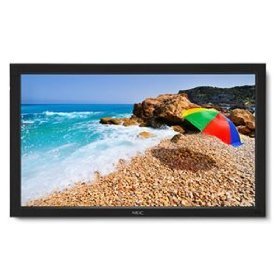
Image: The NEC LCD4215 42-inch MultiSync LCD Monitor, shown from the front with its stand. This image represents the primary display unit.
4. Enstalasyon
4.1 Debake
- Carefully open the packaging and remove the monitor and accessories.
- Place the monitor face down on a soft, clean surface to avoid scratching the screen.
4.2 Stand/Mounting Installation
The monitor can be used with its included desktop stand or mounted using a VESA-compatible wall mount (sold separately).
4.2.1 Desktop Stand Installation
- Tache baz sipò a nan kou sipò a avèk vis yo bay yo.
- Secure the assembled stand to the back of the monitor using the designated mounting points and screws.
- Leve monitè a avèk prekosyon epi mete l sou yon sifas ki estab e ki plat.
4.2.2 Montaj sou miray (opsyonèl)
If using a VESA-compatible wall mount, follow the instructions provided with your wall mount kit. Ensure the mount supports the weight and VESA pattern of the NEC LCD4215 monitor.
4.3 Konekte kab
Before connecting any cables, ensure the monitor and all connected devices are powered off.
- Kab Videyo: Connect one end of the appropriate video cable (VGA, DVI, HDMI, etc.) to the video output port of your computer or media device and the other end to the corresponding input port on the monitor.
- Audio Cable (Optional): If using the monitor's internal speakers or audio output, connect an audio cable from your source device to the monitor's audio input.
- Kab pouvwa: Connect the power cord to the monitor's AC input and then plug the other end into a grounded electrical outlet.
5. Operasyon Enstriksyon
5.1 Limen/Etenyen
- Press the power button on the front panel of the monitor or on the remote control to turn the monitor on. The power indicator light will illuminate.
- Pou fèmen monitè a, peze bouton pouvwa a ankò.
5.2 Seleksyon Antre
The monitor can display content from multiple sources. To switch between inputs:
- Press the 'Input' or 'Source' button on the remote control or the monitor's control panel.
- Use the navigation buttons to select the desired input source (e.g., VGA, DVI, HDMI).
- Press 'Enter' or 'OK' to confirm your selection.
5.3 Paramèt debaz ekspozisyon yo
Access the On-Screen Display (OSD) menu to adjust various settings:
- Press the 'Menu' button on the remote control or the monitor's control panel.
- Use the navigation buttons (Up/Down/Left/Right) to browse through menu options such as 'Brightness', 'Contrast', 'Color Temperature', and 'Aspect Ratio'.
- Press 'Enter' or 'OK' to select an option and adjust its value.
- Press 'Menu' again to exit the OSD menu.
6. Antretyen
6.1 Netwaye Display la
To maintain optimal display quality, clean the screen and casing regularly:
- Toujou etenn epi debranche monitè a anvan ou netwaye li.
- Sèvi ak yon ti moso twal mou, ki san pèl dampened with water or a non-abrasive, ammonia-free, and alcohol-free screen cleaner.
- Siye ekran an dousman epi casing. Do not apply excessive pressure.
- Evite flite likid dirèkteman sou ekran an oswa nan nenpòt ouvèti.
6.2 Depo
If storing the monitor for an extended period, ensure it is powered off, unplugged, and stored in a cool, dry place away from direct sunlight and extreme temperatures. Use the original packaging if available for protection.
NAN. Depanaj
Before contacting customer support, refer to the following table for common issues and their solutions:
| Pwoblèm | Kòz posib | Solisyon |
|---|---|---|
| Pa gen imaj sou ekran an | Monitor not powered on; Video cable loose or disconnected; Incorrect input source selected. | Press the power button; Check video cable connections; Select the correct input source. |
| Imaj twò fonse/klere | Paramèt klète/kontras yo pa kòrèk. | Adjust 'Brightness' and 'Contrast' in the OSD menu. |
| Pa gen odyo | Kab odyo a dekonekte; Volim nan twò ba; Mizik la sou silans. | Check audio cable connection; Increase volume; Unmute audio. |
| Imaj k ap tranble | Video cable faulty; Resolution/Refresh rate mismatch. | Replace video cable; Adjust display settings on your computer. |
8. Espesifikasyon
Detailed technical specifications for the NEC LCD4215 MultiSync LCD Monitor:
| Karakteristik | Spesifikasyon |
|---|---|
| Nimewo Modèl | LCD4215 |
| Gwosè ekran | 42 pous |
| Rezolisyon ekran maksimòm | 1366 x 768 |
| Aspè rapò | 1.78:1 |
| Pwa atik | 47 liv |
| Dimansyon pwodwi (LxWxH) | 44 x 27.5 x 9.25 pous |
| Koulè | Nwa |
| Manifakti | Nec Computers |
| Dat Premye Disponib | 31 jiyè 2008 |
9. Garanti ak sipò
9.1 Enfòmasyon sou Garanti
This NEC LCD4215 monitor comes with a standard manufacturer's warranty. Please refer to the separate warranty card included in your product packaging for specific terms, conditions, and duration of coverage. Keep your proof of purchase for warranty claims.
9.2 Sipò pou Kliyan
For technical assistance, troubleshooting beyond this manual, or warranty service, please contact NEC customer support. Visit the official NEC websit la pou jwenn enfòmasyon kontak ki pi ajou yo, tankou nimewo telefòn ak resous sipò sou entènèt.
Websit: www.nec.com