
Entwodiksyon
This manual provides essential instructions for the installation, operation, maintenance, and troubleshooting of the IBM 49P1599 FRU System Board. This system board is designed for personal computers, featuring a 400/533 Front Side Bus, integrated 10/100 Ethernet, and support for DDR2 memory.
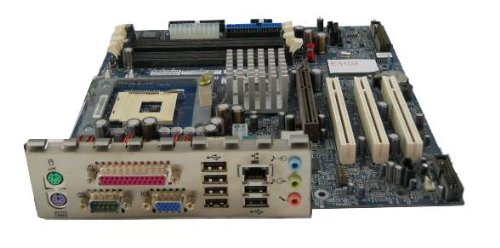
Image: The IBM 49P1599 FRU System Board. This image displays the main components and layout of the motherboard, including CPU socket, memory slots, and various connectors.
Enstalasyon ak Enstalasyon
Careful installation is crucial for the proper functioning of your system board. Always handle the board by its edges to avoid static discharge.
1. Preparasyon pou Enstalasyon
- Ensure your computer case is compatible with the system board's form factor.
- Rasanble zouti ou bezwen yo: tournevis Phillips, braslè ponyèt anti-estatik.
- Unplug the power supply from the wall outlet before beginning.
2. Installing the System Board
- Enstale pwoteksyon E/S la nan ouvèti dèyè bwat òdinatè w la.
- Carefully align the system board with the standoffs in the case.
- Secure the system board with screws, ensuring it is firmly seated.
3. Enstalasyon Konpozan yo
Processeur (CPU)
This system board is supplied without a processor. Refer to your CPU's manual for specific installation instructions. Ensure the CPU is correctly oriented in the socket before securing the retention lever.
memwa (RAM)
The board supports DDR2 RAM and has 2 memory slots.
- Louvri klip yo nan tou de bout fant memwa a.
- Aliyen modil memwa a ak fant lan, asire w ke dan ki sou modil la koresponn ak kle ki nan fant lan.
- Press down firmly on both ends of the module until the clips snap into place.
Kat grafik
The system board features an Integrated Graphics Card Interface and a PCI-Express x16 slot for dedicated graphics cards.
- Locate the PCI-Express x16 slot.
- Retire kouvèti plas ekspansyon ki koresponn lan nan bwat ou a.
- Insert the graphics card firmly into the slot until it clicks. Secure it with a screw to the case.
4. Konekte Câbles
- Konektè pouvwa: Connect the main 24-pin ATX power connector and the 4-pin CPU power connector from your power supply to the system board.
- Aparèy SATA yo: Connect SATA 3 data cables from your storage devices (hard drives, SSDs) to the SATA ports on the system board.
- Konektè panèl devan: Connect the power button, reset button, HDD LED, power LED, and USB ports from your case to the corresponding headers on the system board. Refer to the board's silkscreen labels for correct orientation.
- Ethernet: The board has integrated 10/100 Ethernet. Connect your network cable to the RJ-45 port on the I/O panel.
Enstriksyon Operasyon
After completing the physical installation, you can proceed with the initial boot and operating system setup.
1. Initial Boot
- Asire w ke tout eleman yo byen konekte.
- Konekte monitè ou, klavye ou, ak sourit ou.
- Plug in the power supply and turn on the system.
- The system should power on, and you should see a display on your monitor.
2. Enstalasyon BIOS/UEFI
During the initial boot sequence, press the designated key (commonly DEL, F2, F10, or F12) to enter the BIOS/UEFI setup utility. Here you can configure boot order, system time, and other hardware settings. Save changes before exiting.
3. Enstalasyon Sistèm Operasyon an
This system board is compatible with platforms such as Windows 10. Insert your operating system installation media (USB drive or DVD) and follow the on-screen prompts to install the operating system. Ensure all necessary drivers for the system board components are installed after the OS installation.
Antretyen
Regular maintenance helps ensure the longevity and stable performance of your system board.
- Netwayaj: Periodically clean dust from the system board and components using compressed air. Ensure the system is powered off and unplugged before cleaning.
- Mizajou BIOS: Check the official IBM support website for BIOS updates. BIOS updates can improve compatibility, stability, and performance. Follow the provided instructions carefully when updating the BIOS.
- Verifikasyon Konpozan: Ensure all cables and components remain securely connected.
Depanaj
Si ou rankontre pwoblèm, gade etap depanaj komen sa yo:
Pa gen pouvwa
- Verify the power supply is connected to the wall outlet and turned on.
- Check that the 24-pin and 4-pin power connectors are securely attached to the system board.
- Ensure the front panel power button cable is correctly connected to the system board header.
Pa gen ekspozisyon
- Confirm the monitor is powered on and connected to the correct video output (either integrated or dedicated graphics card).
- Reseat the graphics card (if applicable) and memory modules.
- Test with a different monitor or video cable if possible.
Sistèm nan pa ka demarre
- Check for any loose cables or components.
- Ensure the CPU is properly seated and its cooler is installed correctly.
- Try booting with only one memory module installed, rotating through the modules and slots to identify a faulty one.
- Reset the BIOS to default settings (refer to your system board's specific instructions for clearing CMOS).
Espesifikasyon
Garanti ak sipò
For warranty information and technical support, please refer to the official IBM website or contact your point of purchase. Keep your proof of purchase for warranty claims. IBM provides resources and support for its products to ensure customer satisfaction.
Pou plis asistans, vizite IBM Sipò websit.
Dokiman ki gen rapò - 49P1599 FRU
| Karakteristik | Spesifikasyon |
|---|---|
| Nimewo Modèl | 49P1599 FRU |
| Bis bò devan (FSB) | 400/533 MHz |
| Teknoloji memwa RAM | DDR2 |
| Vitès revèy memwa | 2133 MHz |
| Fant memwa ki disponib | 2 |
| Entèfas kat grafik | Integrated, PCI-Express x16 |
| Sistèm Bus Standard Sipòte | SATA 3 |
| Integrated Ethernet | 10/100 Mbps |
| Aparèy konpatib | Odinatè pèsonèl |
| Platfòm konpatibilite | Windows 10 |
| Pwa atik | 8 liv |
 |
IBM ThinkPad s30 & s31 Hardware Maintenance Manual: Service and Repair Guide This comprehensive hardware maintenance manual provides detailed service, reference, and parts information for the IBM ThinkPad s30 and s31 laptop models. It includes troubleshooting guides, FRU replacement procedures, and diagnostic information for technicians. |
 |
IBM Tivoli Netcool/OMNIbus Probe for Message Bus 14.0 Reference Guide Comprehensive reference guide for the IBM Tivoli Netcool/OMNIbus Probe for Message Bus 14.0. Learn about installation, configuration, transport modules, and event source integrations. |
 |
IBM Personal Computer 5150 Technical Overview Yon fini teknikview and specification guide for the IBM PC 5150, featuring details on hardware components, expansion cards, and peripherals. |
 |
IBM Cognos Software Development Kit Version 11.1.0 Developer Guide Comprehensive developer guide for the IBM Cognos Software Development Kit, version 11.1.0. Learn about API usage, integration, customization, security, deployment, and troubleshooting for IBM's business intelligence platform. |
 |
IBM 5150 Technical Reference This technical reference manual provides detailed hardware design, interface information, and BIOS support for the IBM 5150 Personal Computer. It is intended for programmers and engineers involved in hardware and software design. |
 |
Gid Jesyon Tan IBM i Yon gid konplè pou jere tan, zòn tan, ak lè ete (DST) sou sistèm IBM i, ki kouvri konfigirasyon, senkronizasyon, ak depanaj. |
Ask a question about this manual
Ask about setup, troubleshooting, compatibility, parts, safety, or missing instructions. Manuals+ will review the question and use this page’s manual context to help answer it.